Guaranteed Hits to your web site!


Learn Visual Basic 6.0


3. Exploring the Visual Basic Toolbox


Example 3-1: Password Validation

  1. Start a new project. The idea of this project is to ask the user to input a password. If correct, a message box appears to validate the user. If incorrect, other options are provided.

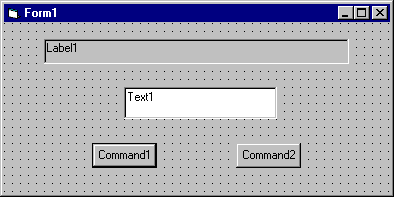
  2. Place a two command buttons, a label box, and a text box on your form so it looks something like this:


    Password Validation


  3. Set the properties of the form and each object.

    Form1: BorderStyle 1-Fixed Single
    Caption Password Validation
    Name frmPassword
    Label1: Alignment 2-Center
    BorderStyle 1-Fixed Single
    Caption Please Enter Your Password:
    FontSize 10
    FontStyle Bold
    Text1: FontSize 14
    FontStyle Regular
    Name txtPassword
    PasswordChar *
    Tag [Whatever you choose as a password]
    Text [Blank]
    Command1: Caption &Validate
    Default True
    Name cmdValid
    Command2: Cancel True
    Caption E&xit
    Name cmdExit

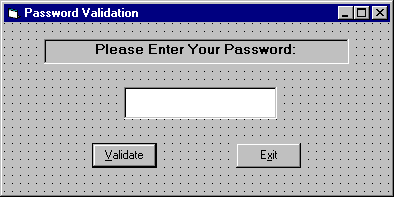
    Your form should now look like this:


    Password Validation


  4. Attach the following code to the cmdValid_Click event.

    Private Sub cmdValid_Click()
      'This procedure checks the input password
      Dim Response As Integer
      If txtPassword.Text = txtPassword.Tag Then
        'If correct, display message box
        MsgBox "You've passed security!", vbOKOnly + vbExclamation, "Access Granted"
      Else
        'If incorrect, give option to try again
        Response = MsgBox("Incorrect password", vbRetryCancel + vbCritical, "Access Denied")
        If Response = vbRetry Then
          txtPassword.SelStart = 0
          txtPassword.SelLength = Len(txtPassword.Text)
        Else
          End
        End If
      End If
      txtPassword.SetFocus
    End Sub


    This code checks the input password to see if it matches the stored value. If so, it prints an acceptance message. If incorrect, it displays a message box to that effect and asks the user if they want to try again. If Yes (Retry), another try is granted. If No (Cancel), the program is ended. Notice the use of SelLength and SelStart to highlight an incorrect entry. This allows the user to type right over the incorrect response.

  5. Attach the following code to the Form_Activate event.

    Private Sub Form_Activate()
      txtPassword.SetFocus
    End Sub


  6. Attach the following code to the cmdExit_ Click event.

    Private Sub cmdExit_Click()
      End
    End Sub


  7. Try running the program. Try both options: input correct password (note it is case sensitive) and input incorrect password. Save your project.

    If you have time, define a constant, TRYMAX = 3, and modify the code to allow the user to have just TRYMAX attempts to get the correct password. After the final try, inform the user you are logging him/her off. You�ll also need a variable that counts the number of tries (make it a Static variable).


Pen Line


Counter Hit Counter Hit


This Homepage is special brought to you by CK Tan
Hosted by www.Geocities.ws

1