|
|
|
|
|
Learn Visual Basic 6.0 |
|
|
|
|
|
Learn Visual Basic 6.0 |
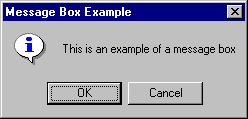
| Message | Text message to be displayed |
| Type | Type of message box (discussed in a bit) |
| Title | Text in title bar of message box |
| Value | Meaning | Symbolic Constant |
| 0 | OK button only | vbOKOnly |
| 1 | OK/Cancel buttons | vbOKCancel |
| 2 | Abort/Retry/Ignore buttons | vbAbortRetryIgnore |
| 3 | Yes/No/Cancel buttons | vbYesNoCancel |
| 4 | Yes/No buttons | vbYesNo |
| 5 | Retry/Cancel buttons | vbRetryCancel |
| Value | Meaning | Symbolic Constant |
| 0 | No icon | (None) |
| 16 | Critical icon | vbCritical |
| 32 | Question mark | vbQuestion |
| 48 | Exclamation point | vbExclamation |
| 64 | Information icon | vbInformation |
| Value | Meaning | Symbolic Constant |
| 0 | First button default | vbDefaultButton1 |
| 256 | Second button default | vbDefaultButton2 |
| 512 | Third button default | vbDefaultButton3 |
| Value | Meaning | Symbolic Constant |
| 0 | Application modal | vbApplicationModal |
| 4096 | System modal | vbSystemModal |
| Value | Meaning | Symbolic Constant |
| 1 | OK button selected | vbOK |
| 2 | Cancel button selected | vbCancel |
| 3 | Abort button selected | vbAbort |
| 4 | Retry button selected | vbRetry |
| 5 | Ignore button selected | vbIgnore |
| 5 | Yes button selected | vbYes |
| 5 | No button selected | vbNo |