3. Exploring the Visual Basic Toolbox
Example 3-3: Flight Planner
- Start a new project. In this example, you select a destination city,
a seat location, and a meal preference for airline passengers.
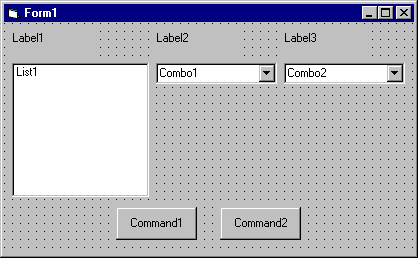
- Place a list box, two combo boxes, three label boxes and two command
buttons on the form. The form should appear similar to this:
- Set the form and object properties:
| Form1: |
BorderStyle |
1-Fixed Single |
|
Caption |
Flight Planner |
|
Name |
frmFlight |
| List1: |
Name |
lstCities |
|
Sorted |
True |
| Combo1: |
Name |
cboSeat |
|
Style |
2-Dropdown List |
| Combo2: |
Name |
cboMeal |
|
Style |
1-Simple |
|
Text |
[Blank] |
(After setting properties for this combo box, resize it until it is large
enough to hold 4 to 5 entries.)
| Label1: |
Caption |
Destination City |
| Label2: |
Caption |
Seat Location |
| Label3: |
Caption |
Meal Preference |
| Command1: |
Caption |
&Assign |
|
Name |
cmdAssign |
| Command2: |
Caption |
E&xit |
|
Name |
cmdExit |
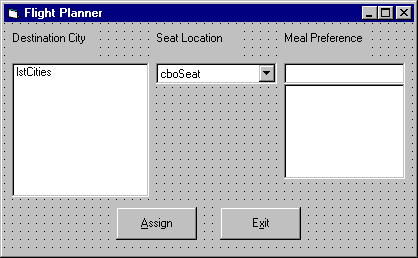
Now, the form should look like this:
- Attach this code to the Form_Load procedure:
Private Sub Form_Load()
�Add city names to list box
lstCities.Clear
lstCities.AddItem "San Diego"
lstCities.AddItem "Los Angeles"
lstCities.AddItem "Orange County"
lstCities.AddItem "Ontario"
lstCities.AddItem "Bakersfield"
lstCities.AddItem "Oakland"
lstCities.AddItem "Sacramento"
lstCities.AddItem "San Jose"
lstCities.AddItem "San Francisco"
lstCities.AddItem "Eureka"
lstCities.AddItem "Eugene"
lstCities.AddItem "Portland"
lstCities.AddItem "Spokane"
lstCities.AddItem "Seattle"
lstCities.ListIndex = 0
�Add seat types to first combo box
cboSeat.AddItem "Aisle"
cboSeat.AddItem "Middle"
cboSeat.AddItem "Window"
cboSeat.ListIndex = 0
�Add meal types to second combo box
cboMeal.AddItem "Chicken"
cboMeal.AddItem "Mystery Meat"
cboMeal.AddItem "Kosher"
cboMeal.AddItem "Vegetarian"
cboMeal.AddItem "Fruit Plate"
cboMeal.Text = "No Preference"
End Sub
This code simply initializes the list box and the list box portions
of the two combo boxes.
- Attach this code to the cmdAssign_Click event:
Private Sub cmdAssign_Click()
�Build message box that gives your assignment
Dim Message As String
Message = "Destination: " + lstCities.Text + vbCr
Message = Message + "Seat Location: " + cboSeat.Text + vbCr
Message = Message + "Meal: " + cboMeal.Text + vbCr
MsgBox Message, vbOKOnly + vbInformation, "Your Assignment"
End Sub
When the Assign button is clicked, this code forms a message box
message by concatenating the selected city (from the list box
lstCities), seat choice (from cboSeat), and the meal
preference (from cboMeal).
- Attach this code to the cmdExit_Click event:
Private Sub cmdExit_Click()
End Sub
- Run the application. Save the project.
Counter Hit
This Homepage is special brought to you by CK Tan