Guaranteed Hits to your web site!


Learn Visual Basic 6.0


3. Exploring the Visual Basic Toolbox


Example 3-2: Pizza Order

  1. Start a new project. We'll build a form where a pizza order can be entered by simply clicking on check boxes and option buttons.

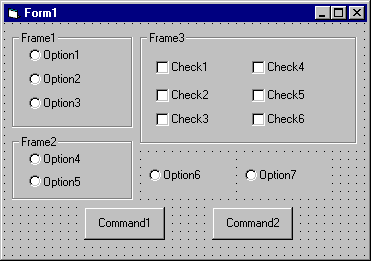
  2. Draw three frames. In the first, draw three option buttons, in the second, draw two option buttons, and in the third, draw six check boxes. Draw two option buttons on the form. Add two command buttons. Make things look something like this.


    Pizza Order


  3. Set the properties of the form and each control.

    Form1: BorderStyle 1-Fixed Single
    Caption Pizza Order
    Name frmPizza
    Frame1: Caption Size
    Frame2: Caption Crust Type
    Frame3: Caption Toppings
    Option1: Caption Small
    Name optSize
    Value True
    Option2: Caption Medium
    Name optSize (yes, create a control array)
    Option3: Caption Large
    Name optSize
    Option4: Caption Thin Crust
    Name optCrust
    Value True
    Option5: Caption Thick Crust
    Name optCrust (yes, create a control array)
    Option6: Caption Eat In
    Name optWhere
    Value True
    Option7: Caption Take Out
    Name optWhere (yes, create a control array)
    Check1: Caption Extra Cheese
    Name chkTop
    Check2: Caption Mushrooms
    Name chkTop (yes, create a control array)
    Check3: Caption Black Olives
    Name chkTop
    Check4: Caption Onions
    Name chkTop
    Check5: Caption Green Peppers
    Name chkTop
    Check6: Caption Tomatoes
    Name chkTop
    Command1: Caption &Build Pizza
    Name cmdBuild
    Command2: Caption E&xit
    Name cmdExit

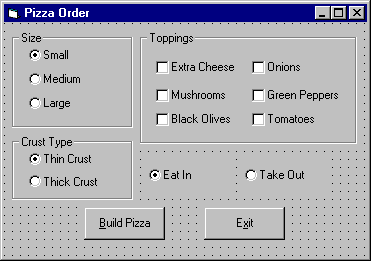
    The form should look like this now:


    Pizza Order


  4. Declare the following variables in the general declarations area:

    Option Explicit
    Dim PizzaSize As String
    Dim PizzaCrust As String
    Dim PizzaWhere As String


    This makes the size, crust, and location variables global to the form.

  5. Attach this code to the Form_Load procedure. This initializes the pizza size, crust, and eating location.

    Private Sub Form_Activate()
      'Initialize pizza parameters
      PizzaSize = "Small"
      PizzaCrust = "Thin Crust"
      PizzaWhere = "Eat In"
    End Sub


    Here, the global variables are initialized to their default values, corresponding to the default option buttons.

  6. Attach this code to the three option button array Click events. Note the use of the Index variable:

    Private Sub optSize_Click(Index As Integer)
      �Read pizza size
      PizzaSize = optSize(Index).Caption
    End Sub


    Private Sub optCrust_Click(Index As Integer)
      �Read crust type
      PizzaCrust = optCrust(Index).Caption
    End Sub


    Private Sub optWhere_Click(Index As Integer)
      �Read pizza eating location
      PizzaWhere = optWhere(Index).Caption
    End Sub


    In each of these routines, when an option button is clicked, the value of the corresponding button�s caption is loaded into the respective variable.

  7. Attach this code to the cmdBuild_Click event.

    Private Sub cmdBuild_Click()
      'This procedure builds a message box that displays your pizza type
      Dim Message As String
      Dim I As Integer
      Message = PizzaWhere + vbCr
      Message = Message + PizzaSize + " Pizza" + vbCr
      Message = Message + PizzaCrust + vbCr
      For I = 0 To 5
        If chkTop(I).Value = vbChecked Then Message = Message + chkTop(I).Caption + vbCr
      Next I
      MsgBox Message, vbOKOnly, "Your Pizza"
    End Sub


    This code forms the first part of a message for a message box by concatenating the pizza size, crust type, and eating location (vbCr is a symbolic constant representing a �carriage return� that puts each piece of ordering information on a separate line). Next, the code cycles through the six topping check boxes and adds any checked information to the message. The code then displays the pizza order in a message box.

  8. Attach this code to the cmdExit_Click event.

    Private Sub cmdExit_Click()
      End
    End Sub


  9. Get the application working. Notice how the different selection buttons work in their individual groups. Save your project.

  10. If you have time, try these modifications:


Pen Line


Counter Hit Counter Hit


This Homepage is special brought to you by CK Tan
Hosted by www.Geocities.ws

1