Guaranteed Hits to your web site!


Learn Visual Basic 6.0


2. The Visual Basic Language


Example 2-1: Savings Account

  1. Start a new project. The idea of this project is to determine how much you save by making monthly deposits into a savings account. For those interested, the mathematical formula used is:
    where
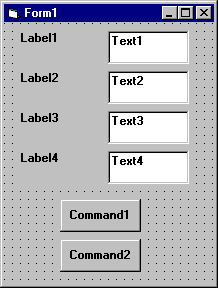
  2. Place 4 label boxes, 4 text boxes, and 2 command buttons on the form. It should look something like this:


    Saving Account


  3. Set the properties of the form and each object.

    Form1: BorderStyle 1-Fixed Single
    Caption Savings Account
    Name frmSavings
    Label1: Caption Monthly Deposit
    Label2: Caption Yearly Interest
    Label3: Caption Number of Months
    Label4: Caption Final Balance
    Text1: Text [Blank]
    Name txtDeposit
    Text2: Text [Blank]
    Name txtInterest
    Text3: Text [Blank]
    Name txtMonths
    Text4: Text [Blank]
    Name txtFinal
    Command1: Caption &Calculate
    Name cmdCalculate
    Command2: Caption E&xit
    Name cmdExit


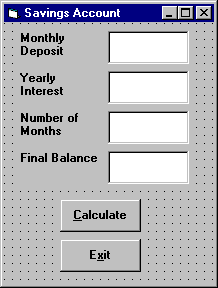
    Now, your form should look like this:


    Saving Account


  4. Declare four variables in the general declarations area of your form. This makes them available to all the form procedures:

    Option Explicit
    Dim Deposit As Single
    Dim Interest As Single
    Dim Months As Single
    Dim Final As Single


    The Option Explicit statement forces us to declare all variables.

  5. Attach code to the cmdCalculate command button Click event.

    Private Sub cmdCalculate_Click ()
      Dim IntRate As Single
      �Read values from text boxes
      Deposit = Val(txtDeposit.Text)
      Interest = Val(txtInterest.Text)
      IntRate = Interest / 1200
      Months = Val(txtMonths.Text)
      �Compute final value and put in text box
      Final = Deposit * ((1 + IntRate) ^ Months - 1) / IntRate
      txtFinal.Text = Format(Final, "#####0.00")
    End Sub


    This code reads the three input values (monthly deposit, interest rate, number of months) from the text boxes, computes the final balance using the provided formula, and puts that result in a text box.

  6. Attach code to the cmdExit command button Click event.

    Private Sub cmdExit_Click ()
      End
    End Sub


  7. Play with the program. Make sure it works properly. Save the project.


Pen Line


Counter Hit Counter Hit


This Homepage is special brought to you by CK Tan
Hosted by www.Geocities.ws

1