1. Introduction to the Visual Basic Language and Environment
Drawing the User Interface and Setting Properties
Visual Basic operates in three modes.
Design mode - used to build application
Run mode - used to run the application
Break mode - application halted and debugger is available
We focus here on the design mode.
Six windows appear when you start Visual Basic.
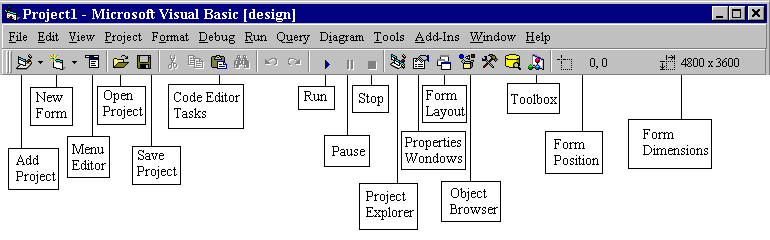
The Main Window consists of the title bar, menu bar, and
toolbar. The title bar indicates the project name, the current Visual
Basic operating mode, and the current form. The menu bar has drop-down
menus from which you control the operation of the Visual Basic environment.
The toolbar has buttons that provide shortcuts to some of the menu options.
The main window also shows the location of the current form relative to
the upper left corner of the screen (measured in twips) and the width and
length of the current form.
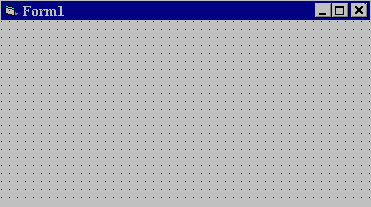
The Form Window is central to developing Visual Basic
applications. It is where you draw your application.
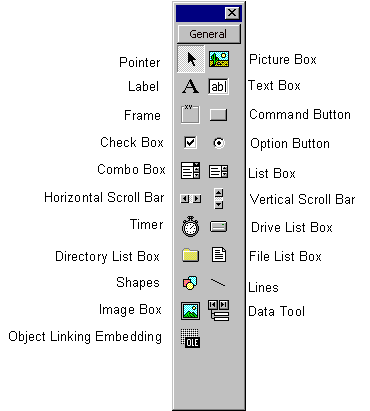
The Toolbox is the selection menu for controls used in
your application.
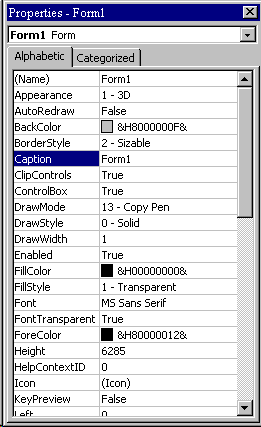
The Properties Window is used to establish initial property
values for objects. The drop-down box at the top of the window lists
all objects in the current form. Two views are available: Alphabetic
and Categorized. Under this box are the available properties for the
currently selected object.
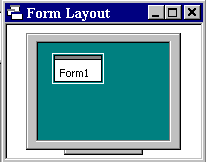
The Form Layout Window shows where (upon program execution)
your form will be displayed relative to your monitor�s screen:
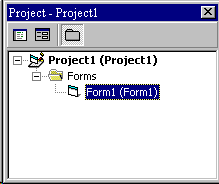
The Project Window displays a list of all forms and modules
making up your application. You can also obtain a view of the Form
or Code windows (window containing the actual Basic coding) from
the Project window.
As mentioned, the user interface is �drawn� in the form window. There are
two ways to place controls on a form:
Double-click the tool in the toolbox and it is created with a
default size on the form. You can then move it or resize it.
Click the tool in the toolbox, then move the mouse pointer to
the form window. The cursor changes to a crosshair. Place the crosshair
at the upper left corner of where you want the control to be, press the
left mouse button and hold it down while dragging the cursor toward the
lower right corner. When you release the mouse button, the control is
drawn.
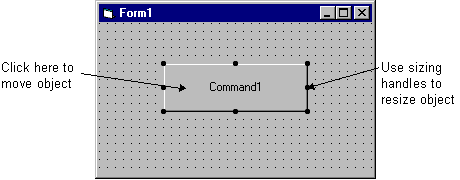
To move a control you have drawn, click the object in the form
window and drag it to the new location. Release the mouse button.
To resize a control, click the object so that it is select and
sizing handles appear. Use these handles to resize the object.