| Creating a Scramdisk container - Part 2 |
|
|
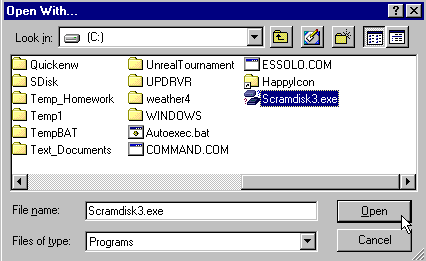
NOTE: The first time you click onto an .svl extension you will be prompted with 'Open With'. If you do not see Scramdisk (as in below) you can click onto the 'Other' button to browse for Scramdisk (which should be in C:\Scramdisk)  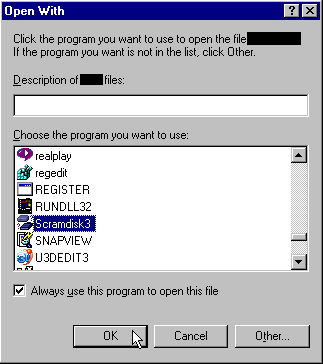
 12. - To open my newly created encrypted file (also called a container) I just go to my SDisk folder and click onto 550.svl  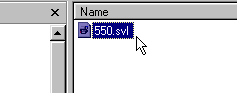 13. - You will then be prompted to enter your password.  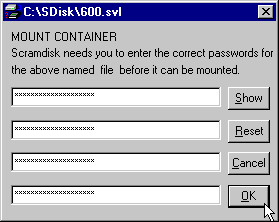 14. - Once the correct password is entered it will open your encrypted container as a new drive. In my case it took the next available drive letter which was 'G'.  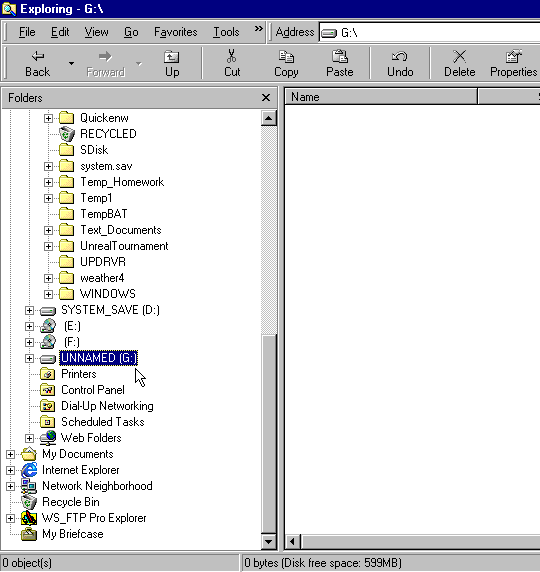 15. - You can now drag and drop in Explorer. 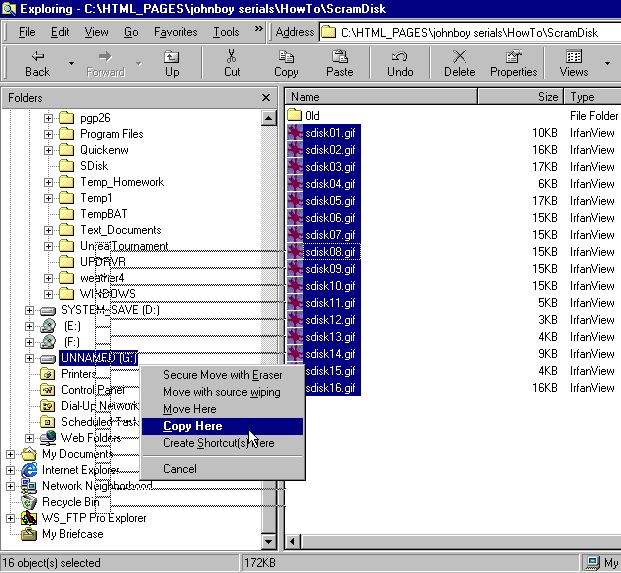 16. - Now when I click 'drive G' my .gif's are there to use as I need. 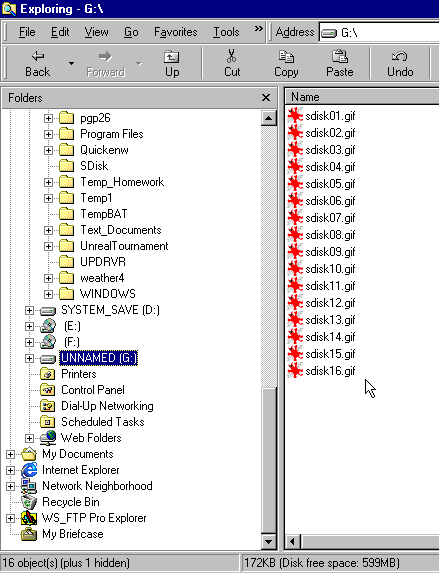 |
| back up |