| FTP With WS_FTP Pro |
|
1. - In this example I will download from Microsoft's FTP site. Open WS_FTP Pro. Next click on "NEW"  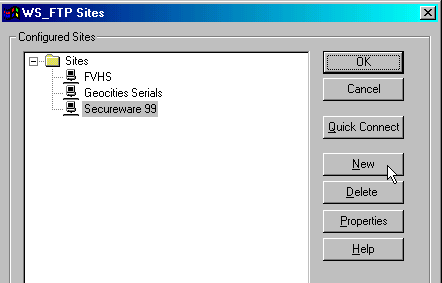 2. - I name this "Microsoft" although it can be anything you want. 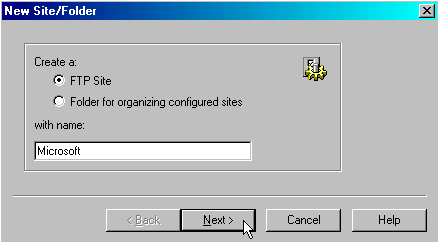 3. - Next enter the ftp address, in this case it is ftp.microsoft.com 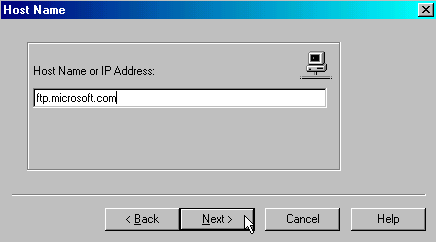 4. - Nearly all public ftp sites you will log on as anonymous. Then enter any e-mail address you want (check save password). 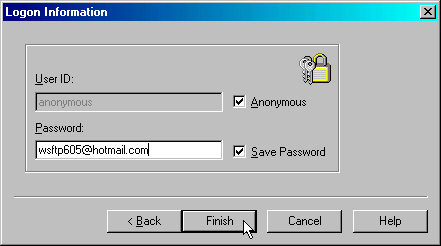 5. - Now you can double click "Microsoft" or click the "OK" button. 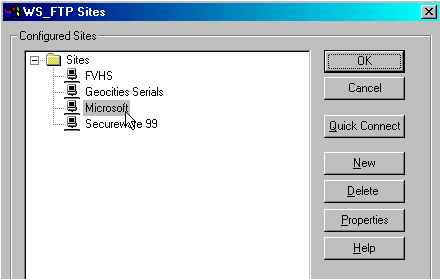 6. - Now I am in Micrsoft's ftp site. I now go into products folder. (You don't see this but after "products" I go into /windows/windows95/cdromextras/otherutilites/  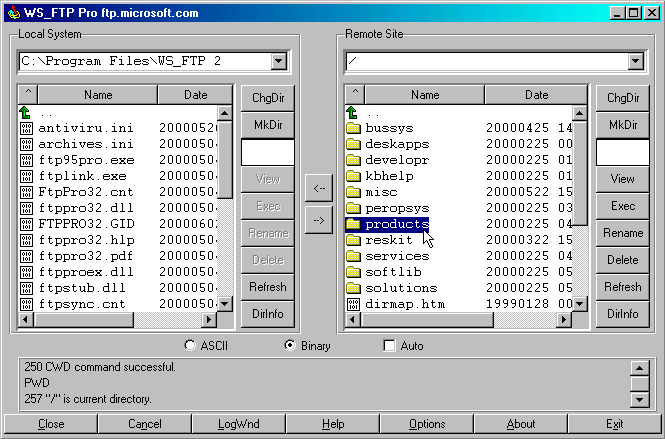 7. - Choose the folder you want to download into by hitting the green arrow top left.  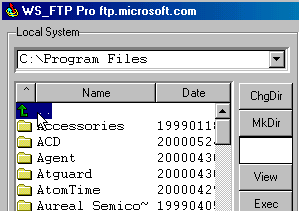 8. - In this case I choose "Downloads 2". 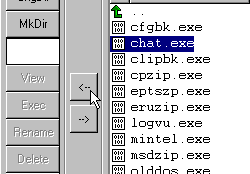 9. - From the micorsoft's products/windows/windows95/cdromextras/otherutilites/ directory I download chat.exe into my "Downloads 2" folder by either double clicking onto chat.exe or by clicking onto the left arrow. 10. - Transfer in progress. 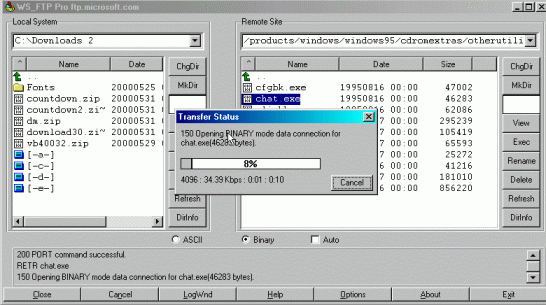 11. - Notice now "chat.exe" is in my "Downloads 2" folder". 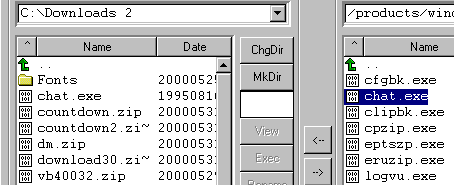 |
| Back to How To |