| EnCase Test and Tutorial Page 3 |
|
|
21. - EnCase is now done searching. Next I click onto the tab called "Found" and high-light "Matches". As you can see EnCase has found 20 recoverable files with the name "image".  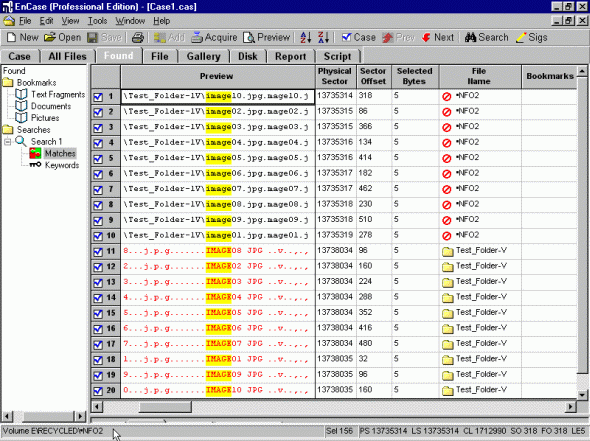 22. - Next I click onto the "Report" tab. Here you can see EnCase's detailed report. 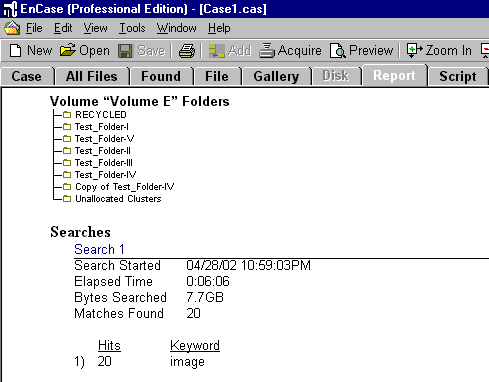 23. - Now I click onto the "Case" tab and high-light "Recycled". As you can see the images that where once in the "Recycle Bin" are easily recovered. I can view the recovered image by clicking onto the lower preview pane tab called "Picture". 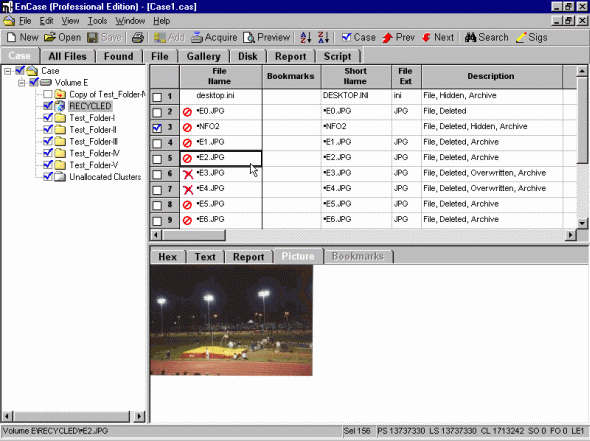 24. - Now I high-light Test_Folder-I where I have overwritten the images using Eraser with 3 passes and erasing "Clutster Tip Area" and "File Names". Here you can see that the images and file names are completely UNrecoverable. 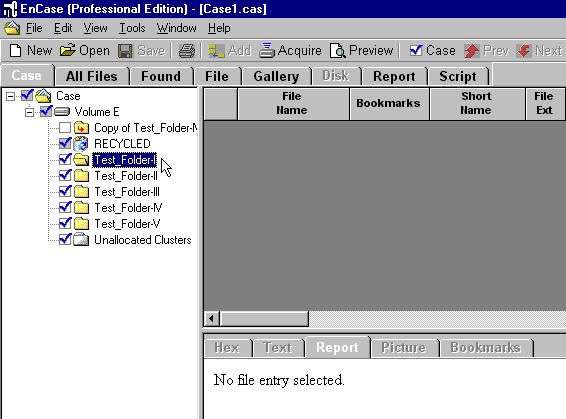 25. - Now I high-light Test_Folder-II where I have overwritten the images using Eraser but WITHOUT erasing "Clutster Tip Area" and "File Names". Here you can see that the file names are recoverable but the files (images) are NOT recoverable.  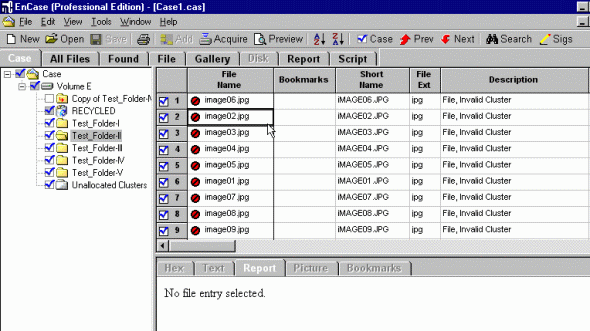 26. - Now I high-light Test_Folder-III where I've used Evidence Eliminator to overwrite the images. Again you can see that the file names are recoverable but the files (images) themselves are NOT recoverable. 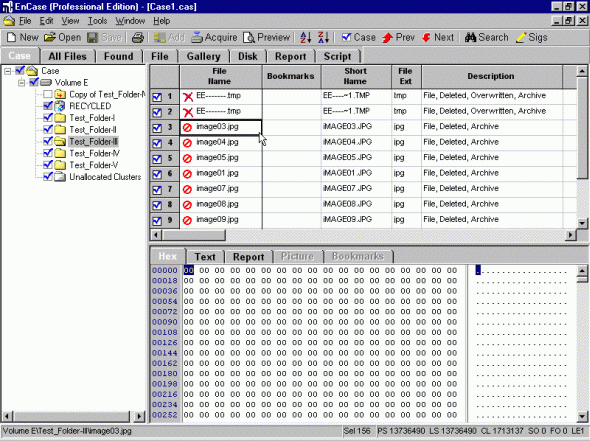 27. - Now I high-light Test_Folder-IV where I've only deleted the images into the "Recylce Bin". Again you can see how easy it is to recover the deleted images. 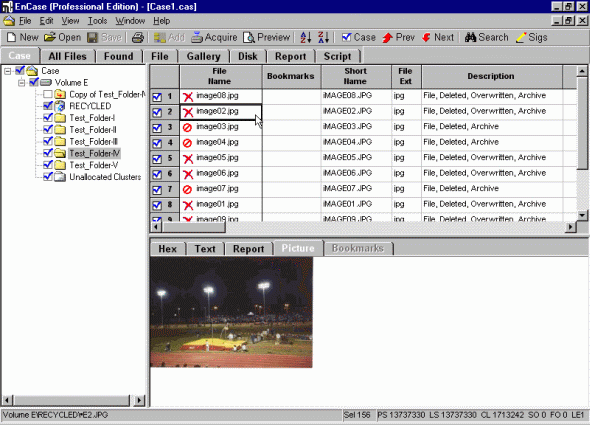 28. - Now I high-light Test_Folder-V. The images in this folder are of course fully viewable since I did not delete the images. 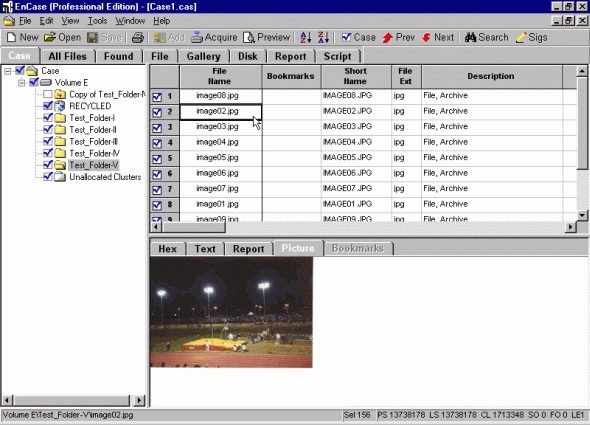 In Conclusion: Computer Fornesic software, such as Encase, is very USEFULL when files have been delelted. However, this same software becomes USELESS when files have been overwritten. |
 |
| Back up |