
 SCREENSHOT FUNCTION
SCREENSHOT FUNCTION
Have you ever wanted to write your own tutorials but where unsure of how to get all of those screenshots required for every step of the tutorial? In this tutorial I am going to show you how to do some simple Screen Captures and show you some tricks that you can use to make your life that much easier.
Right from the start I would like to mention that there are two types of Screen Captures: Whole Screen Active Window Most people dont know that they have the option to take a Screen Capture of just their active window so I will cover both ways in this tutorial.
I figured i would start off by showing you how you can
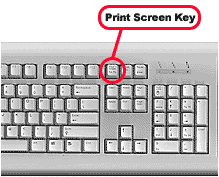
go about creating a normal Screen Capture of your whole screen. Open the
application, website or file you wish to take a snap shot of. Press the Print
Screen key on the keyboard as shown. Your capture is now stored in memory.
Now making a Screen Capture of an Active Window is just as easy as taking a Screen Capture of your Whole Screen. Have an active window on the screen. Now hold down Alt - Print Screen. Your capture is now stored in memory.
Now just open up Adobe Photoshop or Microsoft Paint, create a new document and paste (Edit > Paste) your Screen Capture into the program, now you can go ahead and crop it to anything you wish.