OPTIMIZING GIF'S
OPTIMIZING GIF'S
Welcome to part one of the optimization tutorial series. In this part we will cover how to optimize a GIF graphic. For the purposes of this tutorial we will be working with ImageReady. Before we jump into all the fun optimization work (sarcasm intended) it is important to note that a GIF's file size is directly related to the amount of colors used in it. As well as how often a color change occurs as moving from left to right, or top to bottom. For the purposes of this tutorial I wont be using a very color intensive graphic, instead ill be using something nice and simple, which is what you generally want your GIF's to be.
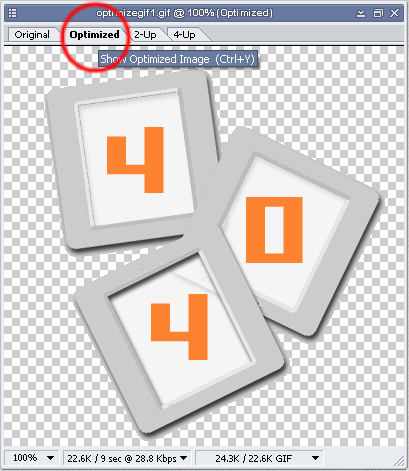
Now in the graphics display window press on the Optimize tab (CTRL + Y) . This will display the graphic as it will look once it is optimized.
Now open the Optimize Dialog Box by going to Window > Optimize.
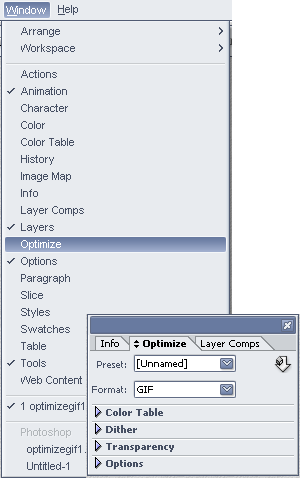
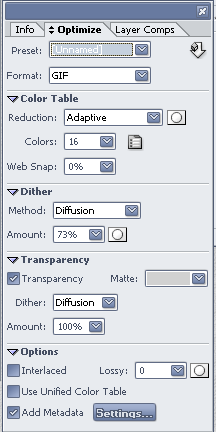
Once the Optimize palette is launched, specify GIF under the Format drop-down menu. Choose a color reduction algorithm, such as Adaptive, from the Reduction drop-down menu under the Color Table section to determine the method used to maintain color consistency between the original file and the final exported graphic. Select the number of colors, such as 64, from the Colors drop-down menu to be used in the final image to attempt to mimic the original document’s colors.
Within the Dither section select a dithering method (such as Diffusion) from the Method drop-down menu to determine how color gradations are rendered. If you chose Diffusion, click on the arrow next to the Amount dropdown menu and drag the cursor to determine the amount of dithering required. A mid-range number like 50% is a good start; you can then get a good sense of whether your document needs more or less dithering to replicate its original appearance.
Within the Transparency section, check the Transparency checkbox to ensure that any transparent areas within your document in ImageReady appear similarly in the final Web-ready graphic. Click on the Matte drop-down menu within the same Transparency section to determine which color your artwork should blend towards before becoming fully transparent.
Here is how our palette looks:
Choose File > Save Optimized As to save the Web-ready version of the document you just modified. Here is our final version: the size went down from 34K to 10K all in just a few short steps.