EDITING COLORS IN A PICTURE
EDITING COLORS IN A PICTURE
This tutorial is about editing the colors in any picture through Photoshop 6. This can be very effective when changing the color of a persons hair or eye color. I will show you two methods of changing the colors in a picture but both methods have their disadvantages and advantages.
1.
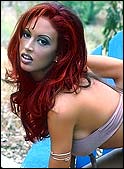
First Method - We are going to change the color of a womans hair. Start by
selecting a picture of a woman preferably with straight hair. Curly hair can be
slightly difficult. The picture in Fig01 has straight hair but slightly wavy at
the bottom which isnt too bad. If the picture is locked (you will see a padlock
showing on the layer ) double click
on the layer and press ok.
) double click
on the layer and press ok.
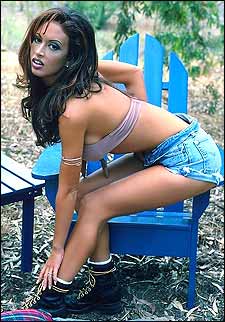
fig.01
2. Create a new layer on top of the picture layer (make sure you have the new
layer selected).
Now
select the 'Polygonal Lasso Tool'  zoom into about 800% and draw around the girls hair fairly accurately. Press
Alt+Crtl+D and feather the image by 2 pixels. Should be looking something like
fig.02.
zoom into about 800% and draw around the girls hair fairly accurately. Press
Alt+Crtl+D and feather the image by 2 pixels. Should be looking something like
fig.02.
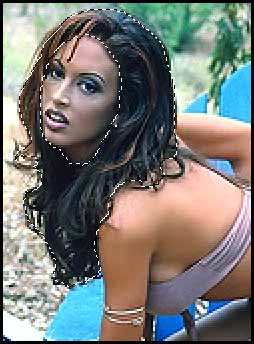
fig.02
3.
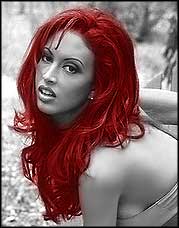
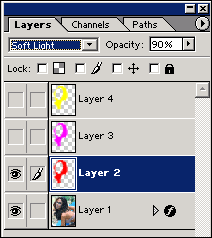
Fill the new layer with a bright color, I will use red. It may look funny once
filled but by changing the blending options you can create some interesting
results. I put mine to 'Soft Light' and reduced the opacity by 10%. Also add a
Gaussian Blur by going to Filter - Blur - Gaussian Blur and a radius of about 3.
 |
 |
4. Second Method - This method is much easier and quicker than the first but you
have less control over the color and blending options i prefer this method.
Bring up the original image and select the 'Polygonal Lasso Tool'.
This time we'll change the color of the girls lips. Draw around the upper lip
then hold down shift and draw around the bottom lip - then feather it by 1 or 2
pixels. See Fig.03
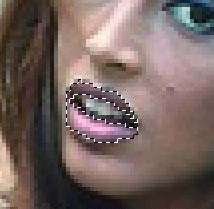
Fig.03
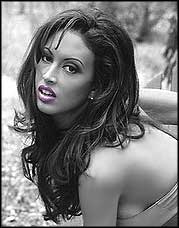
5. Now press Ctrl+U and a Hue/Saturation Box Should pop up. Tick the colorize and play with the Saturation and Hue by sliding them left or right until the desired color is shown. I chose a purple color for her lips see fig04.
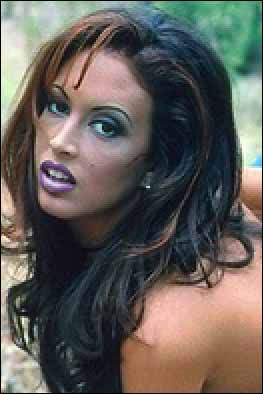
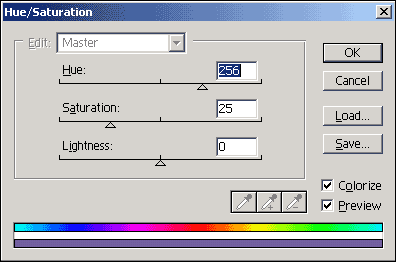
fig04.
With some playing around with the blending options and hue/saturation options you can come up with some pretty interesting results.