
 CUSTOM ACTIONS
CUSTOM ACTIONS
Once you start working with Photoshop for some time you'll find that your projects require many of the same, repetitive actions and tasks. By creating custom actions for your more routine tasks, you'll have more time to focus on your image.
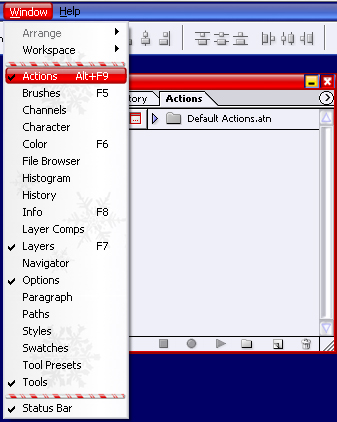
Creating a custom action is relatively easy, so in this tutorial I am going to create a custom action for putting a 1px border around an image. I will start by opening up the Actions Palette (Window > Actions; ALT + F9).
Now go ahead and create a New Set for your action. The reason for doing this is so that all of your own custom actions are nicely organized and aren't mixed in with the Default Actions.
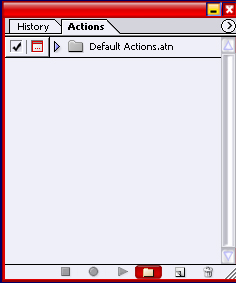
Now in the popup Name Your Set and press OK. I named by set Image Borders. Now lets create a new action by pressing the Create New Action button (see screenshot below) and select which set you want this new action to belong to. The other options can be left at their default state. Once you have set all your options press Record (the equivalent of OK in any other popup).
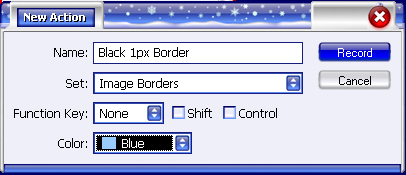
Every action you perform from now on until
you click the Stop Playing/Recording (  )
button will be recorded, so all we have to do now is perform all the steps that
we usually would and then just press the Stop Playing/Recording
button (image above). Here is what my new action looks like:
)
button will be recorded, so all we have to do now is perform all the steps that
we usually would and then just press the Stop Playing/Recording
button (image above). Here is what my new action looks like:
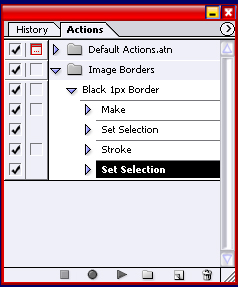
Each step in the new action is in the exact order in which it was performed. Keep in mind that once an action has been recorded, it's still completely editable. You can delete, add, or rearrange the order of the steps. The Actions Palette has the same Drag and Drop interface that most Photoshop palette's have, so you can drag around the steps or delete them by dragging them over to the garbage icon.