CIRCLES AND SQUARES
CIRCLES AND SQUARES
Note: In this tutorial i made a circle, but if you read closely I included the directions for making a square.
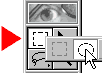
In the vertical tool bar on the left side of the screen
you will see a Rectangular looking icon. Hold the mouse button down on this, you
will see another sub-tool bar pop out. Drag over to the Circular Marquee and let
go of the mouse. If you want to make a square, then just click on the
Rectangular Marquee instead.

Now lets fill our circle with some color. Look for the
Swatches pallet on the screen, it will look something like the picture I have.
Go over to it with the mouse and select a color, I choose blue ( if you don't
see the swatches, then go to Window>Show Swatches.


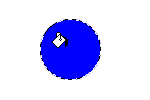
Deselect our circular selection by holding down Ctrl
- D. You are now finished with your circle.