Toolbars
Dreamweaver has 3 primary toolbars: Objects, Properties and
Launcher. The Objects Toolbar allows you to insert objects with the
click of a mouse. The Properties Toolbar is the most important of them
all. It is used to specify attributes on the selected object. The
Launcher Toolbar opens different palettes.

The
Properties Toolbar
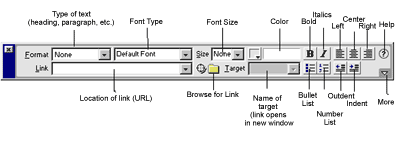
This is the
toolbar you will use most often. This is where you specify attributes
for the object you are working with. An object is anything HTML element.
Text is an object, as is a graphic, a list, a table and a form. Options
on the toolbar change according to the active object. The figure above
is the default if no object is selected. As you can see, most of the
default options have to do with the presentation of text.
When the
'More' arrow on the lower right corner is selected, the Toolbar doubles
in size, with some advanced options.

With no
objects selected, there are no advanced options.
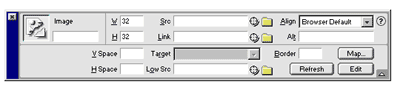
Here we show
the toolbar with an image selected. As you can tell, the options have
all changed. There are fields for width and height dimensions, links,
vertical space, horizontal space, alignment, maps ... These are all
Advanced Options that will be explained later in the tutorial.
The
Objects Toolbar
 The
Objects toolbar is where you can easily insert many HTML objects. With
this toolbar you can insert images, tables, horizontal rules, layers,
applets, active x, plugins, Flash, Shockwave and rollovers. The
Objects toolbar is where you can easily insert many HTML objects. With
this toolbar you can insert images, tables, horizontal rules, layers,
applets, active x, plugins, Flash, Shockwave and rollovers.
You can also
toggle the items in this toolbar by clicking on the arrow near the top.
This brings up a sub-menu where you can change to Forms, Head, and
Invisibles. With Forms you can add standard form objects. With the Head
Objects, you can define your meta tags and other information that
appears in the <HEAD> container. With the Invisible Objects you can add
anchors, comments, scripts and more.
Unless you
author with a large monitor, I recommend you keep this toolbar closed to
avoid clutter in your work area. I've found the more workspace I have,
the easier it is to work and the better the results.
The
Launcher
This is an easy way to launch certain palettes and windows within
Dreamweaver. You should note that this toolbar also resides in the lower
right corner of the Dreamweaver window without the text descriptions. I
recommend that you learn what the icons mean, then remove this toolbar
from your workspace.

Site
- This is where you can manage your site.
Library
- Here you can keep a collection of objects just by dragging them into
the window. You can also maintain templates here.
Styles
- Here you can specify and apply Style Sheets
Behaviors
- Here you can define and apply Javascript Behaviors
Timeline
- Here you can control Dynamic HTML animations
HTML
- Here you can view and edit the source code of the document
Menu
Commands
Dreamweaver has many of the standard menus as other programs: File,
Edit, View, Insert, Modify, Text, Commands, Window and Help. Just about
everything in the program can be accessed via a menu command.
The File
Menu
Under the file menu you can manage your documents, by saving,
opening, creating new documents, etc. There are also many unique
commands specific to Dreamweaver.
Import/Export - You can import XML into a template, export editable
regions (of a template) as XML, and export CSS styles. More
import/export features can be added by using plugins.
Convert -
You can convert your document to 3.0 browser compatible or you can
convert tables to layers.
Preview
in Browser - You can check your document in your browser of choice.
You can also define browsers here. When you get comfortable working in
Dreamweaver, you'll find yourself checking your work in the browser
often. The shortcut keys are F12 for the primary browser and Command
(CTRL for PC) F12 for the secondary browser.
Check
Links - Here you can make sure all the links within the current
document are intact. You can also check links sitewide. The shortcut
keys are Command (CTRL) F7 for the open document or Command F8 for the
entire site.
Check
Target Browsers - You can use this feature to check the
compatibility of your document with a browser of your choice.
Dreamweaver will check the HTML in your document for compliance with the
browser you choose, and will generate an HTML report showing errors.
Recent
Documents - There is always a list of the last few documents you
worked on with Dreamweaver. You can easily re-open the document by
selecting its name from the File Menu.
The Edit
Menu
Undo/Redo - Here you can undo or redo a previous action.
Shortcut keys are Command (CTRL) Z for undo and Command (CTRL) Y for
redo.
Cut/Copy
- Places the selected item on the clipboard. If Cut is selected, the
item is removed from the document. Any object can be copied to the
clipboard, including HTML elements (forms, tables). Shortcut keys are
Command (CTRL) X for Cut, or Command (CTRL) C for copy.
Paste -
Pastes an item from the clipboard. The shortcut key is Command
(CTRL) V.
Paste as
Text - This is useful when the clipboard contains HTML or other code
Dreamweaver would recognize. If you want to display the code in the
document, select this option. By default, Dreamweaver will paste the
code into the source of the document and it will be applied immediately.
Launch
External Editor - This is where you can launch the HTML editor of
your choice, whether it be BBEdit, Simpletext, Homesite or Notepad. The
default editor is specified in Preferences.
Preferences - Here is where you specify application preferences,
such as editors, HTML, and more. We will be discussing the Preferences
dialog in detail in the next section.
Find/Find
Next/Replace - This is where Dreamweaver will look for a specific
string of text (you define). This is a powerful feature when working
with large sites. We will be discussing this feature in more detail
later.
The View
Menu
Here you can change aspects of how your workspace is displayed.
Head
Contents - With this selected, a toolbar appears at the top of your
document just below the menus. Here you can quickly add or modify
elements that belong in the <HEAD> of the HTML document, such as Meta
Tags, Javascripts and Styles.
Invisible
Elements - These are elements that cannot be seen on the page, such
as Styles, Comments, Hidden Fields, etc. Dreamweaver will use a symbol
to show that an object is present (see below). If View | Invisible
Objects are selected, they will be displayed in your workspace like the
icon below.

Rulers/Grids - You can turn rulers and grids on and off. You can
also specify which unit to measure by. Pixels is recommended.
Layer/Table/Frame Borders - By default, Dreamweaver has an outline
border for all these elements. You may turn them off here.
The
Insert Menu
This is where you insert objects to your page. You can insert
images, tables, horizontal rules, layers, active x, plugins, Flash,
Shockwave, rollovers, forms, form objects, anchors, columns, scripts,
line breaks, non breaking space, server side includes and <HEAD>
elements.
We will be
discussing many of these in more detail later in the tutorial.
Modify
This is where you modify certain elements of the page, such as
Tables, Frames and more. We will be discussing these in more detail as
we start creating documents.
Text
This is where text can be formatted. Many of these same commands are
mirrored on the Properties Palette while working with text. We'll also
be discussing this in more detail as we work more with documents.
Commands
This is where you'll find some Dreamweaver specific commands.
Clean up
HTML - Here you can remove redundant and empty tags, non-Dreamweaver
tags or specific tags. This feature comes in handy when working with a
document either created by someone else or by another WYSIWYG code
generating program that inserts proprietary tags.
Apply
Source Formatting - Here you can apply HTML formatting settings to
the document.
Set Color
Scheme - Here you can choose from pre-set color schemes within
Dreamweaver.
Sort
Table - Here you can sort elements within a table.
Format
Table - Here you will find more advanced table formatting options.
Window
Here is where you can open toolbars and palettes, such as Properties
and Site Files. You can also hide the palettes or arrange them. There is
also a list of documents currently open within the program. This makes
it easier to work with more than one document at a time.
Help
We hope you won't need this ;)
Preferences
This is
where you set your application preferences. We recommend you change
these settings before doing any serious work in Dreamweaver. It'll make
your work easier in the long run. We're not going to cover every single
option within this dialog box. Most of the options are self explanatory.
We'll take a deeper look at just a few of the most important options.
General -
We recommend you have 'Show Site Window Only On Startup.' The site
window is where it all begins within Dreamweaver. This is where you
should manage all your files. It's also easy for first-timers to close
the application inadvertently when closing a document. When the Site
Window is open, the application remains open.
We also
recommend that you make sure the 'Add Extension When Saving' box
checked. You can use either .htm or .html. Some browsers will not
recognize an HTML document without the extension. It's quite easy for
Mac users to leave the extension off, since they don't require it to
open the file.
External
Editors - Here is where you specify which HTML editor to use when
modifying the code. Dreamweaver bundles with BBEdit for the Mac and
Homesite for the PC. These are the two strongest tag editors out there,
so we recommend these for managing the code. If you want something
lighter weight, you can use Simpletext or Notepad, depending on your
platform.
To specify
which program, just click on the browse button and navigate to the
application file. Once you've found it, double click and that's it.
You can also
specify an image editor. You can use Photoshop, or an image optimizer
such as Image Ready or Fireworks. We recommend the latter. This makes it
easier to optimize your images on the fly. Simply bring them into
Dreamweaver, select them, and click on Edit. They can then be optimized
in your program of choice, with little interruption.
HTML
Format - For those who want their code just so, this is where you
specify how Dreamweaver will handle it. We all have our preferences, a
tab here, a space there. If you communicate your preferences correctly
to Dreamweaver, it will feel like it was handcoded when you bring it
into your favorite editor.
HTML
Rewriting - Dreamweaver can fix mistakes, but it can also be wrong
on occasion. If you feel you know more than Dreamweaver, tell it so
right here. It can prompt you when it finds a mistake, or it can ignore
the mistake entirely. I've found Dreamweaver to be fairly accurate when
reporting mistakes, so I have it prompt me when it finds one.
Invisible
Elements - As mentioned above, Dreamweaver can show you invisible
elements with that pretty yellow icon. Here is where you specify which
ones it shows you. It might not be necessary for it to show you each
line break. Personally I like to know everything that's there. But it's
up to you to decide.
Preview
in Browser - As already mentioned, this can be defined from the File
Menu. Here is another place where you can specify which browsers are
primary and secondary.
Site FTP
- Yes, you can even upload your site using Dreamweaver. This is
where you set your communication preferences for the FTP client, such as
a Firewall, if you have one. You can also define how long to wait for
timeouts, etc.
Status
Bar - I've found this is to be a useful feature. What I check most
is the download time of different modems. Dreamweaver will display the
size of the page and the download time for the page and all it's
elements in the status bar. You just have to specify the modem speed,
which depends on your audience.
You should
browse through the rest of the Preferences. Everyone's different, so
some might be more important to you than the average user. Now that
you're finished, let's start working.
Copyrights -Jehanzeb.Tk |

 INTERFACES