Pocket PC 2002 Configuration
- Ensure that your wireless network card is correctly installed.
(This guide was created using a Cisco Aironet 350 client adapter).
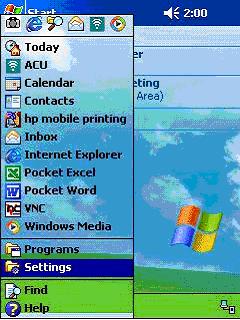
- Tap Start, then Settings.
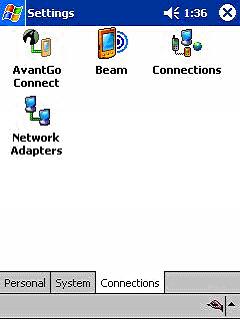
- Tap the 'Connections' tab at the bottom of the screen.
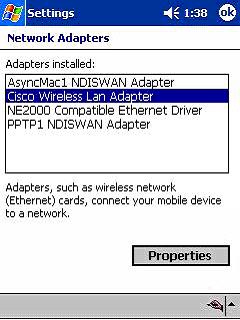
- Tap 'Network Adapters' and highlight your wireless network card, then tap 'Properties'.
- On the 'IP Address' tab, ensure that �Use server-assigned IP address� is selected.
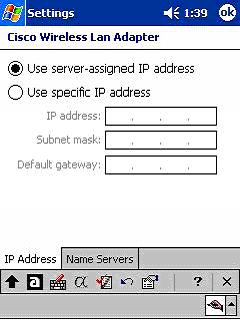
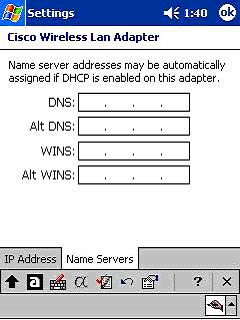
- On the 'Name Servers' tab, ensure that all of the fields are blank, then tap OK.
- The remaining configuration must be done using the client adapter software that shipped with your wireless LAN card.
The changes that need to be made in order to connect to the wireless network are as follows:
- The SSID needs to be set to birkbeck.ac.uk
- The network type is Infrastructure (not Ad-hoc)
- Access Point Authentication needs to be set to Shared or Shared Key Authentication (not Open Authentication)
- WEP must be set as required
- The WEP Key format should be set as Hexadecimal (not ASCII)
- WEP Key 1 must be set as a 128bit Key and the Key must be entered correctly (The key was emailed to you when you registered)
- When you have made these changes, apply them and soft reset your device.
- When it re-starts, it should have associated with the network, and been assigned an IP Address.
- Open Pocket Internet Explorer and connect to http://193.61.9.50. This will direct you to the Birkbeck Wireless Login Page.
Log in using your CCS Username and Password.
(Tip: Set this as your Pocket IE home page, or add it to your favourites)
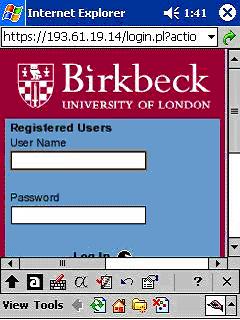
- Enter you CCS Username and Password and tap 'Log In'. You will then see a confirmation page.