Extracting (De-Multiplexing) Sound From *.AVI Files


Tools Required

VirtualDubMod 1.5.10.1


[Here]

[Sourceforge]


Tools Optional

GSpot 2.21


[Here]

[Author]

LAME 3.96.1


[Here]


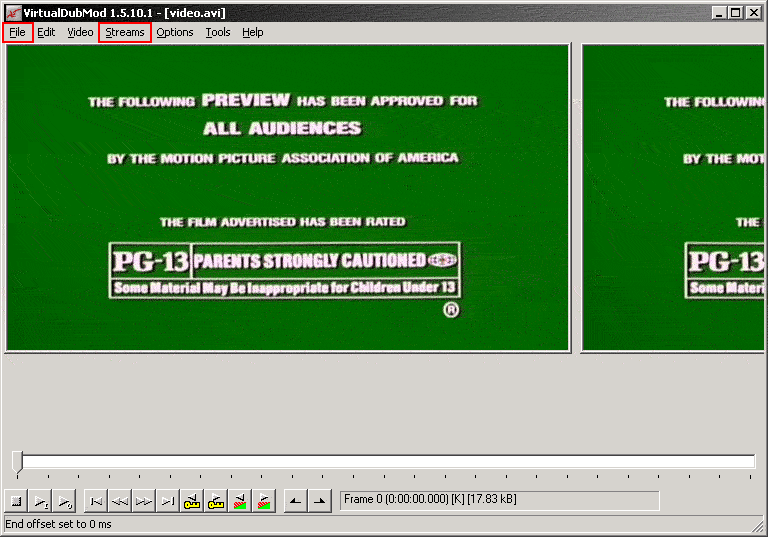
1. When you first open the program, you will see a blank window. Click on [File / Open Video] and find your video file.

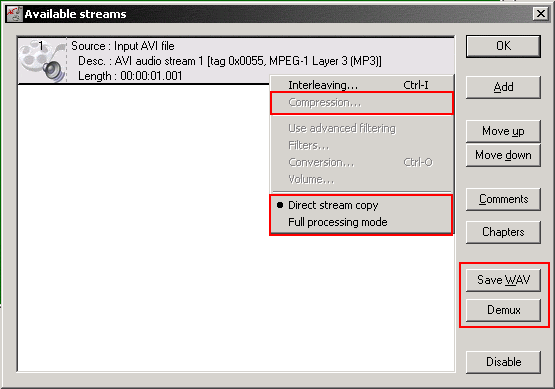
2. Click on [Streams / Stream List] and you'll see a window similar to that below:


3. There may be multiple items ("streams") in the list window. You want to select the one that specifies audio; in this case, the only option you have clearly states "AVI audio stream 1" so you know it's the one you want.

4. Right click on the audio stream.

Now you have two options. If you're trying to extract audio off a video file you downloaded off the internet, it's probably been horribly compressed as it is and you shouldn't compress it further. You'll want to click Direct stream copy for a direct rip of the audio.
On the other hand, if you're trying to extract audio off a video file you ripped from a DVD, you've got a pretty high-quality sound file that you'll probably want to compress to save some disk space. You'll want to click Full processing mode and then click on the Compression option that will become enabled.

5. If you selected Direct stream copy for a direct audio rip, you have two more options. You can either save your output as a *.WAV file or you can just go ahead and rip the audio by clicking on Demux. You're done, and the rest of this tutorial does not apply to you.
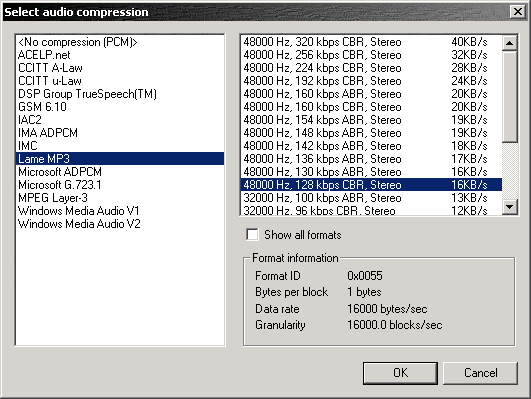
If you selected Full processing mode with Compression, you should see another menu like below:


6. Here you can specify what encoder you want to encode your output with. I recommend LAME but you can use OGG Vorbis if you so desire, so long as the codec is installed. If an encoder you want to use is not listed here, it's not been installed properly.

For the purposes of this tutorial, if you don't have LAME you can get version 3.96.1 [HERE] but be aware this site is not maintained regularly so there may be a newer version floating around. Once you download it, extract it and browse to the ACM directory. Right click on LameACM.inf and select Install. This will register this codec with Windows and it should appear in the list above upon reload.

Anyway before you go any further you might want to check what bitrate your audio is so you know what the highest quality you can possibly save as will be, and reduce the bitrate accordingly. If you don't do this, you may end up saving an output file with a greater bitrate than your source, which will accomplish nothing but waste hard drive space.
The most surefire way of checking a video file's audio bitrate is by using a program called GSpot. If you don't have it you can get it
[HERE] (v 2.21) or at the official website.

Fire up GSpot and you'll see the window below, but all the fields will be blank. Click on the "..." button highlighted at the top left and find your file, and the fields will magically fill themselves in.


The relevant information you're looking for is highlighted at the bottom right, where it says Bitrate under the Audio frame. Now we know the maximum bitrate we can save our audio stream as is 48000Hz 128kb/s stereo. The CB(R) simply denotes that the source audio was encoded at Constant Bitrate as opposed to Variable Bitrate, which is what codecs such as OGG encode at.

7. So now that you know the maximum bitrate, you can save your audio stream as anything less. In my example, since the bitrate i want to save as is the same as the source bitrate, I would be better off just de-multiplexing the composite video file and not further compressing an already compressed audio file. This may not be the case for you though, so once you've decided that you want a smaller file and you've chosen what encoder and bitrate you want to use, simply click OK and then click Demux and once you've selected where you want to save the output, you're done!


Kopywrong (k) 2005
All Rights Reversed. Reprint what you like.

Hosted by www.Geocities.ws

1