
|
| |
Extracting (Recording)
Sound From Any Source
|
| |
| |
|
This is a tutorial on how
to record sound from any given source. *.RAM
files, streaming audio, etc. If sound plays
through your sound card, you can record it. For
*.AVI and *.MPG files there are better ways to
extract sound, but for many other sources there
just is no simple (or free) way of doing so.
|
| |
|
| |
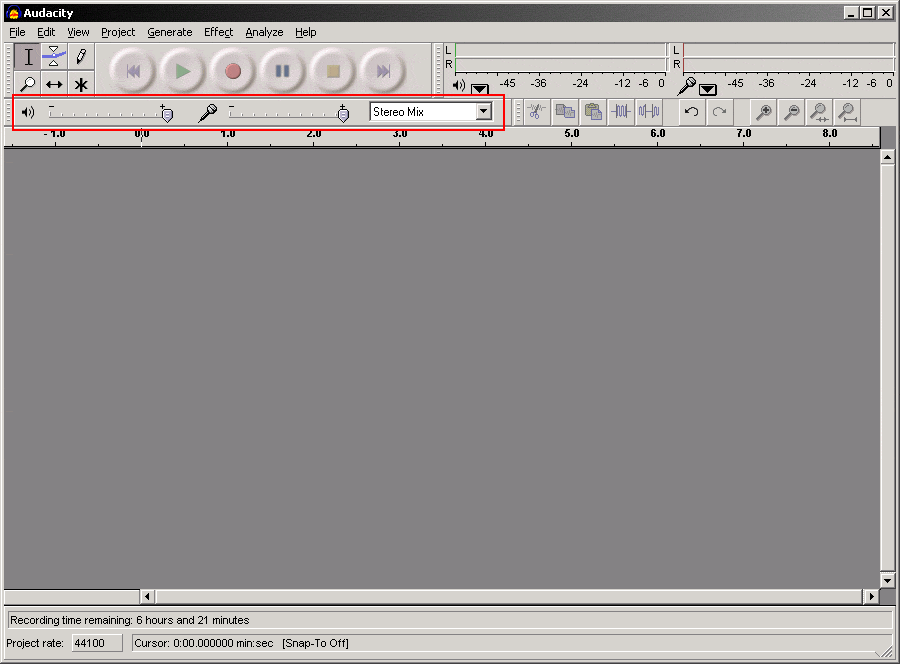
1. Open Audacity. You'll
see this window. Inside the red box are three
controls that we should change- playback volume (how
loud sound plays out your speakers), recording
volume (how loud your "microphone"
interprets sound to be), and input source. Turn
up your playback and recording controls all the
way (we'll control the volume through Windows'
master volume control) and set your input source
to either "Stereo Mix" or "What U
Hear" (if available).
As a side note, you can set the input source to
Microphone for input from an external microphone,
or CD Audio to read directly from a music CD in
your CD drive. Since we want to record from the
sound card, we've selected Stereo Mix / "What
U Hear," but I point this out so you are
aware of Audacity's capabilities.
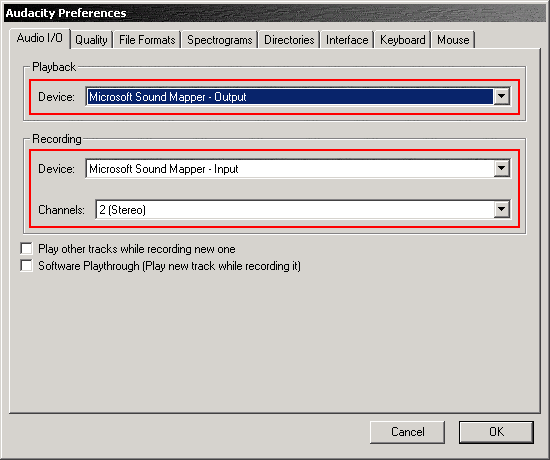
2.
Now we need to change some recording options.
Click on [File / Preferences] and see below.
|
| |
|
| |
3. These options may vary
by sound card, but for me I stick with Microsoft
Sound Mapper as my playback device, Microsoft
Sound Mapper as my input device, and channels set
to 2 (Stereo). If you're recording from a source
you know is not playing in stereo, then you might
as well set the channels to 1 (Mono).
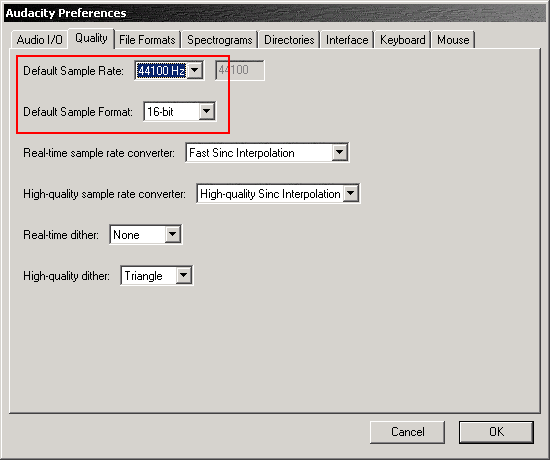
4.
Click the Quality tab. See below.
|
| |
|
| |
At this point all that
matters to us is in the red box. Set the Default
Sample Rate to 44100Hz (near-CD quality) and
the Default Sample Format to 16-bit.
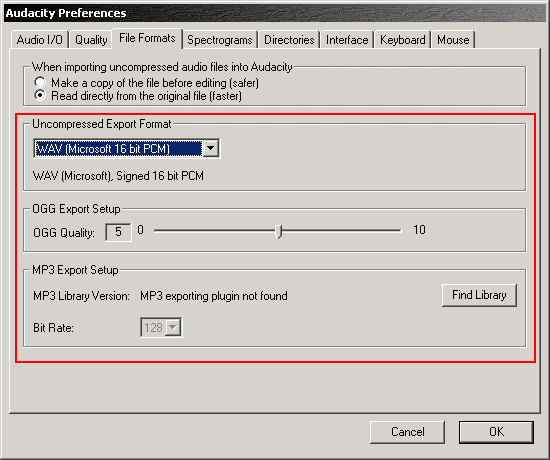
Click on the File Formats tab.
|
| |
|
| |
5. Now we choose what
quality we want to save our output as. You have
three choices within Audacity- uncompressed *.WAV,
OGG Vorbis, or any other *.MP3 library you have (like
LAME, BLADE, etc.). If you're like me and you
have LAME or something installed but it's not
showing up, click the Find Library
button and look in your /Windows/System32 folder
or in something like /Program Files/LAME. If you
don't have LAME at all, you can get version 3.96.1
[HERE]. Extract it somewhere and
look in the ACM folder; right click on LameACF.inf
and select Install. This will register the
codec with Windows.
For
the purpose of this exercise, I'm going to use
LAME. Once you've located lame32.dll or whatever
you want to use in your System32 folder, we need
to select a bitrate. If you're recording from a
DVD or music from an SNES game or something, you
can set the bitrate relatively high. If you're
recording some kind of broadcast over the
internet, you probably should keep the bitrate
around 128kbps or lower so you don't end up with
bloated high-quality recordings of low-quality
sound (unless the broadcast IS in fact higher
than 128kbps). For example, Napster streams songs
at 96kbps, so it doesn't make sense to set the
bitrate to 128kbps, because the song won't sound
any better. If you want 128kbps songs then you
have to buy them...
Now
we're done with configuration. Click OK
and we're back at the main screen.
|
| |
|
| |
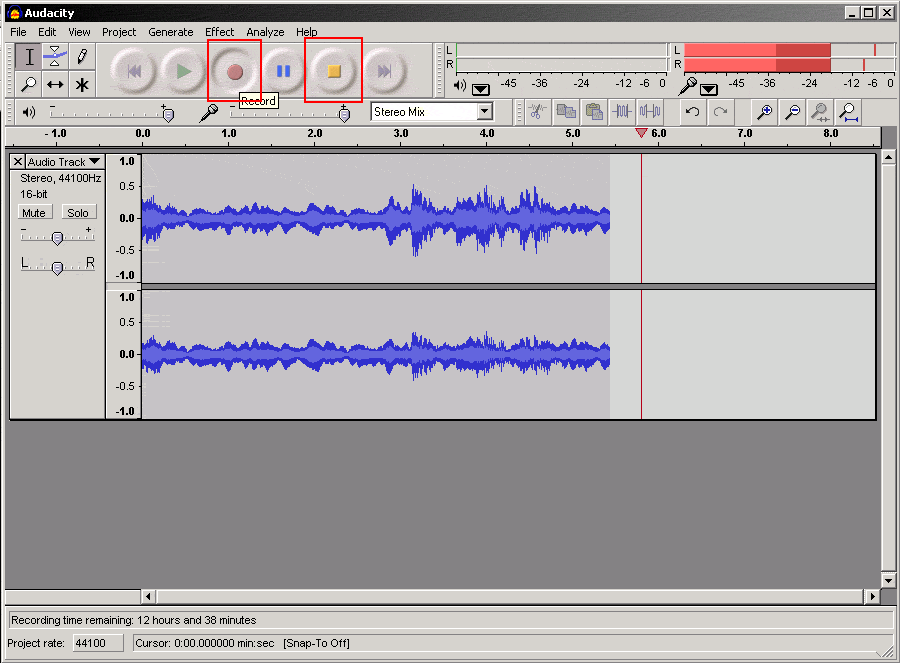
6. Ok, now we're almost
ready to record. Close down any noisy
applications like AIM or Outlook because if
someone sends you a message, the annoying chime
will get recorded along with whatever it is you're
trying to record. Also, Internet Explorer clicks,
Windows clicks, all that crap will get recorded,
so don't do anything while recording.
Click on The Record Button to
start recording, then go find your audio source
and start playing it. If all goes well, you
should see the spectrogram make all sorts of
silly waveforms and those bars at the top bounce
to the beat. If nothing is happening, try
adjusting your Windows master volume. If that
doesn't work then try going back to step 2 and
changing your recording device.
Make sure your Windows master volume is not set
too high. If you're playing the sound too loud,
it will end up sounding like you're playing music
through blown-out speakers. The dancing bars at
the top should not constantly be maxing out.
Adjust the volume accordingly; you may have to
stop and retry several times before you get it
right.
When
you're done recording, press The Stop
Button. Then click on [File / Export As
MP3] and point out where you want to save the
file to. The MP3 will encode, and you'll be done!
|
| |
Kopywrong
(k) 2005
All Rights Reversed. Reprint what you like.
|
|