Home
Lessons
Gallery
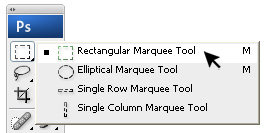
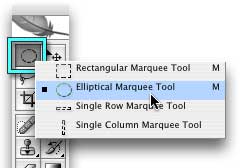
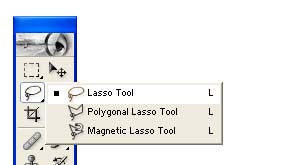
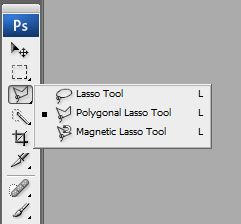
A selection defines the editable area in a photo (for example, you can lighten one part of a photo without affecting the rest). You can make a selection with either a selection tool or a selection command. A selection border, which you can hide, surrounds the selection. You can change, copy, or delete pixels inside the selection border, but you can�t touch areas outside the selection border until you deselect the selection. Here are the tools that belongs to this group:
Picture |
Name |
Description
Rectangular Marquee Tool Draws square or rectangular selection borders. Elliptical Marquee Tool Draws round or elliptical selection borders. Lasso Tool Draws freehand selection borders, best for precision.
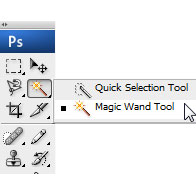
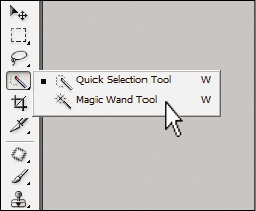
Polygonal Lasso Tool Draws multiple straight-edged segments of a selection border. Magnetic Lasso Tool Draws a selection border that automatically snaps to edges when you drag over in the photo. Magic Wand Tool Selects pixels of similar color with one click. Quick Selection Tool Quickly and automatically makes selection based on color and texture when you click or click-drag an area. |