
Game Controls
Using the Game controls to control a car. You Can now control the movement of a car with just one component that technology for you.
[Use the arrow keys to control the car]
Download the source file and the component required below. The source does not contain the loader you will create that yourself.
|
You may have noticed the car is off GTA. This is because it is the only
birds eye view of cars I knew of. Firstly please download the source file from
above. This will only include the car (for which you will put the controls in
yourself), And also the component.
Before you can install the Extension file, you will need to get Macromedia extension manager 1.5 or later.Click here to download it. Make sure you install the Extension file using the Macromedia Extensions manager. Once you have installed the component open the source file and we can begin.
Once you have the above files and the Extension Manager downloaded, follow the directions to get your animation configured:
Once you open the fla file your flash stage should look like the following image:
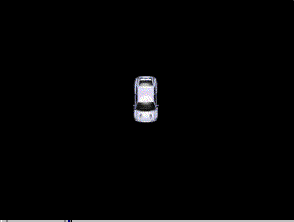
[ your stage should look like above image ]
As you can see. the car is on its own. Open up the Components panel and click
on the top of the panel to see all the components you have installed. Click
on the
game controls. You will see that there are 4 options to keep it less complicated.
Click the car controls and drag the icon onto the top of your car. The icon
should snap onto place over the car.
To test out your movie, press ctrl+enter and use the arrow keys to drive. If
you feel the car is a little slow all you have to do is click the little orange
car controls icon and go to properties and increase the forward and backwards
speed also if you increase the left and right controls to 10 the car will turn
faster.
|
Note
|
Hope this has Got you along the road of making a car game.
-Tom
Related Tutorials:-
Scrollable terrain