 JMeasure
 Filename jm_UserGuide.html, author Tobias Mayer, v05j Date 17 August1998 (last updated 07 August 1999)
Go to
Metrics Guide JMeasure
Java object-orientated metrics tool
User Guide: (v0.5_beta1)
JMeasure is a tool for the collection of object-orientated design metrics on Java programs, or more specifically, on Java classes and source code, a package at a time. This version of the program (version 0.5_beta) contains eleven metrics which deal with size, complexity, inheritance, reusability, cohesion and encapsulation. The user can select any combination of the eleven, or select them all.
Enter
java jmeasure.JMeasureon the command line to start the application. It will open up in a new window, as shown below:
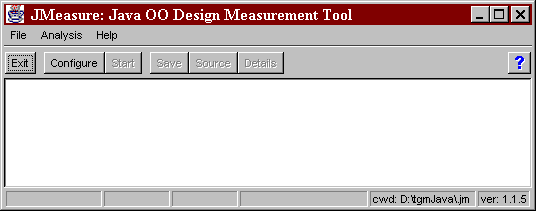
Main Screen at start up. Status bar shows current working directory and Java version.
Analyzing a Java Package
Before you start:
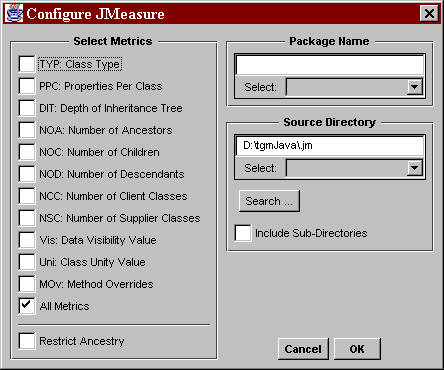
The JMeasure Configure Dialog with default settings
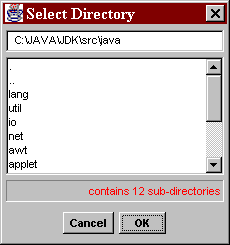
The Directory Dialog box. A single-click on a directory name will change to that directory, or on ".." will go up to the parent directory. A new path can be typed into the top text box. The list is scrollable as necessary.
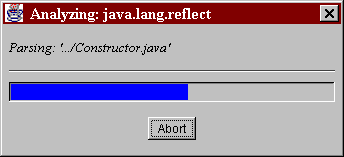
The Progress bar. Clicking on "Abort" will stop the analysis thread and return the user to the empty main screen.
Once the analysis is complete the results will be displayed in a new Result Window, and the time taken for the operation will be displayed in the status bar.
Note: with large packages there may be a delay of 5-10 seconds between the Progress Bar completing and the Results Window appearing.
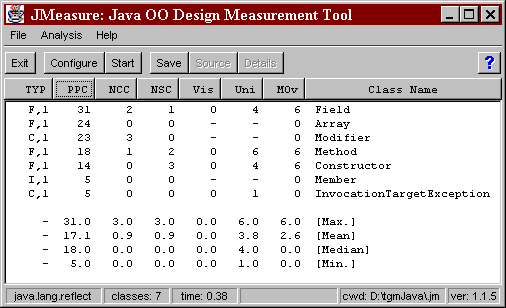
Results Window showing results for the package 'java.lang.reflect'. 7/11 metrics were selected, (note information in the status bar).
Options:
Sorting
The results can be sorted by metric or class name by clicking the appropriate metric name button at the top of the Results Window (not visible unless a set of results is displayed). Sorting alternates between ascending and descending. A progress bar will be displayed in the fourth panel of the status bar when large lists are being sorted. (note: the sorting itself is fast, it is the re-formatting and re-displaying in the List box that may take time.)
View Class Details
Select the required class's name in the results list and click on the
Details button or the File|View Class Details menu item. Detailed information is available for each class relating to each of the areas of analysis.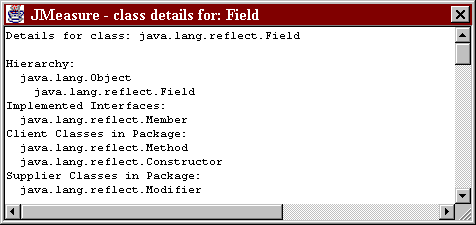
Class Detail Window showing partial details for the 'Field' class
View Source Code
Select the required class's name in the results list and click on the Source button or the File|View Source menu item. In the case of inner classes it is the source file of the enclosing class that is displayed. Information on file size in bytes and lines is displayed in the status bar of the source viewer, together with a commented line count and a Density of Comments measurement. Note: The source code locations are not saved in the *.mj files, in order that these files are not system- or user-dependent, therefore the source code cannot be viewed for classes in Result Sets that have been opened from a *.mj file.
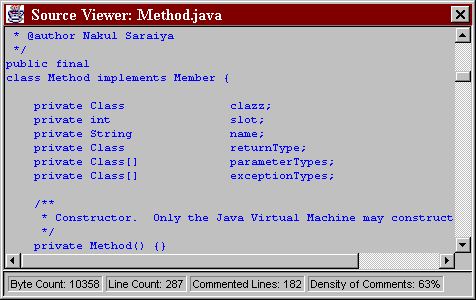
Source Viewer showing source for the 'Method' class. Note the information in the status bar.
Save to File
The name used for the saved file is the full package name plus the extension *.mj (or *.mjx for plain text files).
i) Save in JMeasure format: Click on the Save button or the File|Save menu item. Result sets thus saved can be re-opened with the File|Open option.
ii) Save as plain text: Click on the File|Save As Text� menu item. The Results and all the Class Details will be saved to a single text file with the extension *.mjx. The file can be viewed in any text editor.
Open *.MJ File
Open previously-saved file with *.mj extension. Large files may take some time to load and there will be a time gap between the closing of the progress bar and the opening of the file. Be patient.
Note that the source code of re-opened files is not available from the View Source option.
Clear Results Window
Remove the current results. If the results are not saved they will be lost. No warning is given.
Help
A context-sensitive user 'hint' system will be developed in later versions. Version 0.5_beta1 directs the user to this file and to "jm_MetricsGuide.html" and "jm_ResultsGuide.html".
System Information
Displays a list of all the Java Properties for the current user and system. This aspect is also provided as a stand-alone application, "tgm.JProp".
About
Author, date and version number.
Exit
Close the application. To avoid the "Thank you" Dialog appearing (see below) use the system-dependent method for closing an application (e.g. On Windows, click the |X| box in the top right corner).
The Thank you Dialog, containing developer's Email address.
Notes:
Once a result set is displayed it will stay in the Result Window until:
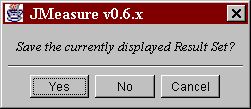
Yes-No Dialog will appear if the user tries to start a new analysis, open a saved mj file or exit the application when an unsaved Result set is on display.
Future Development:
JMeasure is a work in progress. Ideas for its development and improvement are welcomed. Some of the currently planned improvements are as follows:
Most systems developed in Java will use more than one package. To get a clear overview of the design it is essential that a tool such as this is able to analyze all packages, interactively.
The use of bar charts and other graphical devices would greatly enhance a user's understanding of the results.
A simple 'user-hint' system - intended to step a user through each stage of the analysis process - is currently being developed. It is not intended to replace the three HTML help files.
Thank you for taking the time to read this file.
contact Tobias Mayer
for further information.