Yahoo!
In my opinion the best PPC search engine to advertise on is Yahoo. When you advertise on Yahoo your listings will be seen on: Yahoo, MSN, CNN, AltaVista, InfoSpace, and AllTheWeb! Huge exposure! So let's get started.
Signing Up With Yahoo:
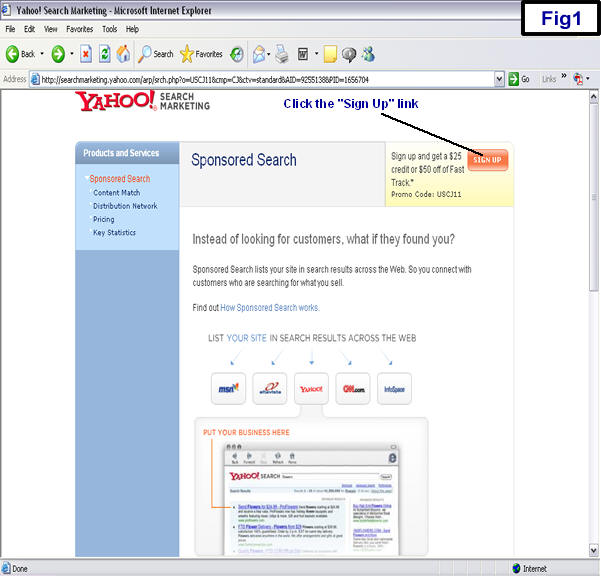
First thing you need to do is set up your account. Click Here to start now. You'll come to this screen. (see Fig1 below)
Then you're brought to this page. (see Fig2 below)
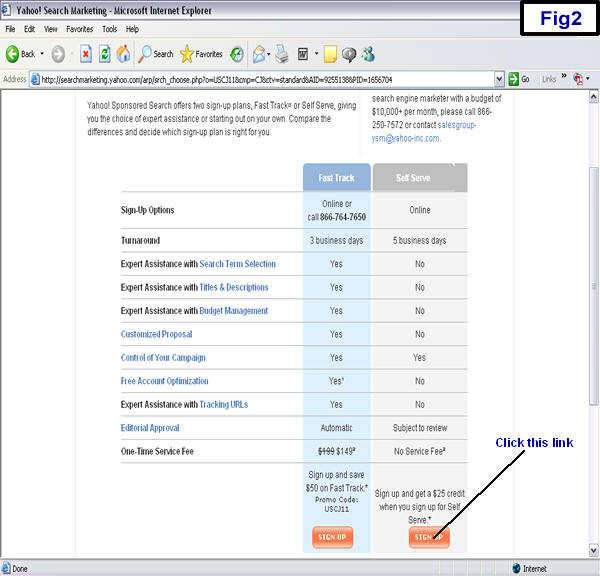
If you were doing this on your own, it would be well worth the $149 to join the Fast Track Plan. But I am here every step of the way and you will save that $149. Now you will see this screen. (see Fig3 below)
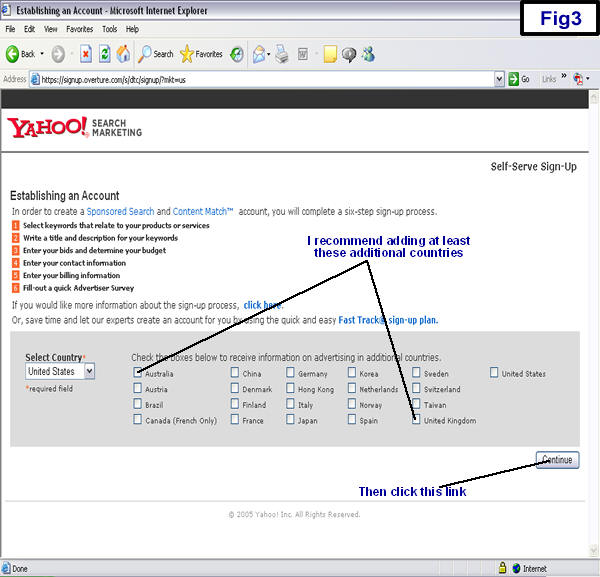
You can add other countries if you'd like, but these are the countries I personally have the best success with. Now you'll see this screen. (see Fig4 below)
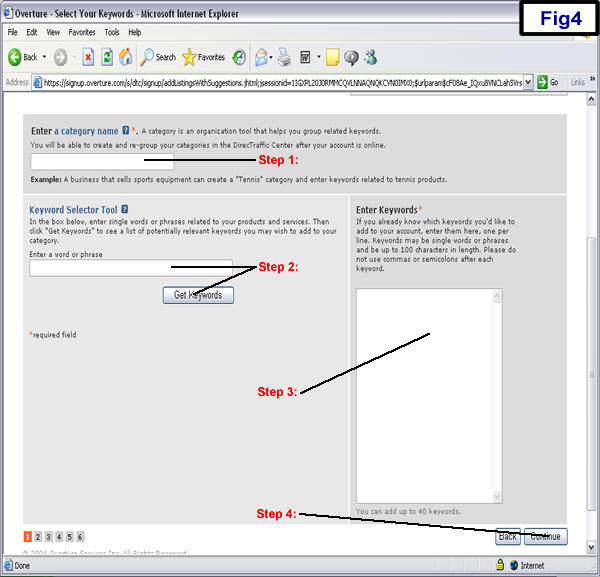
In Step 1 from above, you need to enter a "category name" for this campaign. This can be anything you like and it's only for your information. No spaces are allowed. Examples: "myfirstcampaign", "homebusiness", etc.
Step 2 is the "Keyword Selector Tool" which is great for help in finding the best keywords for your campaign. Put in a keyword that is relevant to the site you'll be promoting and it will spit out potentially relevant keywords you may wish to add to your category. This is a great tool. For instance, some relevant keywords for my site are:
� home business
� internet business
� job opportunity
� part time job
� computer job
Type "home business" in the box and click the "Get Keywords" link. (see Fig5 below)
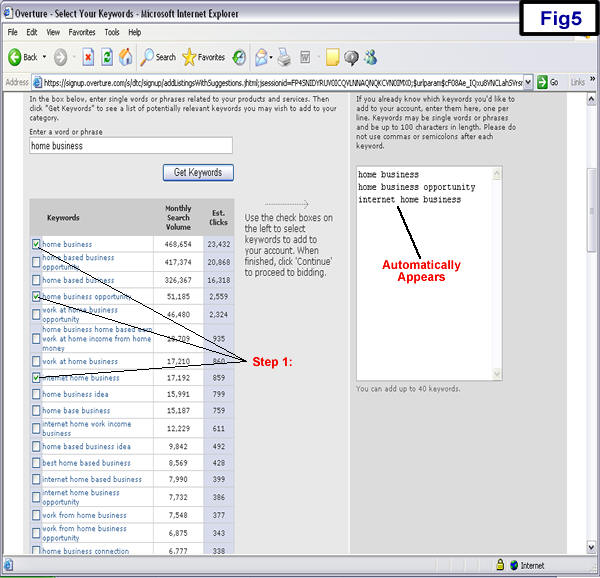
It gives you keywords that are relevant to "home business" and it even tells you how many times each word was searched last month! Pick the keywords you wish to use and check the box. In Step 1 from Fig5 you can see that I checked three keywords I'd like to use for promoting my site and they're automatically put in the keyword box for me.
Repeat Step 2 from Fig4 until you have all the keywords you wish to bid on (should have between 10-20). For my site, some of the keywords I recommend using are:
In Step 3 from Fig4 above you need to put in the keywords you wish to use. When you check the box next to a keyword you want to use, it will put it in automatically for you. But you can also put them in manually, making sure you put one keyword per line.
In Step 4 from Fig4 above, click the continue button and you'll come to this screen. (see Fig6 below)
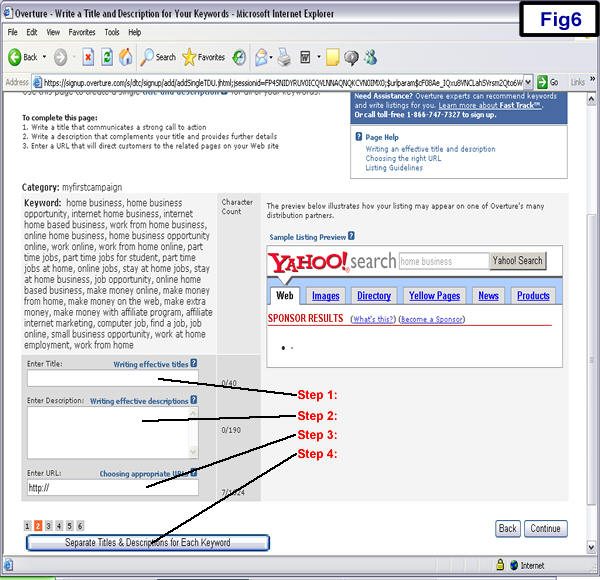
In Step 1 from Fig6 above, you need to enter your title for this ad. This is what the customer will see when they search keywords you have bid on. You want it to capture their attention and if possible, you also want the keyword in your title. So if one of your keywords was "home business" you might write something like this:
� Start Your Own Home Business Today
� Legitimate Home Business Opportunity
� A Home Business You Can Count On
I have used these exact titles to promote this site and the conversions are outstanding.
In Step 2 from Fig6 above, you need to enter your description for this ad. This appears directly under your title and it tells the customer about some of the advantages this product offers. Like the title, you want it to capture their attention and you also want the keyword in your description. So if one of your keywords was "home business" you might write something like this:
�
Are
you a business minded individual? Start your own home business in the next 24
hours. No inventory, no large investment, no orders to take or deliver, and no
pressuring customers.
�
No
gimmicks, no empty promises, just good business. We are looking for individuals
interested in starting their own legitimate home business. $50,000+ first year
income potential.
� Are you serious about wanting to start or grow a home business on the internet? The first step you must take is to cut through all the web marketing hype and dead-end business opportunities.
Again, I have used these exact descriptions to promote this site and the conversions are outstanding.
In Step 3 from Fig6 above, you need to enter your hoplink for the site you will be promoting. The hoplink for my site is:
http://hop.clickbank.net/?YOUR_NICKNAME/gcv2005
Remember to put your nickname in where it says YOUR_NICKNAME.
In Step 4 from Fig6 above, click the "Separate Titles & Descriptions for Each Keyword" link. You'll come to this screen. (see Fig7 below)
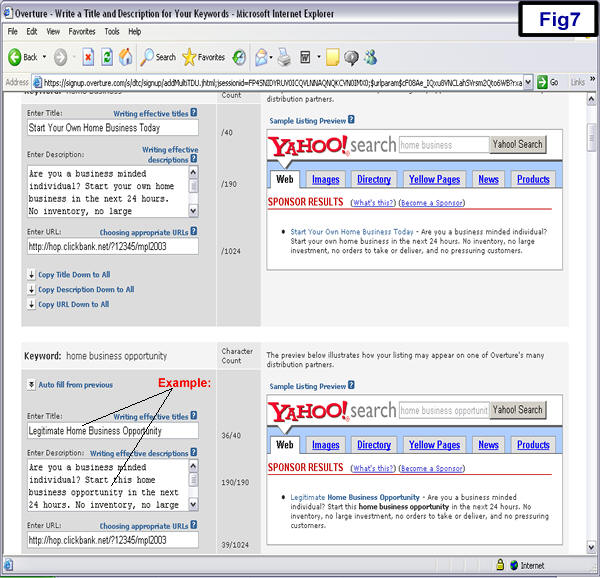
On this screen you want to keyword in as many titles as possible. In the example above I made these changes for the keyword "Home Business Opportunity":
Changed the title from Start Your Own Home Business Today to Legitimate Home Business Opportunity.
Changed the description from Are you a business minded individual? Start your own home business in the next 24 hours. No inventory, no large investment, no orders to take or deliver, and no pressuring customers. to Are you a business minded individual? Start this home business opportunity in the next 24 hours. No inventory, no large investment, no orders to take or deliver, and no pressuring customers.
You'll want to follow this procedure for all your keywords, making sure the keyword is in the title and description... when possible.
After you have made your changes, hit the continue link at the bottom right hand of the screen. You'll come to this screen. (see Fig8 below)
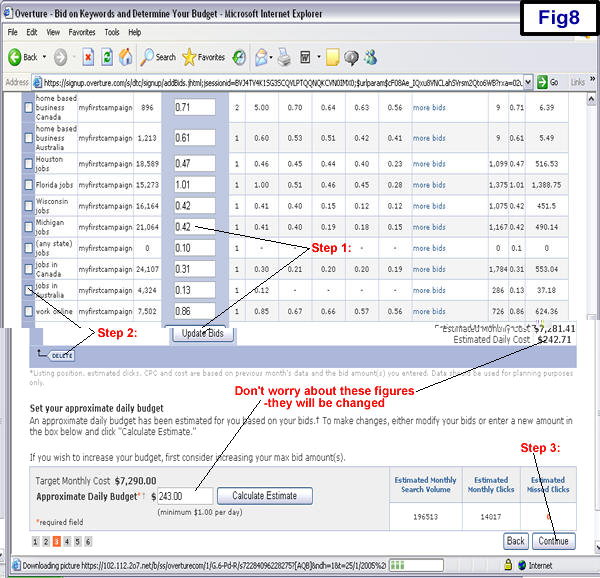
In Step 1 from Fig8 above, you need to change your bids for each keyword. This is the amount you will pay for each lead from these keywords. I recommend not spending over $0.30 per lead. Remember, your bid amount indicates where your ad will be displayed on the search engine when someone searches that term. So if you bid $0.30 on the keyword "Michigan Jobs" from Fig8 above, your ad would be the third displayed. (see Fig9)
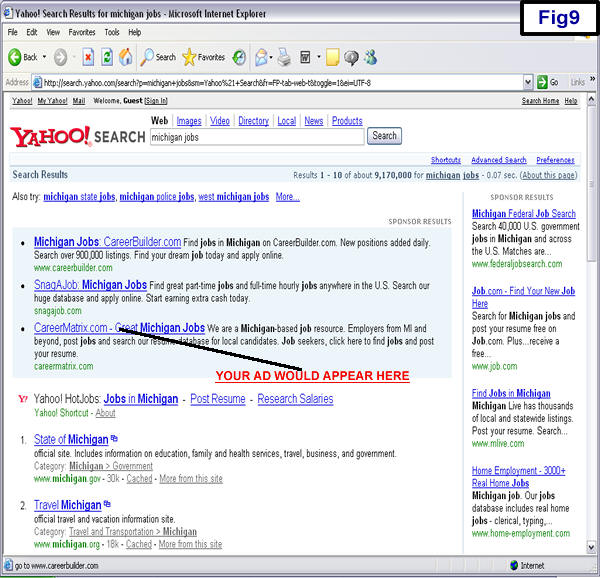
Referring back to Fig8, if you bid $0.30 on a keyword and your position is lower than 20th, I recommend not using that keyword.
In Step 2 from Fig8 above, you see how to delete a keyword. Check the box next to the keyword(s) you wish to get rid of and hit the delete button. You can add more keywords later. Don't worry about the huge figures they show for monthly costs, we will fix this on the next screen.
In Step 3 from Fig8 above, click the continue button and you will see this screen. (see Fig10 below)
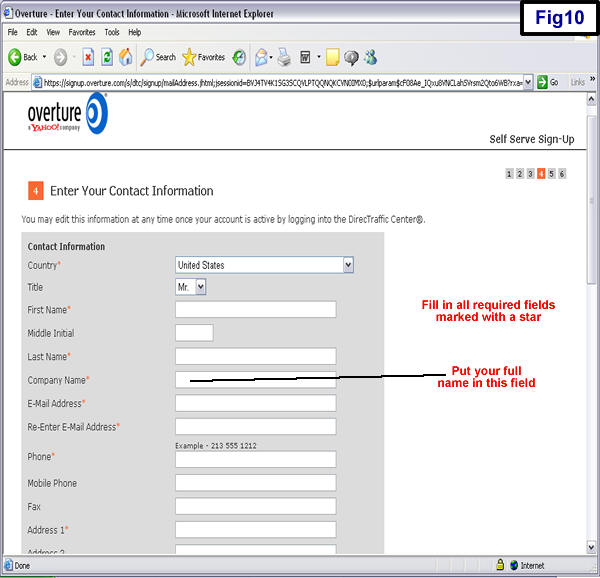
Fill in all required fields marked with a star. Just put your full name in the "Company Name" box. Write down your Username and Password and put them in a safe spot. Check the "I have read and agree to the Terms and Conditions" box and click the continue button.
You will come to this screen. (see Fig11 below)
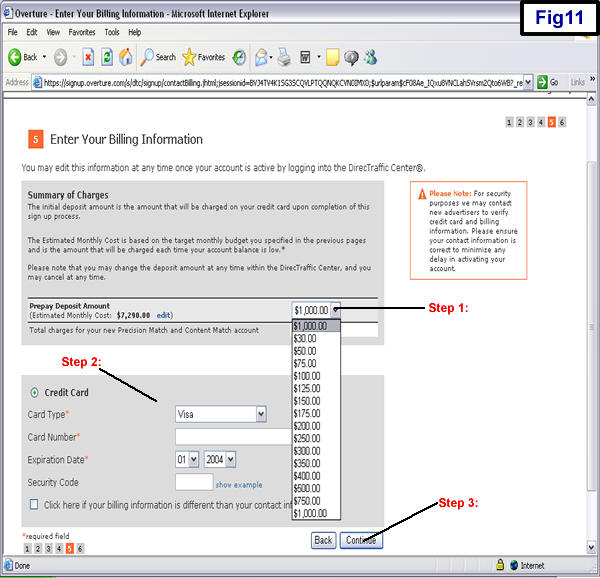
In Step 1 from Fig11 above, drop down the box and start with the minimum ($30).
In Step 2 from Fig11 above, fill in your information.
In Step 3 from Fig11 above, click the continue button.
Now you are done. Yahoo will review your keywords (3 business days) and email you when your account is ready.
In the meantime we will set up your login area. Click here to go there now. Fill in your Username, Password, and security code on the right hand side of the screen, then hit "Login". You will see this screen. (see Fig12 below)
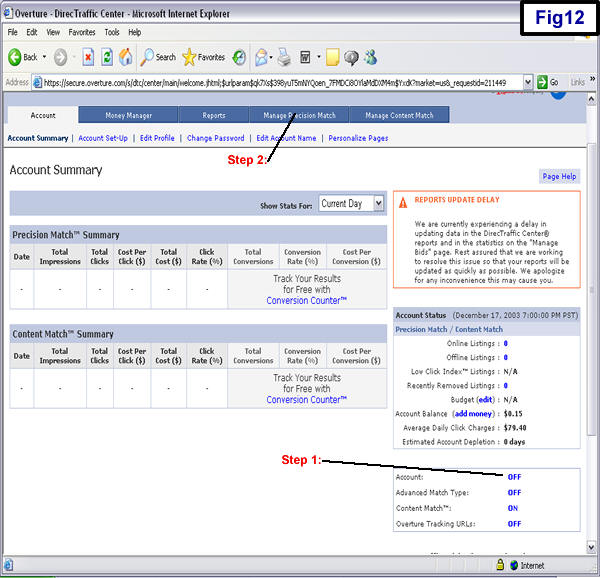
In Step 1 from Fig12 above, click the account setting. You want to turn everything to the "OFF" position. Once you receive an email from Overture telling you your account is ready, you have to turn the Account Status to the "ON" Position.
In Step 2 from Fig12 above, click the "Manage Precision Match" link and you will see this screen. (see Fig13 below)
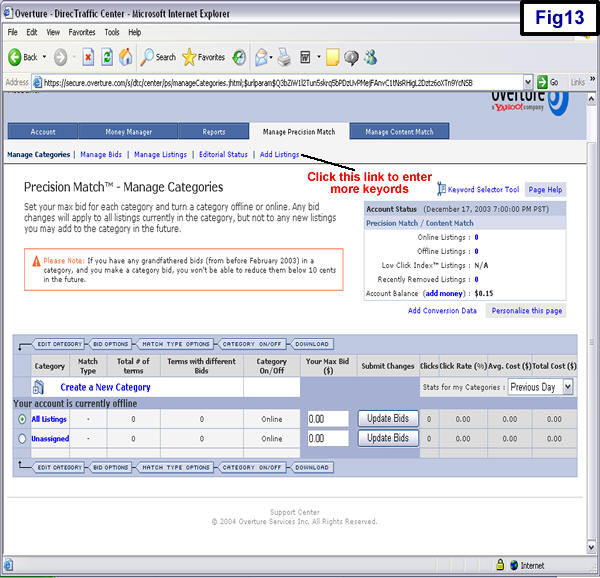
If you want to enter more keywords you can do it by clicking this link.
While you're in your account, take a look around and get a feel for the features they offer. Remember to turn your account back on when Overture tells you your account is ready.
Here are some helpful Tutorials presented by Overture:
Click Here to go back to the main menu!