Quick-Start GoClick Campaign
If you are new to AdWords I recommend reading and implementing this section first. This search engine is a little less complicated than the rest.
I will get you set up to promote my website with this section. You will receive a 75% commission for every sale. The sales price for my course is currently $39.95 and you will receive 75%, which is $26.96 per sale for you!
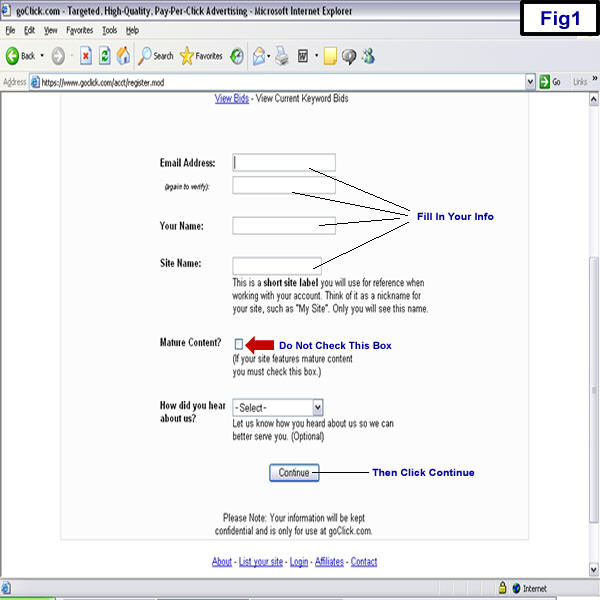
O.K., first thing we need to do is set up your GoClick account. Click here to go there now. You will be brought to a screen which looks like Fig1(below). Follow the instructions from Fig1 and hit the continue button.
For "Site Name", just put in what you want your account to be called, "My Site", "1st Campaign", etc. After hitting the continue button you will be brought to this screen. Fig2:
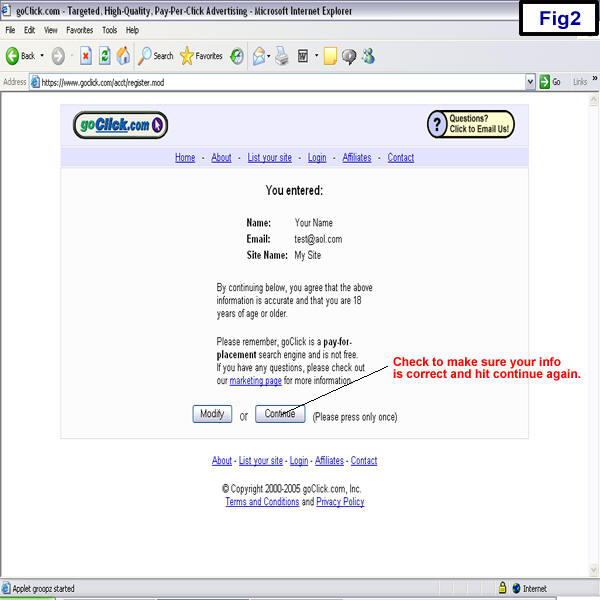
After you hit the continue button you need to check your email to retrieve your password and log in. Once you have your password, follow the instructions on Fig3:
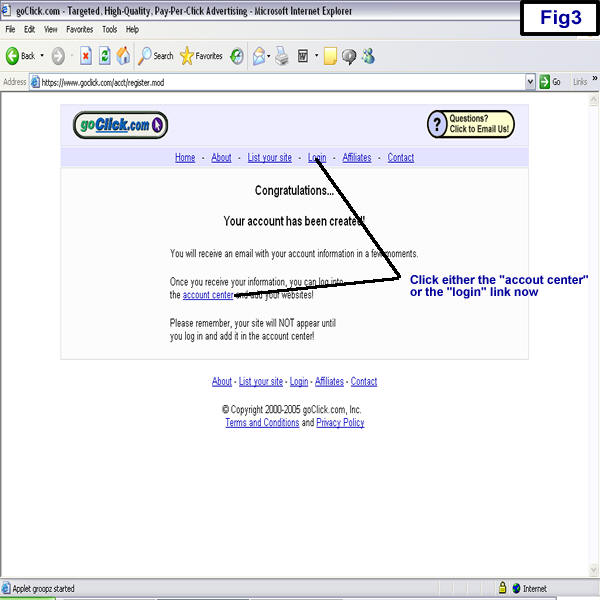
Now your at the login screen. Enter your email address, your password, and the
login code which is located in the black box. Then hit the login button and you
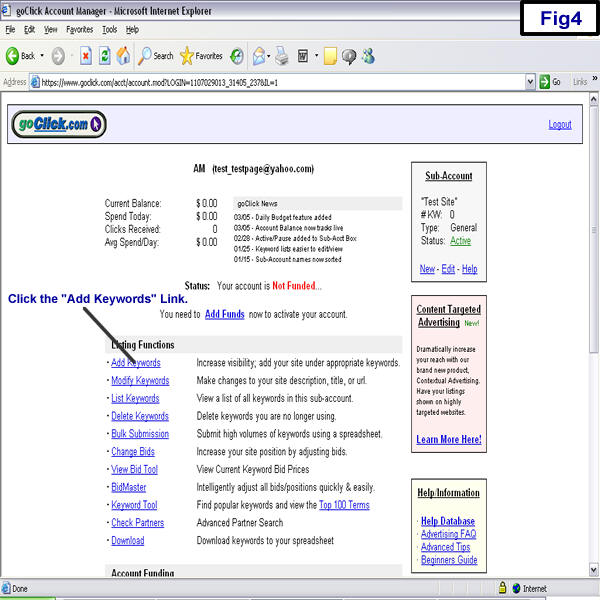
will be brought to your account (see fig4). First thing we will do is add
keywords. Follow the instructions of Fig4:
O.K., now its time to add your keywords, hoplink, ad title, and ad description
(see Fig5):
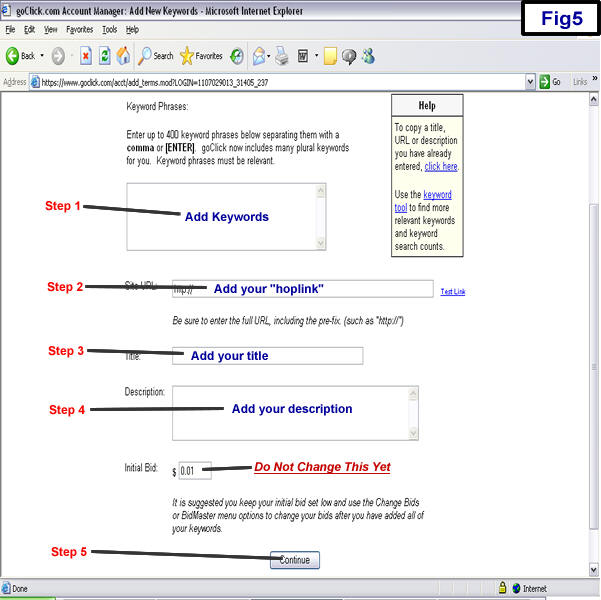
Step 1: in Fig5 from above, we are going to add some keywords. When people search GoClick for these keywords they will see your add. Keywords are the most important aspect, when it comes to advertising in search engines. For this section I have supplied some keywords for you. Pick the words you like the best. I recommend starting with at least ten:
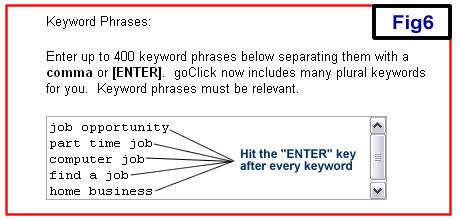
After you select your keywords you will need to enter them in the box for keywords, shown in Fig6. Make sure you hit the enter key after every keyword (one keyword per line).
Step 2: from Fig 5 above, we are going to enter your hoplink (as explained in Step 3). Just so we're clear, when it comes to linking to a site with ClickBank, it's virtually the same across the board. They track sales by the use of what they call "HopLinks". The format is as follows:
http://hop.clickbank.net/?your_nickname/merchants_nickname
You will replace "your_nickname" with your ClickBank nickname, and "merchants_nickname" with the merchant's nickname. My sites nickname is gcv2005. If your nickname from ClickBank was tll2003, than your "Hoplink" would look like this:
http://hop.clickbank.net/?tll2003/gcv2005
Enter your hoplink in "Step 2" from Fig5 above. And remember to put your nickname in place of tll2003!
Step 3: from Fig5 above, we are going to enter your ad title. You can pick whatever you want, but to help, I have supplied a few for you. Take your pick and enter it in the Title space from Fig5 above:
Step 4: from Fig5 above, we are going to enter your ad description. You can pick whatever you want, but to help, I have supplied a few for you. Take your pick and enter it in the Descrition space from Fig5 above:
Step 5:
from Fig5 above, hit the continue button and you will be brought to a
verification page which looks like Fig7 below. Follow these instructions:

Remember to make sure your nickname is in the hoplink, on the "Site URL" space from Fig7 above. Remember your hoplink should look like this:
http://hop.clickbank.net/?YOUR_NICKNAME/gcv2005
O.K., once you have your info correct and you hit the submit key, you will be brought to this screen (follow instructions from fig8 below):
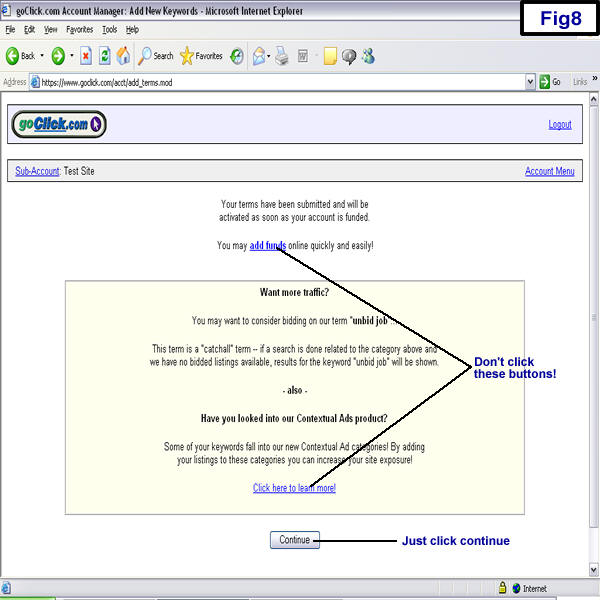
Now
we are back on your account page. Follow the instructions from Fig9 below:
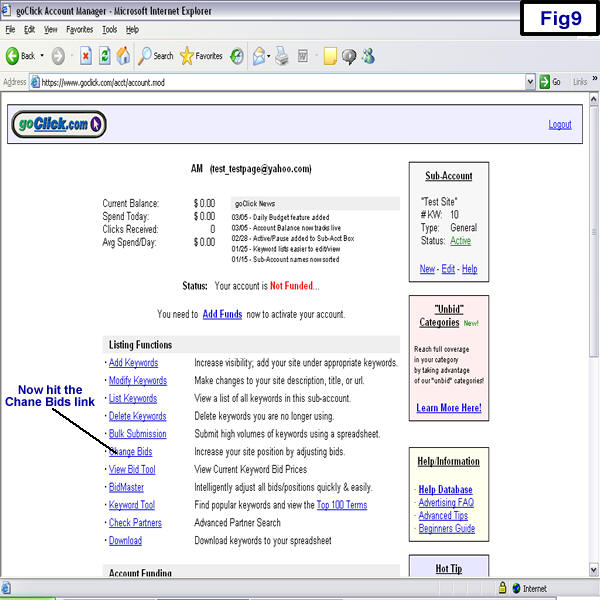
Now we're on the modify keywords page. Follow the instructions from Fig10 below:
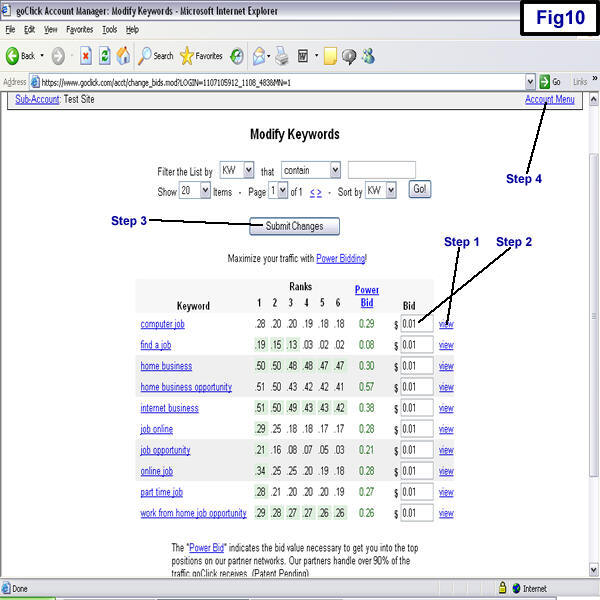
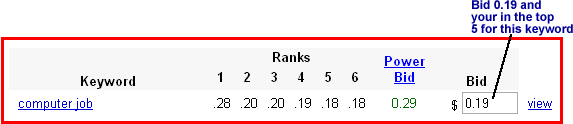
For "Step 1" hit the view link for each keyword to see how much people are bidding for that keyword. For "Step 2" place your bid for each keyword. You want to be at least in the top ten for each keyword and I recommend bidding 20 cents or less for each word. If it's impossible to be in the top ten, for an individual keyword, and still bid less than 20 cents, than place the bid for that word at 0 cents and you can add different keywords later. Here is an example:
After you have bid on all your keywords, do "Step 3" and hit the Submit Changes
key. Now do "Step 4" and hit the Account Menu link. You will be back at your
account screen, follow the instructions in Fig 11 below:
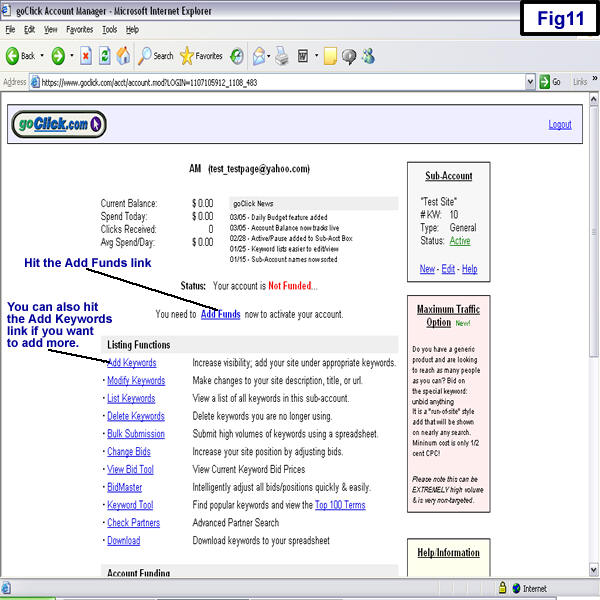
After hitting the "Add Funds" link, pick your payment method. As soon as your payment is verified, your keywords will be up and you will start earning your first commissions. Once your keywords are up, you can check your earnings by going to your account with ClickBank, Click Here. Enter your nickname and password to see your details.
Click Here to go back to the main menu!