Tutorial
Difficulty: Newbie
Topic: Editing Graphics (Bitmap)
Softwares Required:
FlsEdit by joox
PPMedit by Tnp
Your unmoded Flash
My moded Flash (click here) to download
WorkShop:
Prepare your working environment on your windows creat folders and subfolders for more easy access including some files required for moding flash. Example in figure 1.
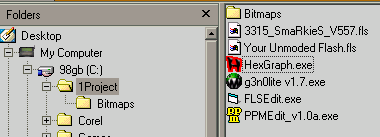
figure 1
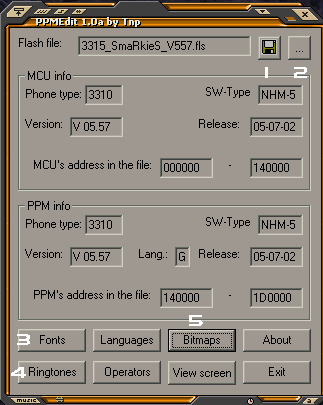
PPMEdit: Getting to know the Program Example figure 2.
FlsEdit: is almost like ppmedit program the difference is it has a checksum reports, the only features can be used in this program is Bitmaps, Animation and Language. But works 100% unlike the other program are so buggy.
|
1 Save Button - to save your flash project to a specified name.
2 Open Button - to browse the flash file that your going to edit.
3 Fonts Button - to edit your fonts, adding and removing fonts, or importing any fonts you like (warning program buggy)
4 Ringtones Button - to edit ringtones, importing and exporting ringtones, you can play your tones direct from your pc speaker.
5 Bitmap Button - to edit the Graphics of your flash you can import and export bitmaps from other phone (but the program is so buggy)
|
figure 2 |
Exporting Bitmaps
Using PPMedit Open my moded Flash File and Click the Bitmaps Button and select 3 Save all or 1 Save to BMP. This is used to be imported in your unmoded flash. If you select Save all the files will be extracted in your flash directory with a file count of 380 or more files, after that copy all bitmaps in bitmaps folder directory. If you select Save to BMP the bitmap will be saved as you selected. figure 3
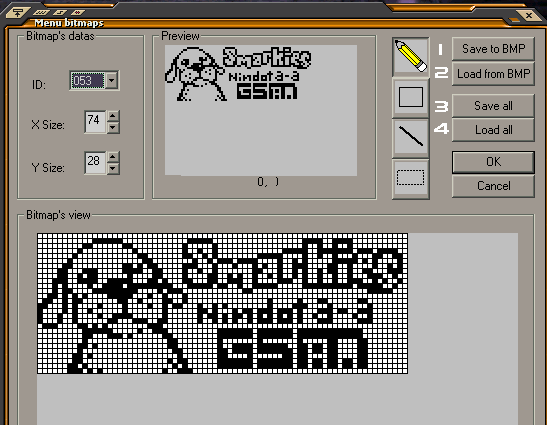
figure 3
Importing Bitmaps
Using FlsEdit Open my your unmoded Flash File and Click the Bitmaps Button, as you can see in your flash bitmap you can select from the bitmap ID's like 053 wherein the Phonebook is next ID is next of its animation, next thing to do is click the Load from BMP button to import the bitmap you want you have to browse for the bitmap you want to import. Just repeat all procedures to all bitmaps. That's what I did when I'm moding my flash.. got to take some lot of time.. After all bitmaps are imported click OK.. figure 4
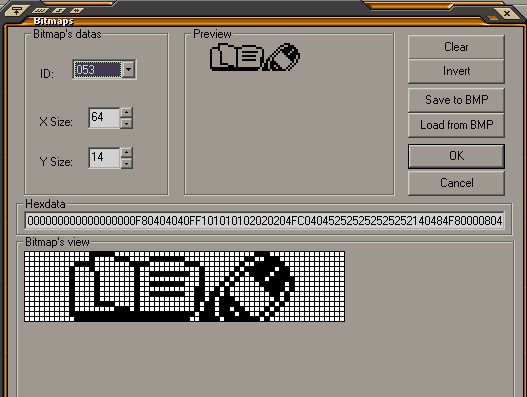
figure 4
The Animation
Using FlsEdit same unmoded Flash File and Click the Animation Button.
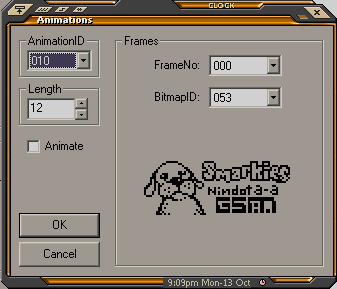
| AnimationID is where in the animation sequence packed.
Length the length of frames in one animationID.
Animate this will test if your animation sequece are right, on selected animationID.
FrameNo: on length of your animation this is frame number 000 is your first bitmap in the animation.
BitmapID: is the bitmapID of your bitmap where in your new graphics and to locate your next frame for next frame number.
On every new frame number you need to select the next bitmapID for next animation. or it was set already but some Animation ID is need to be reset. Just click the animate to test if it is right. Click OK if your done and save the flash. |
|