WARNING:
Before upgrading always create FUBU (Full Backup) of your phone.
Not just partial flash.
Flashing with
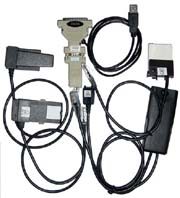
Cheap DCT4 Flasher You can now pick up
a cheap DCT4 flasher for as little as £20. They will not flash the newer DCT4
phones but they do support: 8310/6510 - 7210/6610 - 6310/6310i - 8910 -
3510
There are some
additional limitations in that up until recently it was not possible to flash
the 6310i up to or past software version 5.10. Although some clever chap by the
name of X-Shadow has released some patched flash files for the 6310i. He
succesfully patched 5.10 and 5.22 MCU flash files so that they can be used with
the cheap DCT4 flasher! (very handy)
For all other supported
handsets the cheap flasher uses genuine phoenix flash files which can be found
at http://web13.brigado.biz/nokia/dct4_flashfiles.php. This cheap
DCT4 flasher does NOT support 7650, 3510i, 3650 or newer!
If you decide
to purchase this flasher you will notice that the data cables do not have any
battery contacts. This is beacuse the flasher is USB powered and therefore does
not require any batteries. (much safer to flash with external
power!)
DCT4 Flashing
software For cheap flasher There are a
few flashing programs that can be used with the cheap DCT4 Flasher (Non work on
XP!!!!!). They all operate in pretty much the same way, I have chosen WinDCT4
for this tutorial as in my experience this one works the best. Download and
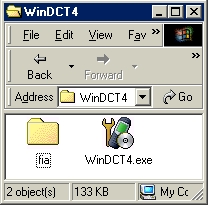
unzip the software: WinDCT.zip HERE You will have a folder called
WinDCT4, open this folder and you will see the following
contents.
The Fia folder contains the
flash loader files that the software requires to iniate erasing/writing to the
phone flash memory. Nokia do change the flash chips within newer variants of
their handsets. This means that a very new 8310 may require a different flash
loader (fia file) than an older 8310. All this means is that from time to time
the fia folder will need updating with the latest fia
files.
Plug your flasher into your
parallel port, plug the power cable into the USB port and connect your phone to
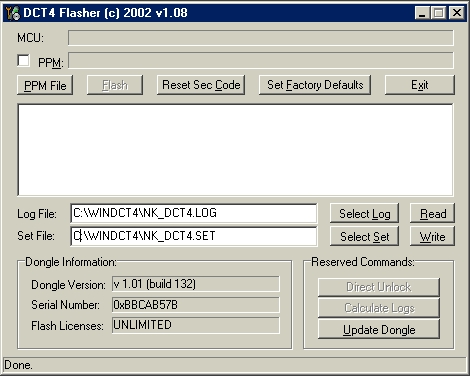
the data cable. Now run the WinDCT4.exe, you will see the following
screen:
If all is well the program
will auto detect your DCT4 flasher dongle. You must now select the flash file to
be written to the phone. (You probably got a lot of flash files on the CD
enclosed with the flasher). First you must select the PPM pack you want to
flash, the software will then automatically find the MCU file by itself. (as
long as the MCU file is in the same folder as the PPM file).
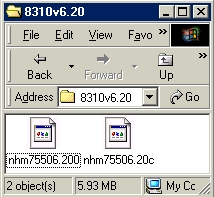
E.g If you are flashing
an 8310 with software version 6.20 you will have a folder containing the
following (you may have more PPM files in your folder, I have only one in the
shot below).
The screen shot shows a
folder containg both the MCU and PPM files for an 8310 (version 6.20). MCU
filename: nhm75506.200 PPM filename: nhm75506.20c
As you
can see the above filenames are very similar but it is easy to detect which one
is the PPM pack as it has an alphabetic letter on the end. In this example the
PPM is pack "C". Pack C is normally the European language pack containg English,
German, French, Italian, Turkey.........
Anyway back to the flashing
process. Press the "PPM file" button on the software to select the PPM
file.
Continuing with our example we will select the PPM
file named nhm75506.20c. The software will then load both the MCU and PPM
automatically. If this has been done succesfully you will see the
following:
Before we go any further I
shall briefly explain the flashing procedure for DCT4 handsets. The flashing
process has two stages: Stage 1 the MCU is written (software
package) Stage 2 the PPM is written (language package) (It is also
possible to flash just the PPM if you only require to change the language
pack.)
Now you are ready to press the magic flash button. Press the flash
button and when prompted power on the phone. If all is working well the program
will start erasing the flash memory. Once the erasing process has been completed
the program will begin to write the MCU software. To write the MCU will take
about 5 minutes so sit back and watch the numbers tick by!!:-)))
Once the
MCU has been written succesfully the phone will display the words: "Local
mode" and the program will display a message box asking you to power off the
phone. What you have to do next is quite important! To turn the phone off it
is best to disconnect the phone from the data cable and reconnect it
again. The words "Local mode" shoulld NO LONGER be displayed on the handset. In
my experience for many 8310/6510's just disconecting and reconnecting the data
cable is not always sufficient as the words "Local mode" remain displayed. If
this is the case simply remove the USB power cable for a second and plug it back
in.
When you have succesfully turned the phone off (i.e local mode is
not displayed) you must press ok button on the message box window.The program
will now ask you to power on the phone for a 2nd time. Press the power on button
briefly and the program will begin writing the PPM pack. The PPM pack will only
take about one minute to write.
And thats it!! You have succesfully
flashed your handset!
Newer 8310/6510's and 6310i's Require Different Fia
Files!!!!! Within the WinDCT4 directory
you downloaded above is a folder named fia (as well as WinDCT4.exe). This folder
contains a standard collection of fia files. The fia files in this folder
will be fine for flashing 90% of all DCT4 handsests. But the very latest 6310i's
and 8310/6510's require a different set of Fia files. These can be found quite
easy by searching the internet, contact me for advice if you have any trouble.
NB It is a good idea to keep a copy of the standard fia folder, so
that you can revert back to it later. (as you will be using the standard fia
folder much more than the other fia folders) Run WinDCT4.exe again and
hopefully you will succesfully flash your handset!
Common Problems and
Answers The first common problem is
that when people purchase the flasher they copy the DCT4 flasher program, fia
files and flash files from the CD supplied with the DCT4 flasher. Now when you
copy files from a CD the access properties of the files become Read Only.
The flasher cannot use the fia files unless they are Archive . Just select all
the fia files, then right click them and uncheck the read only box and check the
archive option. You will probably have to do the same with your flash files
also if they were copied from a CD.
The DCT4 flasher programs DO NOT WORK
with XP. UNLESS you install a program called USER PORT.
Internet
Explorer 6 or above recommended and macromedia flash 6 plugin for best result