Flashing DCT3

and tools


WARNING: Before upgrading always create FUBU (Full Backup) of your phone. Not just partial flash.


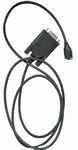
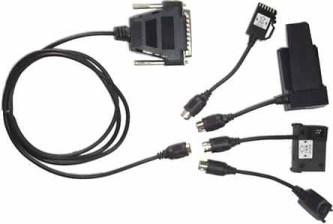
Image above of Standard DCT3 Flash Cable Set
with connectors for 3210, 8210, 33XX, 51XX
Extra Connectors are widely available.
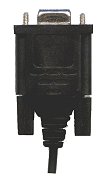
You Will also need an mbus compatible datacable for setting the FAID after flashing. If you have the set above then the Data Base Cable is what you need (pictured below)


 In order to upgrade (or downgrade) your phone's software, you will need:


a flasher cable,

flashing software,

an MBUS cable and

 FAID (Flash Authority Identification Data) calculation software.

You will need the latest version of firmware for your model of handset,which come in the form of MCU+PPM,
available for download here: http://www.handy-flashpage.tk/.  It is best to combine the two flashes into a single flash file using nasNFcon,which should be slightly smaller than the full size of the flash,
 so as not to erase EEPROM data.

 MCU (Master Control Unit) - contains main operating software

 PPM (Post Programmable Memory) - contains languages, dictionaries, menus, ringtones, etc.

 EEPROM (Electronically Erasable and Programmable Read Only Memory) - contains phone specific information

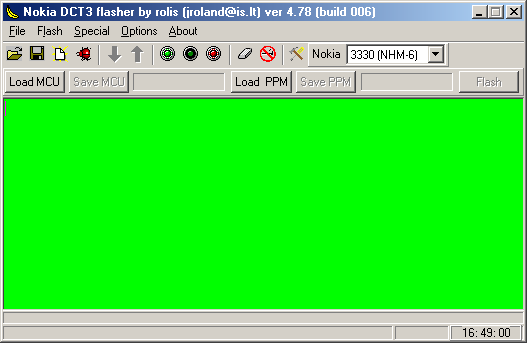
Recommended software - The following instructions are provided for upgrading using Rolis Flasher and NokTool1.8.

Instructions:

Phone Backup

Ensure the phone's battery is well charged.

Plug the flasher cable into LPT (printer, 25 pin) port

Ensure the phone is switched OFF.

Remove the SIM from the phone, replacing the battery if removal was necessary.

Plug the cable into the phone, ensuring the phone is switched off.

Run Rolis Flasher.

Select the model of the phone from the drop-down menu.

Select "Read" from the "Flash" menu, press CTRL+R or click on the green button  (,7th from left) on the toolbar.

Press the power button of the phone briefly when prompted (plugging the charger in will also have the same result). The backup process will start and will take several minutes to complete.

Select the location and filename to save the backup.

Upgrading the Phone

Ensure the phone's battery is well charged.

Plug the flasher cable into LPT (printer, 25 pin) port.

Ensure the phone is switched OFF.

Remove the SIM from the phone, replacing the battery if removal was necessary.

Connect the flasher cable to the phone, ensuring the phone is switched off.
 

Run Rolis Flasher.

Select the model of the phone from the drop-down menu.

Select "Write" from the "Flash" menu, press CTRL+W or click on the red button (, 9th from left) on the toolbar.              

Select the correct flash file using the file selection dialog box.

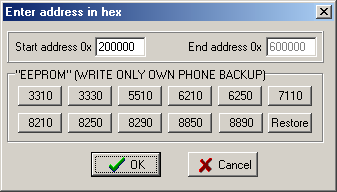
After entering the correct start start address determined from the table, select "OK" in the dialog box that appears.

Model Version MCU PPM EEPROM/PMM
3210 All 0x200000 0x2F0000 External
3310 <=v04.02
other
>=v05.47
0x200000
0x200000
0x200000
0x320000
0x330000
0x340000
0x3D0000
0x3D0000
0x3D0000
3315 All 0x200000 0x340000 0x3D0000
3330 All 0x200000 0x490000 0x550000
3410 All 0x200000   0x570000
5110 All 0x200000 0x2B0000 External
5130 All 0x200000 0x2C0000 External
5210 All 0x200000 0x490000 0x580000
5510 All 0x200000 0x490000 0x550000
6110 All 0x200000 0x2C0000 External
6130 All 0x200000 0x2C0000 External
6150 All 0x200000 0x360000 External
6210 All 0x200000 0x520000 0x5A0000
6250 All 0x200000 0x530000 0x5A0000
7110 All 0x200000 0x510000 0x590000
8210 All 0x200000 0x340000 0x3D0000
8250 All 0x200000 0x340000 0x3D0000
8850 All 0x200000 0x340000 0x3D0000

For combined flashes, use the start address listed for the first part of the file.

Press the power button of the phone briefly when prompted (plugging the charger in will also have the same result).

The flash erase process will start and flash writing will commence immediately afterwards.

This will take several minutes to complete.

Repeat steps 8 to 11 for the PPM if not combined into a single flash.

Disconnect the flasher cable from the phone.

Insert the SIM card.

Plug the MBUS cable into an available COM (serial, 9pin) port.

Power on the phone.

Connect the MBUS cable to the phone.

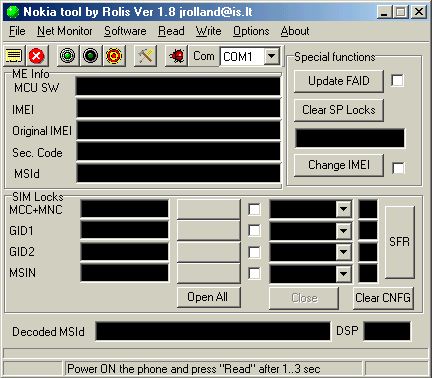
Run NokTool1.8.

Select the correct MBUS COM port from the drop menu at the top of the user interface.

Click the Read button .   

Click the "Update FAID" Button.

Click the "SFR" button.

Restart the phone. (you are done)


Internet Explorer 6 or above recommended and macromedia flash 6 plugin for best result

© 2001 - 2004 SmaRkieS Interactive

For comments and suggestions email to [email protected]


Hosted by www.Geocities.ws

1