
-Adding a Magic Frame-
For skins that do not already have a magic frame and you'd like to add one, go to Image and click on Attributes. Take the width of the skin and add it to the height. Ta-da, you've added a magic frame after the credits.
And there you have it, a simple skin. Now... if you want to do some nifty modding tricks, keep reading. ^_^
-Quick Colour Change-
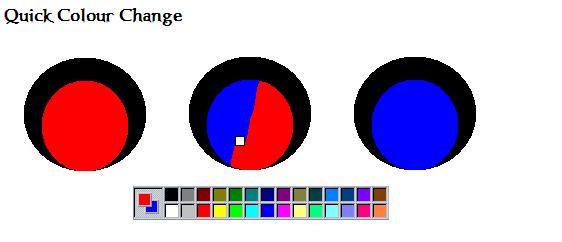
A quick and easy way to change the colours on a skin. Simply use the 'Eyedropper Tool' and first click on the colour you want to change. Then right-click on the colour you want to use instead. Then using the 'Eraser', hold right-click, and swipe over the image. The only colours that should have changed are the ones you have selected. Colour Change Image
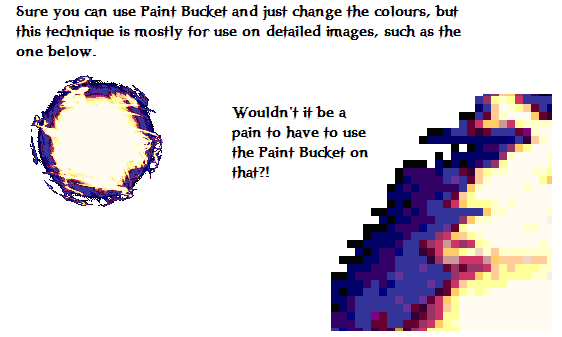
Of course for large areas you can just use the 'Paint Bucket', but for those intricate skins, this works the best, as seen to the right. Colour Change 2 Image
-Fading-
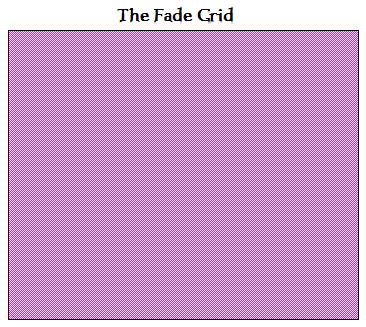
This is a cool effect you can do to make your skin look more mobile. It's also a good way to use a lot of cool effects on your skin, and not make it look so cluttered. It's great to use on the Attack Frame, and if done right, the Magic Frame as well. There are several ways to achieve this effect. The most time consuming one has you using the 'Line Tool' and the 'Shift Key' to make perfect diagonal lines across the image you want to fade. However, the easiest way is to use the Fade Grid I've provided here. Fade Grid Image Simply take the grid, add rows if you have a large frame to fade, and place it over the image. Make sure the 'non-pink' colour matches your background. (IE: The greenish-blue that is used on most skins.)
Now, using the 'Eyedropper Tool', click on the pink used in the grid. Then choose the 'Eyedropper Tool' again, and now right-click on the background. Use the 'Eraser', hold right-click, and swipe over the image. The pink should disappear, and leave behind your image with a grid overlaying it. Fading Image (Make sure that if you are using the pink colour on your skin, you change the colour of the Fade Grid. Use the *Quick Colour Change* effect to make the grid a colour you are not using in the skin.)
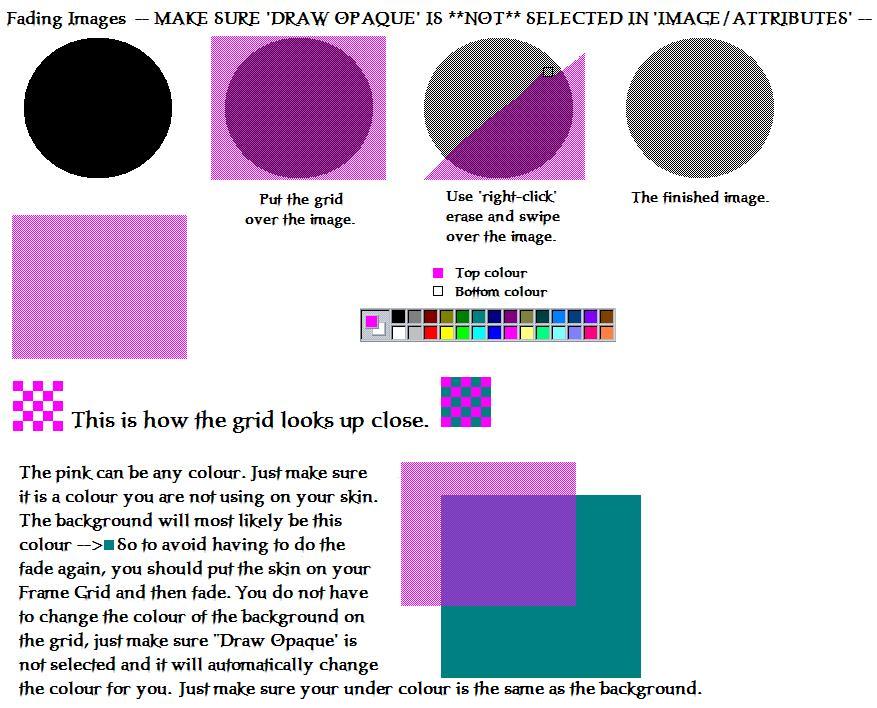
To avoid having to do the fade again, you should put the skin on your Frame Grid and then fade. You do not have to change the colour of the background on the grid, just make sure that your 'under colour' is the same as the background.
-Colour Grids-
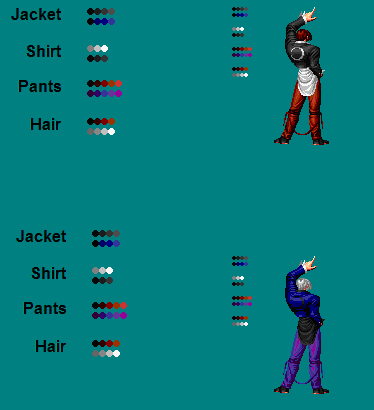
Colour grids are an easy way to keep track of what colours you are using on your skin. Especially if you are changing all the colours. Simply select a colour and use the 'Paintbrush Tool' to make a stamp of it somewhere off to the side. Then select the colour you want to change and do the same, making a stamp directly below the first one. (Leave a little space between the different colour grid so you don't get confused.) After copying all the colours, making sure that each grid is a different object (IE: Pants, Hair, Weapon, etc.) use the 'Eyedropper Tool' and first left-click on the colour you want to change, making it the top colour. Colour Grid Image Then right-click on the new colour, making it the bottom colour. Use the *Quick Colour Change* effect, and you'll be finished in no time.
-Blood-
Blood is fun... The more blood on a skin.....
well.. hehehehee... Blood is also hard.. Expecially if you want it to look right.
You don't want a bunch of red blobs here and there, you want it to look like
dripping maddness as you smear that level 100 PK that just murdered your low
level.. *coughs* Moving along.. Alright, I don't claim to be the best when it
comes to blood, but seeing as I have used Necrojoker's work as an outline for
quite sometime, I think this is going to be very helpful.
-Wings-