Here on this page you will find instructions on how to install the phpBB forum software and then setting up Urdu support inside phpBB. First of all you need to download phpBB. I performed the setup using phpBB V2.0.12. You also need the patch for Urdu support which you can get from here.
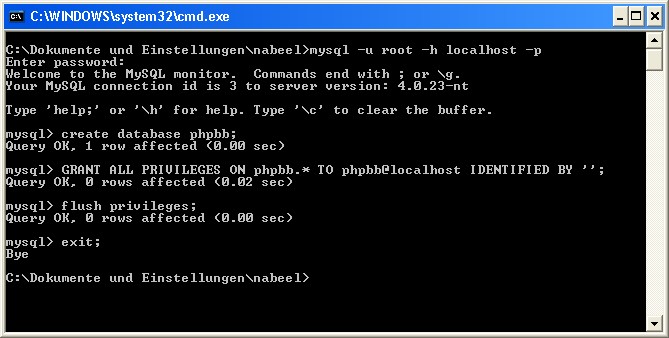
You can now start installation after downloading the necessary files. First create a database for phpbb. Figure 1 shows the MySql console where I created a database with the name phpbb and a user with the name phpbb.
Figure 1
Then unpack the phpBB's zip-file in a folder and add an alias in apache web server's http.conf file to this folder. Start your browser and go to the location http://yourhost/forum/install/install.php where yourhost is the name of your host and forum is the apache's alias for the folder which contains phpbb. phpBB's installation page appears as shown in Figure 2. Enter the information accordingly and click on the "Start Install" button. The installtion is complete. Do not foget to delete the install and the contrib folders afterwards.
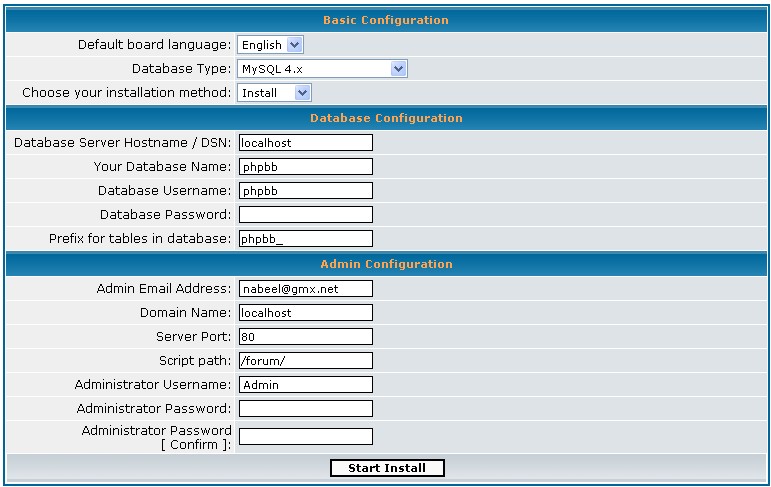
Figure 2
Now you are ready to apply the patch for Urdu support. Unpack the urdu_patch.zip file in a folder. The folder language in the installed forum contains a folder lang_english for English language files. Replace this with that from the patch. Then overwrite the files overall_header.tpl and subSilver.css in template\subSilver also with those from the patch. You should now be ready to use Urdu inside phpBB. Start you forum by browsing to the location http://yourhost/forum/ e.g. Remove the test forum and the test category. Create a new category and a new forum in this category in Urdu as shown in Figures 3 & 4. It can be seen that the Urdu support does not yet extend to the administration part of phpBB.

Figure 3
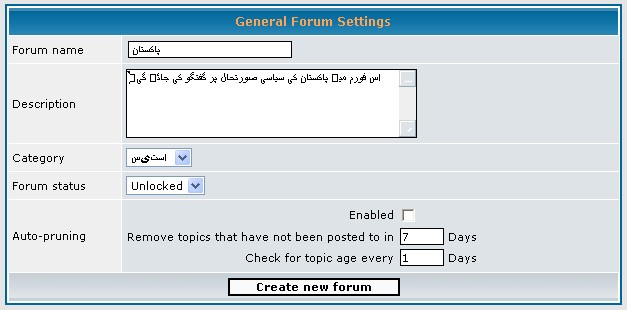
Figure 4
You can now see your first Urdu forum as shown in Figure 5.

Figure 5
You are now ready to post your first Urdu message. I have adjusted the styles of the edit areas of this part to accept Urdu input text. Type in or copy the text as shown in the following figure and then click the submit button. Your posted message appears as shown in Figure 7.
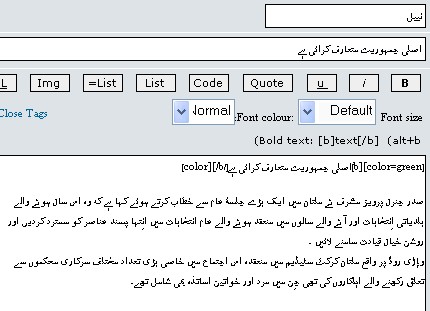
Figure 6
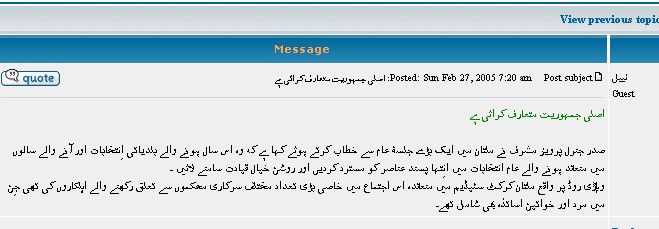
Figure 7