 |
|
| Downloading: |
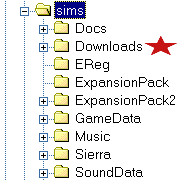
| When downloading an object either left click directly on the picture or right click and chose "save file as". Choose a directory to save the file to. To open the file use winzip and place the .iff (object file) in your Sims/Download directory. |
 |
 |
| Problems With An Object: |
| We use a special "Magic" Cookie to make our objects and test them in our own The Sims game before posting them for you to download. If you find a problem with an object you download from us, please E-Mail us! |
| Objects: |
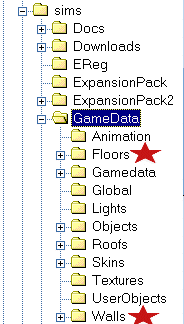
| Walls and Floors: When downloading our walls simply click on the wall picture and save the file to a temporary directory on your hard drive. Open the file with winzip and put the wall file (.wll) in your sims/gamedata/walls directory. When downloading floors follow the same steps as above, but unzip the floor file (.flr) into your sims/gamedata/floors directory. |
| Linking To Our Site: |
| If you would like to put a link to our site on your site we welcome the advertisment! Be sure to email me and let me know so that I can return the favor! I have created a few handy banners for you to use on our links page. Simply right click the banner of your choice and "save picture as". You will have to save the picture to your hard drive and then upload the graphic file to your website graphics directory. Add the graphic to one (or many) of your pages and add the link, www.geocities.com/simcastles/index.html ! |
| Seeing Yellow on your Objects in The Game: If you are seeing yellow lines on your objects when you are playing The Sims you have to make sure that "anti-alias" is checked. Go to your options menu (where you save the game). |
 |
 |
 |
| To Download Winzip please refer to the link on our Links Page! |