
MSM-Workstation Tutorial (part 1/5)
Last time we commenced our Micronetics Data Corp MSM Workstation tutorial. Since last issue we moved to version 2 of this product (which although still in late beta) is very stable. Some of the flaws we reported of an earlier beta in MWM005 have now been fixed.
All the material we will talk about in this issue is found in the archive file msm001.zip.
You can download this issue's code by clicking here.
Last issue of this page can be viewed by going to the index.
Here you will find the executables of all programs, icon and image files plus the source code of these programs. If you need assitance handling the archive, send us an e-mail. You may find it convenient to assign a moniker to our development database.
The first thing on our agenda is to analyse our simple GUI program that added two number. Version 2. Has a number of improvements that will make our task of explaining code a lot easier.
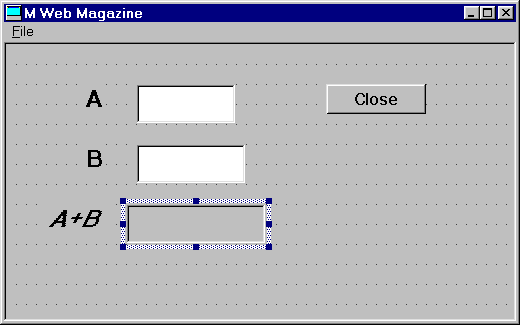
The image on the left was what appeared on screen when the Add.exe was clicked.
This program had two things at work: the application ADD that embodies within it the window CALC. Application components include all modules and/or windows that form the application's GUI part, together with any routines and globals in the application's read-only database.
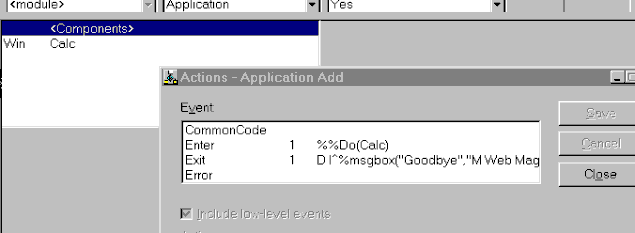
When we open application ADD we get a window with a list of objects contained within it. In our case there is only a Window called Calc. Clicking on <Components> to select it, if we choose menu Element option Actions… we get the dialog box shown in the above figure. ADD has two actions defined: Enter and Exit. Enter-associated code will go into effect when the application is first loaded. In our program it will %%DO(Calc). %%DO invokes a window or module (in our case window CALC). Alternatively we could also have %%DoWin(Calc).
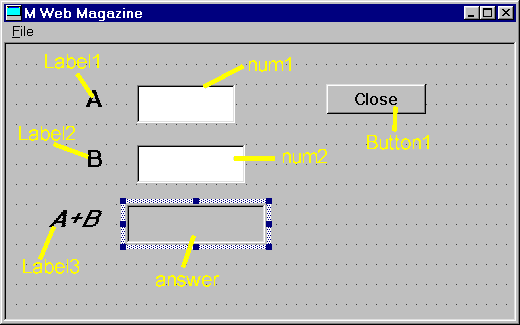
In version 2, the action logic of certain objects will automatically be shown when you double click them. Window objects fall into this category. The action logic of CALC is listed below.
Before we are able to follow this action logic, we must identify the various objects within our window. These might be referenced within the code (some of the objects, for example Label1, Label2 and Label3 are static and not used). When the Window is first invoked, the Create Action is called up. Here we display a dialog box (mentioned in last issue) with title "M Web Magazine" and containing "Welcome". We also set answer, num1 and num2 to zero.
Window — Create
;Initialisation Code
DO I^%msgbox("Welcome","M Web
Magazine")
Control num1 — Create
SET num1=0
Control num2 — Create
SET num2=0
Control answer — Create
SET answer=0
IF…
What happens next is something we talked about last time; only the user knows.
- If the user types in a value in num1, the following happens:
Control num1 — Modified
SET answer=num1+num2
%%SetVar(answer)%%SetVar updates the value displayed in a control on a window by referring its local variable. We’ll go into this below.
- If the user types in a value in num2, the following happens:
Control num2 — Modified
SET answer=num1+num2
%%SetVar(answer)
- If the user clicks Button1, the following happens:
Control Button1 — Push
DO QuitWin
We have accounted for all action in the window. With the exception of CommonCode. In this area you can place routines that will be available to all action logic areas. CommonCode is also available at the Application level.
Window — CommonCode
;Closes the Window
QuitWin %%Cancel
Let us now look at other items making up the Window. First there is the close window icon found in all windows applications (The X symbol at the top right hand corner). When you click this you automatically invoke %%Cancel. This Window macro will exit and destroy a window.
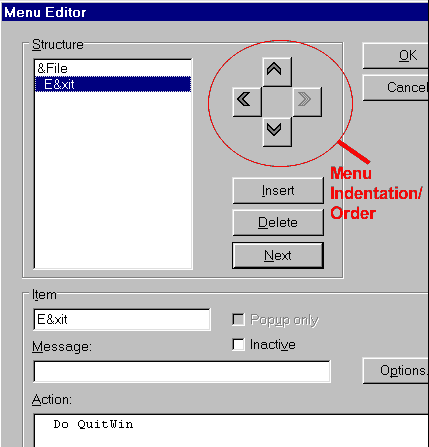
Our program also has a menu in it. Click on file, you can choose the (only) option Exit. To define a menu in MSM-Workstation choose menu Element option Menus….
We have defined the menu item File with. The ampersand before the F tells us the keyboard key that will bring up this menu.
Below File we have Exit. If you look at the image you will see note that Exit is indented with respect to File. This means that it is a sub entry within File. The area marked on the image handles this task of shifting/ordering menus.
Exit has the action Do QuitWin (QuitWin found in CommonCode) associated to it.
