
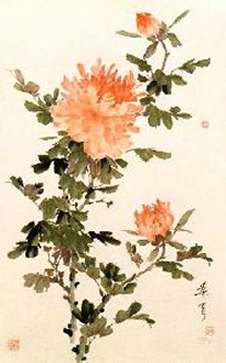

BACKGROUND<
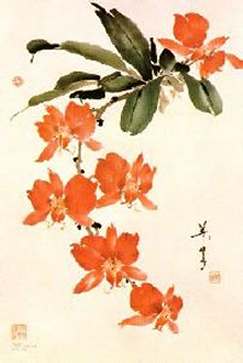
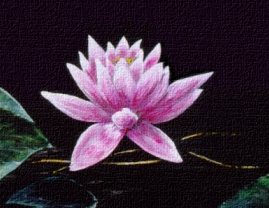


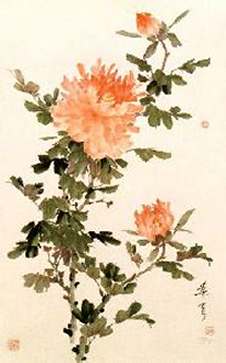
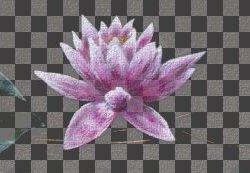
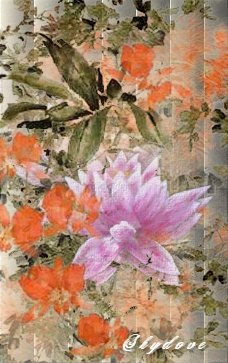
MATTING<<<<<....and REMOVE THE BLACK or WHITE MATTE<<!
now after doing this, you may chose to leave the matte in the layer, because it may look better :) it's all in the Eye's of the Beholder :)
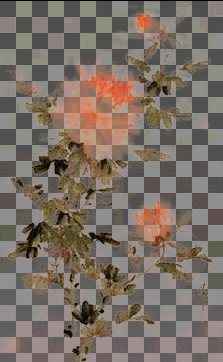
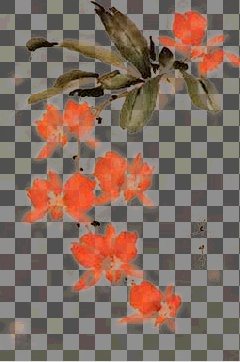



|
|
|
|
|
|
|
|
|
|
|
|
|
|
|
|
|
|
|
|
|
|
|
|
|
|
|
|
|
|
|
|
|
|
|
|
|
|
|
|
|
|
|
|
|
|
|
|
|
|
|
|
|
|
|
|
|
|
|
|
|
|
|
|
|
|
|
|
|
|
|
| Blending Image's | ||||||||||||||||||||||||||||||||||||||||||||||||||||||||||||||||||||||
| To do this Tutorial, you must know how to use your Paint Shop Pro Program, and a little bit of imagineation :):) along with some Magic! :) | ||||||||||||||||||||||||||||||||||||||||||||||||||||||||||||||||||||||
|
||||||||||||||||||||||||||||||||||||||||||||||||||||||||||||||||||||||
|
||||||||||||||||||||||||||||||||||||||||||||||||||||||||||||||||||||||
| This is going to be our finished graphic, or something like this :) | ||||||||||||||||||||||||||||||||||||||||||||||||||||||||||||||||||||||
| You are going to need the Texturizer, & some .psd's , to give the Graphic some substance. After the Graphic is Finished, go through each layer, and add Texture, .psd's, and filter's of your choice, to give a nice finished look to your new creation, remember, practice make's perfect :) | ||||||||||||||||||||||||||||||||||||||||||||||||||||||||||||||||||||||
| Supply's...Download here**********************! | ||||||||||||||||||||||||||||||||||||||||||||||||||||||||||||||||||||||
| Eliminate Black Filter | ||||||||||||||||||||||||||||||||||||||||||||||||||||||||||||||||||||||
| Eliminate White Filter | ||||||||||||||||||||||||||||||||||||||||||||||||||||||||||||||||||||||
|
|
|||||||||||||||||||||||||||||||||||||||||||||||||||||||||||||||||||||
| Textureizer | ||||||||||||||||||||||||||||||||||||||||||||||||||||||||||||||||||||||
| This is the Graphic that we will use for our BACKGROUND< |
||||||||||||||||||||||||||||||||||||||||||||||||||||||||||||||||||||||
| This is what your Finished Graphic should look like...or something similiar to this:) | ||||||||||||||||||||||||||||||||||||||||||||||||||||||||||||||||||||||
| Feathers PSD | ||||||||||||||||||||||||||||||||||||||||||||||||||||||||||||||||||||||
| Leafy PSD | ||||||||||||||||||||||||||||||||||||||||||||||||||||||||||||||||||||||
|
||||||||||||||||||||||||||||||||||||||||||||||||||||||||||||||||||||||
|
||||||||||||||||||||||||||||||||||||||||||||||||||||||||||||||||||||||
| Take the Black Background out of this Graphic, with the Eliminate Black Filter, then Copy & Paste it as a New Layer< to your Background Graphic, when needed..or in other word's........when you want to......:) | ||||||||||||||||||||||||||||||||||||||||||||||||||||||||||||||||||||||
| Take the White out of this Graphic, with the Eliminate White Filter, then Copy & Paste it as a New Layer < to your Background Graphic, when you want to........ | ||||||||||||||||||||||||||||||||||||||||||||||||||||||||||||||||||||||
|
||||||||||||||||||||||||||||||||||||||||||||||||||||||||||||||||||||||
|
||||||||||||||||||||||||||||||||||||||||||||||||||||||||||||||||||||||
|
||||||||||||||||||||||||||||||||||||||||||||||||||||||||||||||||||||||
| Take the White out of this Graphic, with the Eliminate White Filter, then Copy & Paste it as a New Layer< to your Background Graphic, when needed...this graphic can be used many different times, as you want, just place the graphic on the Background, ON A NEW lAYER, EACH TIME< & use the Mover Tool, to place it in a different area, EACH TIME, to create a nice looking PICTURE | ||||||||||||||||||||||||||||||||||||||||||||||||||||||||||||||||||||||
| TIP! ALWAY'S remember to place whatever your putting on your Background on a SEPERATE LAYER, EACH & EVERY TIME! as time goes on, you will learn that you can Erase different part's of what your Pasting on to your Background.....by doing this, you can Create something very nice looking, and very orginall.....you can also Crop out particular part's of the Graphic to Copy & Paste as a New Layer | ||||||||||||||||||||||||||||||||||||||||||||||||||||||||||||||||||||||
|
||||||||||||||||||||||||||||||||||||||||||||||||||||||||||||||||||||||
| These are Example's of how these Image's should look like, after you have Elimated, a Black, or White Background!.......NOW GO TO LAYER'S....... MATTING<<<<<....and REMOVE THE BLACK or WHITE MATTE<<! now after doing this, you may chose to leave the matte in the layer, because it may look better :) it's all in the Eye's of the Beholder :) |
||||||||||||||||||||||||||||||||||||||||||||||||||||||||||||||||||||||
|
||||||||||||||||||||||||||||||||||||||||||||||||||||||||||||||||||||||
|
||||||||||||||||||||||||||||||||||||||||||||||||||||||||||||||||||||||
| How to Activate your Eliminate White, & Eliminate Black Filter's..you must do this to get them to work! | ||||||||||||||||||||||||||||||||||||||||||||||||||||||||||||||||||||||
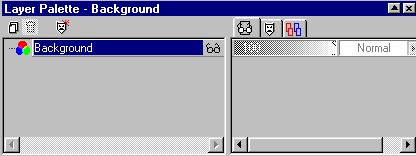
| Open up your Layer Palette, and double <click <on the blue Background tag......this bring's up another Window.....it's called Promote Layer & Edit Properties.....Click ok!...this should change that to a blue tag, that say's LAYER 1....now your ready to Eliminate the White or Black out of your background, of your choice :).....After that is done, Copy & Paste this to your Background, as a New LAYER<...to create your new Creation...>Use the graphic that i provided up at the top of this page called Background. | ||||||||||||||||||||||||||||||||||||||||||||||||||||||||||||||||||||||
|
||||||||||||||||||||||||||||||||||||||||||||||||||||||||||||||||||||||
|
||||||||||||||||||||||||||||||||||||||||||||||||||||||||||||||||||||||
| *** Tip's *** | ||||||||||||||||||||||||||||||||||||||||||||||||||||||||||||||||||||||
| 1*... Never ELIMINATE any Black or White out of your M ain Background Graphic , until you get better at useing this Method :):)....you only take the Black or White out of want you want, TO ADD, TO YOUR BACKGROUND :) for this Lesson :) | ||||||||||||||||||||||||||||||||||||||||||||||||||||||||||||||||||||||
| 2*...Tip's......on Effect's....Drop Shadow does not look good on the Images that you have taken the White, or Black out of..you will see from experiance..it darken's it, & does not look good | ||||||||||||||||||||||||||||||||||||||||||||||||||||||||||||||||||||||
| 3*...Effect's..i used the Blind's on the Background, and then I used Emboss...to give the foundation of your new creation, a good start :) | ||||||||||||||||||||||||||||||||||||||||||||||||||||||||||||||||||||||
| ok guy's remember, im new at writing Tutorial's, & this one was hard for me to do..so please be nice to me :):) i tried! but in time you will develope, your way's to do this...i have givin you the..Tool's & the Basic Step's on how to accomplish what i have been making :).....ok, now it's time to Play :) | ||||||||||||||||||||||||||||||||||||||||||||||||||||||||||||||||||||||
| All of the Graphic's on my Web Site, came from useing the Basic's from this Tutorial that I wrote, take a peek at the rest of them :) so you can see what this this is all about :):) | ||||||||||||||||||||||||||||||||||||||||||||||||||||||||||||||||||||||
| This is the Orginial Tutorial Written on July 29, 2000 By Shydove | ||||||||||||||||||||||||||||||||||||||||||||||||||||||||||||||||||||||
| I want to thank Joe Cilinceon, for making the Magical Filter, called~~Eliminate Black, that was used in this Tutorial~~go take a peek at his Great Site | ||||||||||||||||||||||||||||||||||||||||||||||||||||||||||||||||||||||
|
||||||||||||||||||||||||||||||||||||||||||||||||||||||||||||||||||||||
| Home | ||||||||||||||||||||||||||||||||||||||||||||||||||||||||||||||||||||||
|
|
||||||||||||||||||||||||||||||||||||||||||||||||||||||||||||||||||||||