The first Mouse Over effect that we are going to look at is the changing image effect. This is a very popular effect, and one of my favorites. Here is an example: Put your mouse over the image and see what happens. Pretty cool, huh? You can use this effect on your webpage by fallowing these simple steps: If you are familiar with HTML, skip to Step 2. If not, keep reading. An Image is declared using the <img> tag. This tag has many sub tags. The most important sub tag is the src sub tag. The src sub tag is where the path of the image is declared. A complete image tag looks like this: <img src="pathname.xxx"> Here is an example: <img src="car.gif"> Here is what it would look like on a web page: 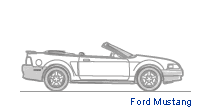 This is a very easy step. Another sub tag is added to the <img> tag. It is called the name sub tag. You can name the image whatever you want. It doesn't have to have anything to do with the name of the file itself. In this example, we will name the image "i1", for "Image 1". this is simply declared by: name="i1". This is added to the <img> tag like so: <img src="car.gif" name="i1"> Easy, huh? Now is where it starts to get tricky. The OnMouseOver events withing the anchor tag is where all the magic happens. In javascript there are many different events. An event is something happening. In this lesson, we will be dealing with the OnMouseOver event and the OnMouseOut event. The OnMouseOver event takes place when your mouse goes over anything on the web page contained in the anchor tag. The OnMouseOut event takes place whenever the mouse is NOT over anything beteween the anchor tag. The image declared in Step 1 is the image that will be displayed when the mouse is NOT on top of the image. Now we will declare the image that is displayed when the mouse IS on the image. Rather than use the <img> tag, we will declare it using JavaScript as a subtag within the anchor tag. Here is what it will look like: onMouseOver="document.images['X'].src='imagepath.xxx'" Since we are going to use an image called "over.gif", and the name of the image is "i1", the sub tag would look like this: onMouseOver="document.images['i1'].src='over.jpg'" Let me explain what all that means. We already know that onMouseOver is the OnMouseOver event. the" =" " is how we state what is going to happen when the onMouseOver event takes place. In JavaScript, when something is displayed, it starts out document.something. In this case, that "something" is an image, so it would be stated document.images[i1]. Fallowing the images are brackets, and as you may have figured out, the name of the image is written within the brackets. Don't ask me why it is stated using the term 'images" rather than "image". I don't know, that's just how it is. The image that is going to be displayed when the mouse is NOT over it has to be declared twice. Once in the <img> tag, and once again in the OnMouseOut sub tag. This is done the same way as Step 3, except that for src=", we declare the name of the image to be displayed when the the mouse is NOT on top of it. onMouseOver="document.images['X'].src='imagepath.xxx'" Now we're almost done! Now all we have to do is put in where we want the link to go to, and then close the anchor tag. Since you already know how to do this, I'm just going to display the complete code. For this example, we will linking to the homepage. <a onMouseOver="document.images['i1'].src='over.jpg'" onMouseOut="document.images['i1'].src='out.jpg'" href="site.html"><img name="i1" src="out.jpg"></a> |
| \\Step 1 Step 3// |
