Instant Validation with JavaScript-enabled WebDB
By Sameer Jejurkar
Using JavaScripts to validate data in WebDB forms means data gets validated prior to
submission to the server, so users don't have to wait-and it's easier to do than you may think.
If you've created a WebDB application with data-entry forms, but you haven't tried adding JavaScripts for data validation, you're missing out on a good thing. A JavaScript can tell users instantly that what they entered isn't a valid number, or date, or e-mail address - with no wait for data to be submitted to the server and no cryptic error messages returned. Plus, by cutting down on trips to the server, you can reduce your network traffic.
Perhaps the most important thing to know, though, about adding JavaScripts to WebDB is this: it's simple to do - and you don't necessarily need to create the JavaScripts yourself. WebDB ships with some useful JavaScripts for basic field and form validations, and this article includes additional scripts, along with a link to a source of still more scripts. Adding a script to your application is a simple matter of clicking to the appropriate place, pasting (or typing) it in, and running a quick test; then, you just specify which fields and forms you want the script to validate. We'll go over the exact steps in the process after a bit more explanation about JavaScript and its relationship to WebDB.
JavaScript and WebDB: A Potent Combination
If you're a WebDB developer, you know that part of WebDB's strength is that it's completely browser-based - that is, it uses an HTML interface and HTML tools to let you easily create Web sites and Web database applications. Since JavaScript is one of the most useful tools around for manipulating HTML documents, it only makes sense for WebDB to offer you a way to use it in your applications.
JavaScript is an object-oriented, interpreted language (the program that interprets it is your browser) that provides a powerful ability to access and manipulate objects within an HTML document. Objects can include such items as frames, forms, fields, buttons, checkboxes, and lists. While you can use JavaScript to perform a variety of tasks in WebDB, it is particularly useful for performing basic data validations such as ensuring that the data entered is of a particular type, or ensuring that all the mandatory fields in a form have been entered.
As mentioned earlier, JavaScript offers the following advantages for performing data validations in WebDB:
- It allows data to be validated before it is submitted, saving unnecessary network trips to the server.
- The users get instantaneous feedback (which can be important if they are used to working with client-server applications, where the feedback is usually immediate).
The way that WebDB incorporates JavaScripts is through its shared JavaScript capability. A shared JavaScript is just a JavaScript function placed in the WebDB Shared Components Library. The function should follow these guidelines: it should accept two parameters (references to the form element object and its name), and it should return a value of either "true" or "false." As with other shared WebDB components, WebDB gives you easy access to a page from which you can create and manage the JavaScripts in your Shared Component Library (see "Adding a JavaScript to WebDB").
An Instant JavaScript Library
If you don't have the time or the experience to create JavaScripts yourself, you don't need to give up on the idea of using JavaScript for data validation. WebDB ships with three JavaScripts for basic data validation; these scripts let you check that the characters entered in a field are numeric, are within a particular range, and are not null (see the following table for more information). Listings 1 through 4 of this article provide additional JavaScripts for validating date and time data and e-mail addresses.
| JavaScript | Purpose |
|---|---|
| IsNumber | Validate that the text entered in the field is a number |
| inRange0_100 | Validate that the text entered in the field is a number between 0 and 100 |
| IsNull | Check that the field is not null |
The JavaScript function isDate, shown in Listing 1, is a good example of a simple but useful validation script. Its purpose is to check if the text entered in a field has the format MM/DD/YYYY. The function accepts two parameters: theElement (a reference to the form element object being validated - in this case, the field) and theName (a string providing the name of the field). Within the first parameter, theElement.value represents the data entered in the field, while theElement.focus represents an object method for setting the focus to - that is, putting the cursor into - the field. The second parameter, theName, simply provides an identifier for the field, so that you can make the error message to the user as informative as possible. The script uses regular expressions (pattern matching) to detect that the first one or two characters are digits, followed by a slash (/), followed by one or two more digits, followed by another slash, followed by exactly four digits. The function rejects any text that does not match this pattern, displaying an error message to the user and returning a value of "false." If the text does match the pattern, it returns a value of "true."
The functions shown in Listings 2 through 4 work similarly to isDate. In fact, two of them are basically extensions of isDate: isDateTime (Listing 2) checks that text entered in a field has the format MM/DD/YYYY HH:MI:SS, while isCompleteDate (Listing 3) adds additional validation to check that the values for "MM" and "DD" and "YYYY" are within the appropriate ranges for month, day, and year. The fourth function, isEmail (Listing 4) is for validating e-mail addresses; it checks that the text entered in a field has the format [email protected] or [email protected].
Since versions of JavaScript prior to 1.2 do not support regular expressions, the scripts in Listings 1 through 4 require version 1.2 or above. Older browsers that do not support JavaScript 1.2 (such as versions of Netscape Navigator prior to 3.0) will not be able to understand these scripts. However, you can find simpler JavaScript date-validation and e-mail-address-validation functions that will work with these older browsers in an online document from the WebDB product team; this document also includes functions for validating phone numbers and zip codes, as well as some interactive practice for using JavaScripts in WebDB.
Adding a JavaScript to WebDB
Adding a JavaScript to WebDB is a simple matter of getting to the Manage JavaScripts page, then using the Create JavaScript option to type or paste in your script. More specifically, you follow these steps:
- From the WebDB main menu, select the Build option, then the Shared Components option,
then the JavaScript option to reach the Manage JavaScripts page, as shown here.
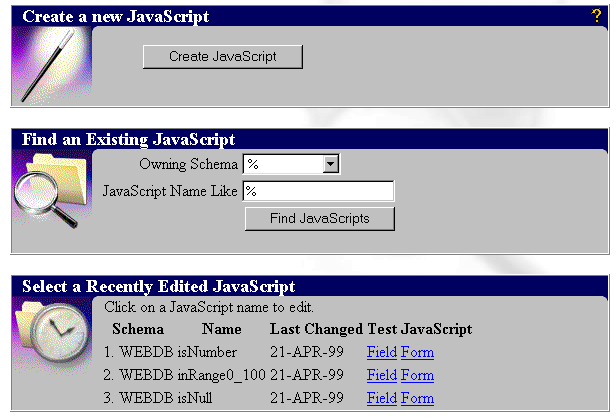
Figure 1. The Manage JavaScripts page in WebDB - Click the Create JavaScript button on the Manage JavaScripts page to get to the Create
JavaScript page.
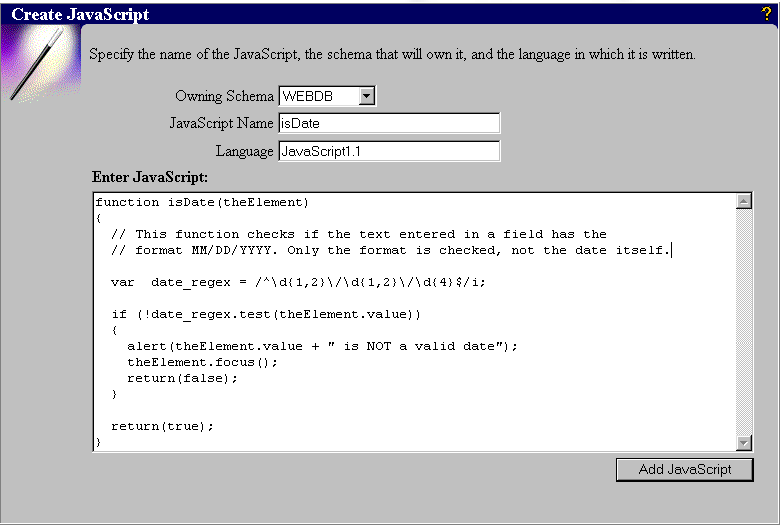
Figure 2. Adding a new JavaScript to the Shared Components Library - Enter the name of your JavaScript, select the schema that will be its owner, and
change the value for Language if you do not want to use the default value (JavaScript 1.1).
JavaScript 1.1 is acceptable for most purposes, but you'll need to change the version number
to 1.2 if your script uses regular expressions (as do those shown in Listings 1 through 4 of
this article).
- Type or paste in the code for your script in the Enter JavaScript text area.
- Click the Add JavaScript button.
;)
;)
After you've added the JavaScript, you need to test it to make sure it works the way you intended it to. In the Select a Recently Edited JavaScript section of the Manage JavaScripts page, there are two options available in the Test JavaScript column: Field and Form. Select Field to test a field-level script and Form to test a form-level script (for field validations you can use either field- or form-level testing). Selecting either option takes you to the Test JavaScript page (see Figure 3), where you simply enter appropriate test data in the TextField box and click the Submit button. If your code is working correctly, entering invalid data in the field should cause an error-message alert window to display, as shown in Figure 3; entering valid data will bring up a success page with a check mark on it.
;)
Figure 3. Testing a new validation JavaScript in WebDB
Using Added JavaScripts in Forms
Once you've added a JavaScript to your WebDB Shared Components Library, you can use it as many forms as you want, just by specifying its name in the appropriate place. For example, let's say you've created a simple data-entry form based on the EMP table in the SCOTT schema, and you want to check that data entered in the HIREDATE column has the format MM/DD/YYYY. Either the isDate function (Listing 1) or the isCompleteDate function (Listing 3) should do the trick for you. Since our previous example showed the isDate function being entered, let's say you want to use this function to validate data entered in the HIREDATE column.
Basically, all you need to do is enter the name of the validating function on the Column Formatting and Validation page with the appropriate column of the database specified. Figure 4 shows this page for the simple data-entry form just described, with the HIREDATE column selected.
;)
Figure 4. Using the Field Validate and Form Validate options
By selecting the isDate function as the Field Validate option, as shown, you ensure that the isDate script will execute as soon as a user navigates out of the HIREDATE field. Note that, in addition to specifying the isDate function as the Field Validate option, we have set the Format Mask to MM/DD/YYYY. This action may seem to duplicate the purpose of the isDate function; however, the primary purpose of the Format Mask value is to provide SQL formatting of strings during database inserts and updates.
An alternative to specifiying isDate as the Field Validate option would be to specify it as the Form Validate option. If you specify it as the Form Validate option, the script will execute when the form is submitted - that is, when a user clicks the Insert or Update button - rather than when you navigate out of the field. You could also set a different JavaScript as the Form Validate option, if you needed two different types of validation.
Jitter-Free JavaScripting
Once you know how simple it is to add and manage reusable JavaScripts in WebDB, you're well on your way to increasing the power and capabilities of your WebDB forms. By adding just a few, simple JavaScripts for instant validation of data such as dates and e-mail addresses, you can spare users the frustration of waiting for the data to be submitted to the server - and spare your network unnecessary traffic as well. And if you choose to explore JavaScript's capabilities more deeply, you can make your applications even more powerful - all without leaving the user-friendly environment of WebDB.
Sameer Jejurkar ([email protected]) is a Principal Consultant for Hencie Consulting Services in Dallas, Texas. For the past several years, he has been involved in providing solutions using Oracle Applications, Oracle Database and tools.
Copyright �1999 by Sameer Jejurkar