Stamp


Open a new
canvas size 60 x 60
Then select your paintbrush size 1
Set your foreground colour to black or whatever colour you would like your
stamp outline colour to be
Then pixel out the following onto your canvas.
Only doing the inside straight lines first
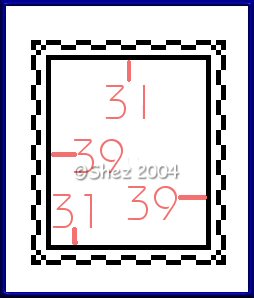
Once you have the basic rectangle
Add a new raster layer.
Then pixel out the following
(all lines are 3 pixels unless otherwise stated)
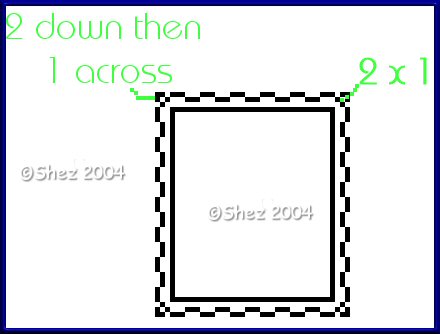
Once you have drawn out your pixel shape.
Merge all layers.
Save in psp format for future use.
Now press shift and D to duplicate the stamp
Close the original
To add a picture to your stamp.
Select your magic wand
Tolerance and feather both set at 0
Select inside the middle of the stamp and the outside
Add a new raster layer
Flood fill with any colour you want your stamp to be.
Select none.
With your paintbrush set at 1 paint in any stray bits that did not get
coloured in.
Layers arrange
Send to bottom
Now with your magic wand again select inside your stamp.
Add a new raster layer.
Open up your image.
If its a tiny image you are using you can just paste as a new layer.
If the image is a larger once
Edit
Copy
Paste into selection.
If happy select none.
Layers
Merge
Merge visible
Now that's your basic stamp finished..
If you have any feedback on this tutorial please feel free to contact me.
Tutorial copyright of © Shez and may not be linked to or removed or passed
out in anyway without written permission from myself.