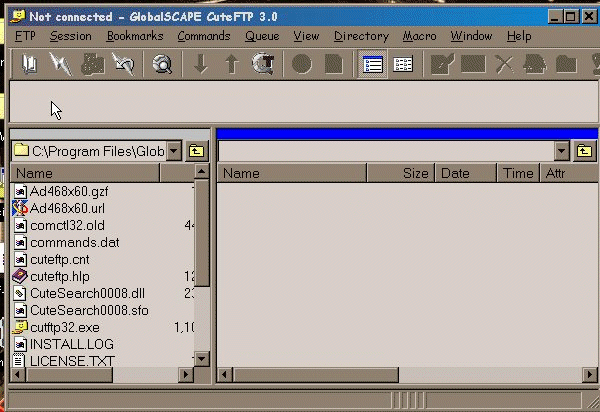
Now lets load everything by hand:
This should be what you see now to get started, this is also what your working area will be so remember this is YOUR FRIEND!! **giggles**
Now lets start by preparing CuteFTP to be able to enter your site here in Geocities:
Click on the open book icon in the left hand corner:
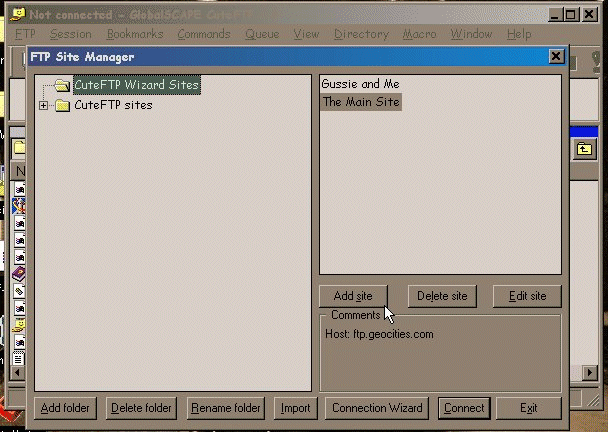
Okies Now your in the FTP Site Manager
This is where we set everything up
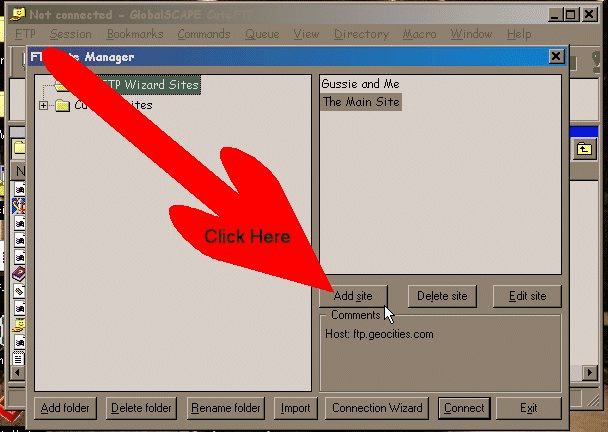
Now go on down and click on the ADD SITE button
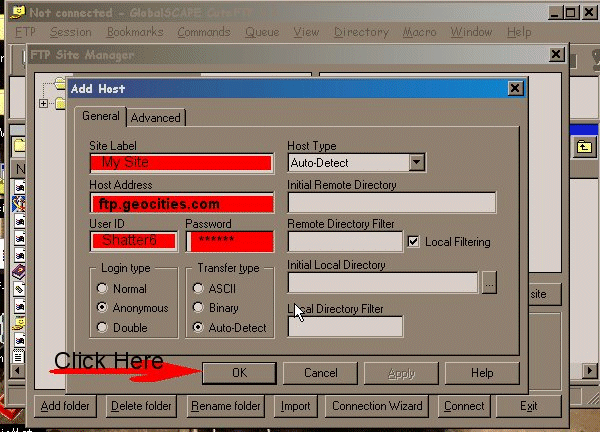
Once in the ADD HOST window the things we are looking for are:
#1 SITE LABEL
#2 Host Address
#3 User Name
#4 Password
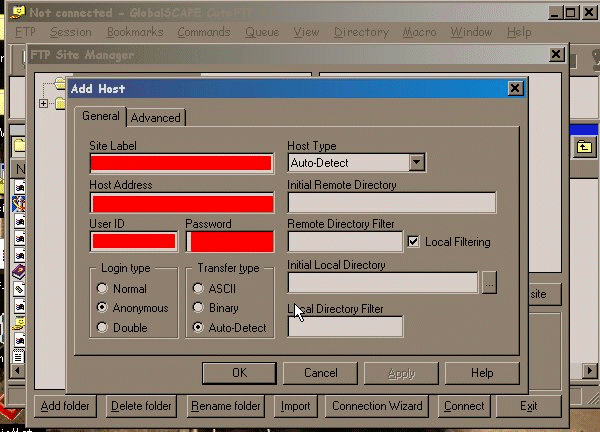
The Site label is simple its basically just a... well a label so you know which site is which (helps ALOT when you have multi-sites)
the Host Address is VERY important, that's where it knows to find your web site. Here at Geocities.com it is ftp.geocities.com
User name??? well that would be YOUR user name for the web site
And password of course would be the password of your site also...note on password CuteFTP automatically enters your web site threw the FTP channels of Geocities as far as Geocities is concerned it is YOU interring which is WHY you need to give it your password!!!
Now just click OK and we can get started with ALL the fun
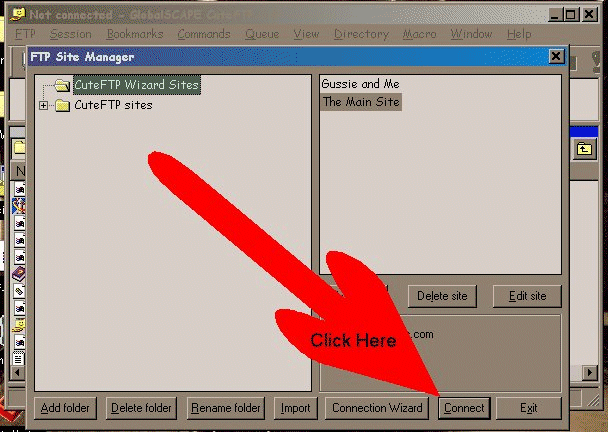
Now we are ready to connect to our web site.
In the FTP Manager window click on CONNECT and when the verification screen comes up click OK and your connected to your site
If you have any problems try going back and double check that you have the Host address, User name, and password saved correctly
So lets try a file transfer from your computer on to the web site
OK now OBVIOUSLY my site will have many more files then your will at this point in time.. but HEY give it some time and YOU TOO can get notes from Geo saying your using TO MUCH space on their servers **LOL**
Remember this is your work space i told you about
Left side of your window is your computer, and the right side of the window is where your web site is represented
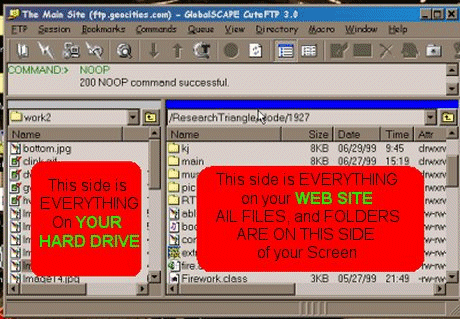
Let's make this really simple for ya here no point in getting in to the technical stuff right???
Point your cursor at a file, on the left side of your screen; left click on it once and hold the button down then DRAG the Icon over to the right side of the screen... RELEASE the mouse button and a pop up window will ask you if you want to transfer one file ... click OK and watch it go.
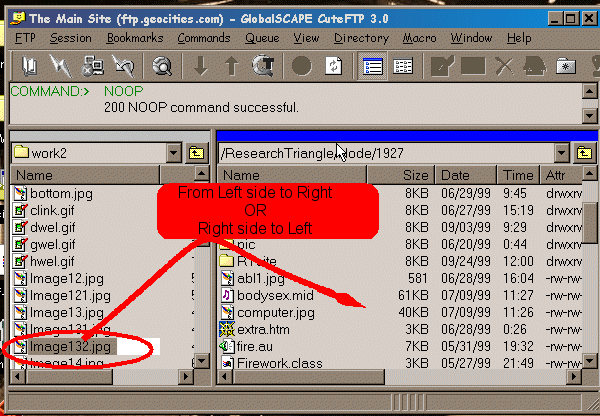
Couple of quick notes and hints here:
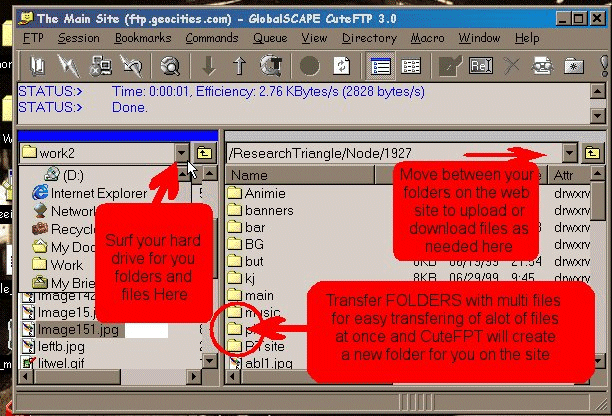
So there ya go the basics of Cute FTP, Everything else is a lot more technical so if you play with things it IS OK because your making COPIES of your files. So you won't be messing anything up if something happens to a file... HEHEHEH I HOPE!!
Well hey, ya'll have a good one and happy File Transfering :)
If ya have any question don't be afraid to E-mail me. Ill be happy to anwser your questions