|
Seraiki Technology سرائیکی ٹیکنالوجی |
|||
|
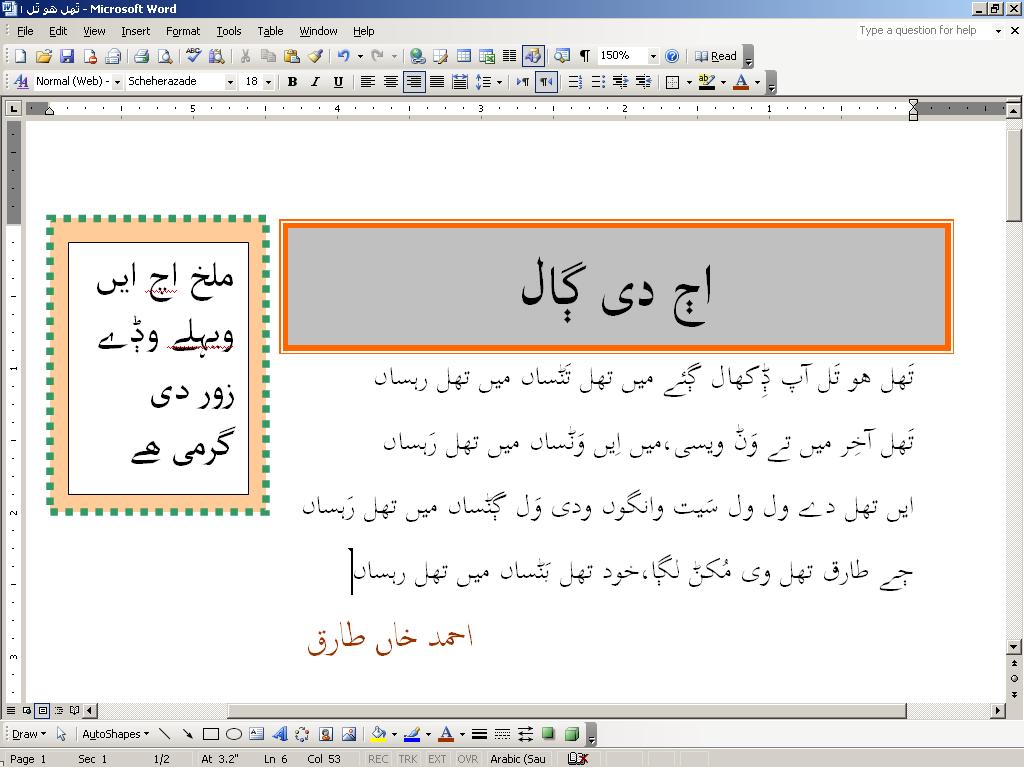
this website will tell you; how to compose Seraiki on Windows XP in "Office" ---Microsoft Word, Excel, PowerPoint etc, (There are somr other information for you as well). see how Seraiki text looks in 'MS Word', click Here you have to do it in Four steps: |
|||
| get 'Seraiki Keyboard Installer' (Phonetic), 'Layout' picture and 'Uniscribe from HERE (or download after reading text bellow) | |||
|
1: Installing font introduction; there are some fonts who support all alphabets of Seraiki. among them are 'Scheherazade' (OpenType)(1) and 'Lateef'(OpenType). download them from HERE method; unzip(2) and open fonts folder copy font [not font folder] go to Start menu open Control Panel open Fonts folder paste font in this folder. ---- for more information about installing a font see: CRULP ---- (1)'Scheherazade' and 'Lateef' are not the only fonts who support Seraiki. Arabic typesetting, Microsoft Uighur, Pak Type Tehreer and others support as well.(2) unzip can be done like this; put arrow on zip folder and right click. Then click on "extract all/ here". Now click "Next", "Next". Do not try to install zips by just openning it with double click. |
2: Enabling Urdu introduction; Urdu is available in Windows XP by default but most of the time while installing XP people don't install Urdu. so we have to do it. method; go to Start menu open Control Panel open Regions and languages click on Languages now put a CD of 'Windows XP' click in the box that have the line "install files for complex scripts and right-to-left languages..." click OK /Apply [installation will be done quickly.] after reaching on Languages doing the process above. click Details click on Add input language Urdu from the list click OK/ Apply click OK
On top (or below) of your Desktop an icon, indicating English and Urdu will appear, if you want to write Urdu click on Urdu after opening MS Word. Some times it writes English instead of Urdu. you have to click again on Urdu. this problem mostly solve immediately or after some time.] ---- for more information see: UrduWiki |
3: Installing Seraiki Keyboard introduction; it is Seraiki Phonetic Keyboard. it is very much similar to 'Inpage' Phonetic Keyboard but have all the Seraiki Alphabets. the picture of this Keyboard is available on this web. method; unzip and open Keyboard Installer folder double click Seraiki msi for installation. After getting the message of complete installation; go to Start menu open Control Panel open Regions and languages click on Languages click Details click on Add Select “Input Language:” Urdu, and “Keyboard layout/IME:” Seraiki Phonetic. click OK, OK ---
|
4- Uniscribe If you are using "MS Office 2007" then you do not need step 4. openoffice.org claimes that its new version 2.2 is an alternative of "MS Office 2007". May be it also dont need Uniscribe introduction; by adding new version (1.613.5291.0) of "usp10.dll" all the things necessary steps to compose Seraiki in MS Word have been taken. Just do it and compose Seraiki in MS Word after clicking Urdu and then Seraiki Phonetic Keyboard. It will be on icon that appears on the bottom or on the upper portion of your screen. it like endicating "EN" or "UR". Always select the fonts that support Seraiki like 'Scheherazade' method; open usp10 folder unzip copy usp10.dll [not folder] go to My Computer open C open Program Files open Common Files open Microsoft Shared open Office11 (and/ or Office 10) Change the name of previous/existing usp10.dll (for example give it the name usp10.dll.orig) paste the new usp10.dll restart your computer. thats all my fellow ----- If you have problem, very few alphabets ( ݙ ݨ)are still not joining properly then for more information Click HERE and also see PDF document Some times any hidden problem in your Windows do not alow to join ݙ ݨ with other words. In this case you need to install your Windows again. -----
Note: all the information given here are tested first, but we take no responsibility of any harm. |
|
you will be able to view properly following Seraiki alphabets after installing Scheherazade font سرائیکی دے کجھ حروف:
ڄ
ݙ
ݨ
ڳ ٻ
|
|||

|
some other information |
|
| 1- web on Windows
If you see that few alphabets are not joinig properly on web then: 2- Designing Inkscape
supports Saraiki text. Its a free/Open Source designing software. Just put new "usp" in "Inkscape" folder, that will be
in "C" some where in your computer, and enjoy designing and composing
Saraiki. 3- Converting to PDF you can convert your Saraiki text into PDF. for that you need a PDF converter. A software called PDFCreator has be tested and it succeeded. Its available HERE . After downloading and installing you can convert. For conversion send print from File and adjust the printer PDFCreator. Now save it where you want it to be. Wikipedia gives a list of PDF softwares. Its available HERE 4- Converting to JPEG/ GIF/ PNG (picture) You can convert through using PowerPoint or Publisher. These are available in MS Office. Save the Seraiki text in format you like. How? When you save the text give file name in the box "File name" as usuall. Now in the box "Save as type", you should select type from the list and save. 5- Linux: Saraiki on web People complain that on Linux Mozilla Firefox can not handdle Seraiki. But an other browser call Galeon can do it. You just need to change its font Preferences. Its available HERE . A list of web browser on Wikipedia is available, click HERE, if you want to test some thing new. contact: [email protected]
|