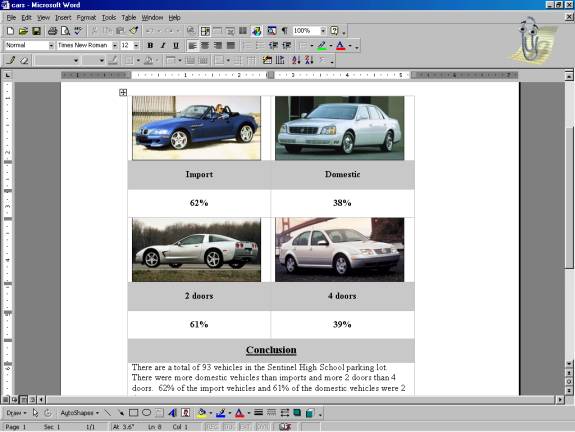
Comparison Table
Lesson 1
Purpose: students will be able to draw a table, split cells,
merge cells, add wordart, find 4 pictures (import / domestic / 2 door / 4
door vehicles) on the Internet, copy and save images to a folder, and insert
images into the table.
-
Netscape Navigator>open>find 4 images (import, domestic,
2 door, 4 door)>web sites: www.carclick / www.canadiandriver.com / www.ai-online.com
/ www.rideanddrive.com
-
right click image>save as>s: drive>it10>it10(your
class)(d or f)>your folder>images folder>file name: car1,
car2, car3, car4.jpeg or gif>save
-
Word>open
- insert>picture>wordart>write Comparison Table>font size=36>style=your
choice
- 3 spaces>drag word art back to top
- tables and borders>draw table (hold and drag)
- split cells>2 columns>7 rows>OK
- insert>picture>from file>car1.jpeg or gif>repeat for the other
3 images (car2, car3, car 4)
- file>save as>student drive s:>Kim>it10>it10
(your class)(d or f)>your folder>car>save
Lesson 2
Purpose: students will be able to split cells, merge cells, align
text center, make text bold, underline text, add shading color, delete border,
and write a conclusion.
- Word>open
- Kim>it10>it10(your class) (d or f)>your folder>car>open
- split cells>1 columns>2 rows
- Import>bold>align center
- Domestic>bold>align center
- 2 doors>bold>align center
- 4 doors>bold>align center
- add % for all categories
- view>toolbars>tables and borders
- highlight cells>merge>repeat
- Conclusion>bold>underline>align center
- write conclusion (refer to data and graph)
- highlight>no border>OK
- shading color>your choice>OK
- file>save as>student drive s:>Kim>it10>it10
(your class)(d or f)>your folder>car>save
- go to Lesson 4 Spreadsheet
click here to see
an example