Height Spreadsheet
Lesson1
Purpose: students will be able to use the F2 shortcut to
place insertion point, add data, make data bold, merge and center data, do the
Sum, Average, Max, Min, and Count formula.
- Excel>open
- cell C1>write in IT 10 Class Height
- highlight C1, D1>merge and center
- cell A3>Name>bold
- cell C3>Grade>bold
- cell D3>Age>bold
- cell E3>Sex>bold
- cell F3>Height (cm)>bold
- add data of student names, grade, age, sex, height
- cell??>Average Age>bold
- cell??>Average Height>bold
- cell??>Tallest (cm)>bold
- cell??>Shortest (cm)>bold
- cell??>Total Height>bold
- cell??>No. of Students>bold
- cell??beside Average Age>click =
- click pulldown>Average
- click red button spreadsheet>look at the cells needed to calculate this
function
- click red button spreadsheet again
- type in D4:D??>OK
- right click>format cell>number>number>decimal places>2>OK
- repeat same for Average Height, Tallest (Max), Shortest (Min), Sum, and
Count A
- Math Operators: * multiplication, / division, + addition, - subtraction
23. file>save as>file name: height>OK>s: drive>it10>it10(your
class)(d or f)>your folder>save
Lesson 2
Purpose: students will be able to format the overall look
of the spreadsheet, add a graph, and complete a spreadsheet project.
- Excel>open
- Kim>it10>it10(your class) (d or f)>your folder>height>open
- highlight title IT 10 Class Height>format>cell>border>border
(top dark line)>style (dark line)
- format>cell>pattern>choose color>OK
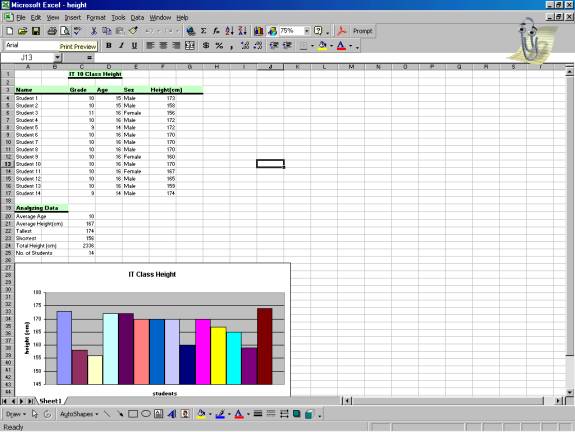
- highlight height (cm) data>chart wizard
- standard type: column>next
- chart source data>highlight data range>series in rows>series>click
series 1...2...3...4>change name: student 1...student 2...3...4>next
- chart options (title: IT 10 Class Height/ Categorie (X) axis: Students/
Value (Y) axis: Height (cm)/ axes: uncheck first box/ gridlines: don't touch/
legend: your choice/ data labels: don't touch/ data table: don't touch)>next
- chart location>as object in: sheet 1>finish
- drag to location
- add clip art or image (1 only)
- Save
- Group Project #1: (10 marks)>Create a spreadsheet and graph of the different
shoe sizes in your row
- Title: The Shoe Sizes in my Row
- Data: Name / Age / Shoe Size
- Analyzing Data: average shoe size, biggest feet, smallest feet, total
inches, no. of students
- Column Graph: title / legend
- Clip Art / Image (add 1 only)
Lesson 3
Purpose: students will be able to in plan a project, gather data,
analyze data, and create graphs in groups.
Group Project #2: (50 marks)>What percentage of the vehicles in the Sentinel
High School parking lot are imports and domestic? Within this data, find the
percentage of 2 doors / 4 doors vehicles.
- Title (2 marks)
- Data: total number of vehicles, number of import vehicles, number of domestic
vehicles, number of 2 door vehicles, number of 4 door vehicles, percentage
of import / domestic, percentage of 2 and 4 door vehicles. (15 marks)
- Analyzing Data: total number of vehicles, number of import vehicles, number
of domestic vehicles, number of 2 door vehicles, number of 4 door vehicles,
percentage of import / domestic, percentage of 2 and 4 door vehicles. (15
marks)
- Graph - 2 graphs (column and bar graphs)- import / domestic and 2 doors
/ 4 doors: title / legend (10 marks)
- Format: jazz it up! (8 marks)
Click here to see an example.
Lesson 4
Purpose: students will be able to make a hyperlink to another
document.
- Excel>open
- Kim>it10>it10(your class) (d or f)>your folder>height>open
- cell above graphs>Conclusion - click here
- format>cell>border>border (top dark line)>style (dark line)
- format>cell>pattern>choose color>OK
- click cell (Conclusion - click here)>hyperlink>type the file or URL>browse>car.doc>OK
- Save