All About Me Graphics
Purpose: students will be able to render and manipulate
photos and graphics.
Lesson#1
Purpose: students will be able to insert mask tool, create
new file, change size of file, change color of background, open, sharpen,
export, copy, and paste an image.
- log in>student>OK
- open Photoshop
v.4.0
- file>open>s: drive>Kim>it10>it10(your class)(d or f)>teacher>image>lynncr.jpg
- filter>sharpen>sharpen
- text>type mask tool>single click on image
- write own name KENNETH>48 pts.>font style (own choice)
- edit>copy
- file>new>250 X 250 pixels
- layer>new layer
- rectangular marquee>drag a rectangular marquee
>edit>paste
- click foreground/background color>change color (own choice)
- click paint bucket>single click
- file>save as>me.psd>OK>s: drive>it10>it10(your class)(d or
f)>your folder>save
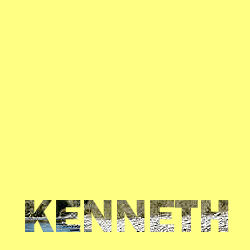
Lesson#2
Purpose: students will be able to draw a circular area
using the marquee tool, feather a selection, define a patter, fill a pattern,
and export photo as a gif image.
-
log in>student>OK
-
open Photoshop v4.0
-
file>open>s: drive>Kim>it10>it10(your class)(d or f)>teacher>image>stanley.jpg
-
file>open>s: drive>Kim>it10>it10(your class)(d or f)>teacher>image>me.psd
-
me.psd>ellipse>marquee tool
-
select a cirular area
-
select>feather>15 pixels>OK
-
stanley.jpg>select>select all>edit>define pattern
-
me.psd>edit>fill>use pattern>opacity 80%>OK
-
file>export>gif89a Export>s: drive>it10>it10(your class)(d
or f)>your folder>me.gif>save

Lesson#3
Purpose: students will be able to use the Paint toolbox
to create a self image and save in .jpeg format.
-
log in>student>OK
-
open>Paint>adjust canvas size
-
draw picture of self
-
file>save as>self.jpeg>OK>s: drive>it10>it10(your class)(d
or f)>your folder>new folder>new folder name: images>save
Lesson#4
Purpose: students will be able to scan an image and convert
a bitmap image into a gif image.
-
log in>student>OK
-
start>programs>Microsoft Photoeditor
-
file>scan image
-
type: sharp millions of colors>path: screen
-
image>balance>adjust brightness and contrast
-
preview>"warming up the lamp">"scanning the preview image"
-
marquee>drag around image
-
click final
-
file>save as>s: drive>it10>it10(your class)(d or f)>your
folder>images folder>file name: family.jpg>save
-
open>s: drive>it10>it10(your class)(d or f)>your folder>right
click>delete all work not needed>close
Lesson#5
Purpose: students will be able to create a button using
the radial gradient tool and the lens flare filter.
-
log in>student>OK
-
open Photoshop v4.0
-
file>new>100 pixel by 100 pixels
-
elliptical marquee tool>select a cirular area
-
radial gradient>opacity 70%>dither (no)>color: blue, yellow, blue>edit>85%
-
drag from center of circular area to the corners
-
filter>render>lens flare>105 mm prime>brightness 150%
-
text>14 pts.> MY HOME>color: white
-
text>14 pts.> MY HOME>color: blue
-
drag to fit
-
file>export>gif89a Export>s: drive>it10>it10(your class)(d
or f)>your folder>home.gif>save
Lesson#6
Purpose: students will be able to use the Paint toolbox
to create an image of their home and save in .jpeg format.
-
log in>student>OK
-
open>Paint>adjust canvas size
-
draw picture of home
-
file>save as>home2.gif>save as type: all files>OK>s: drive>it10>it10(your
class)(d or f)>your folder>images folder>save
Lesson#7
Purpose: students will be able to create a rainbow edge
for text.
-
log in>student>OK
-
open Photoshop v4.0
-
file>new>250 pixel by 50 pixels
-
text tool>25 pts.>light color>My Long Term Goal>OK>move to middle
-
layer>duplicate layer
-
select>load selection
-
uncheck preserve transparency
-
change foreground>dark color
-
edit>stroke>1 pixel>outside
-
change foreground>white
-
edit>stroke>1 pixel>center
-
select>none
-
image>mode>indexed color>flatten layers>OK>OK
-
save as>save as: *.gif>file name: goal2.gif>save

Lesson#8
Purpose: students will be able to create a rainbow edge
for an image.
-
log in>student>OK
-
open Photoshop v4.0
-
file>new>100 pixel by 60 pixels
-
rectangular marquee>create rectangle
-
select>feather>radius: 1 pixel
-
foreground color>yellow>fill tool>fill
-
change foreground color to light blue>edit>stroke>width: 6 pixels, location:
outside
-
change foreground color to dark blue>edit>stroke>width: 3 pixels, location:
outside
-
change foreground color to darker blue>edit>stroke>width: 1 pixel, location:
center
-
text tool>25 points>black>Most!>OK>drag to middle
-
layer>flatten image>OK
-
save as>save as: *.jpeg>file name: admire2.jpeg>save