|
Welcome to my skin making tutorial for the Yahoo messenger version 6.0. I get alot of reqests to make skins so I decided to put together this page. I made this tutorial to try to teach anyone how to make there own skins. I am constantly adding new content to this tutorial so keep checkin back.
This site also contains alot of skins I have made. So don't forget to check them out by following the link above. You can also look inside them and try to learn from them.
Feel free to E-mail me with questions about the skin making process. I will get back to you as soon as I can.
The skins are in a order of newest to oldest. So the farther down/back you go the lower the quality will be. Since I had no idea what I was doing in the beginning.
NOTE: If you find a broken link please E-Mail me.
This tutorial is not to be copied and posted anywhere else. I spent alot of time to put this all together, I would rather it remain here.

In this tutorial I will explain the steps needed to make your own skin. If you can follow my instructions you will see just how easy it can be. Basically there are two factors that change the apperance of your skin.
#1 The 57 .bmp files inside of each skin folder.
#2 The .xml file that is also included in the skin folder.
The .bmp's are fairly easy, It really depends on how much time you want to spend on them. .Bmp's or bitmaps are small picture files that you can open in a art program and alter. If you have knowledge with art programs or a high quality art program to use it will defintly be easyer. But when I started I was just using "Microsoft's Paint". It can be done that way. Or you may want to try a free program called Ultimate Paint. It has some cool effects, but if you really get into it you will have to spend some money for a good art program. I recommend and use Jasc Paint Shop Pro 9.
The .xml is fairly close to HTML (note: HTML coding does not work here). You can change the color of things and the fonts. Using different codes. It will be explained later in the "Guide to .XML".
So now you need to create a platform skin to get started.
Make A Platform
#1 You must find where the skins are located.
Go to Start> My computer> Local disk C:> Program files> Yahoo> Shared> Graphics.
Inside the graphics folder you will see "Maverick and Indigo" these are the skin folders.
EXAMPLE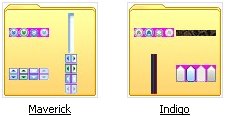
#2 Right click on "Indigo". Pick copy folder.
#3 Right click on the copied folder and pick change name.
#4 Enter a name. For this tutorial I will use the name "Red". Click on the Red folder you just made and find the .xml file marked "Indigo".
EXAMPLE
Right click on Indigo and pick rename, rename it with your skins name. Example "Red".
#5 Now right click on the .xml you just renamed, and pick open with. Here you might have a few choices for a text editor. I use notepad.
#6 Inside the .xml where it says "skinname="indigo" replace it with your skins name. Example skinname="red".
#7 Open your Yahoo Messenger and click view> change skin. At this point you should see the name of your skin with the "Classic, Indigo, & Maverick skins" on the skins selector window. It will still appear just like the original "Indigo skin". You now have a platform to make your own skin.
You are now ready to start altering it to the way you want it.
Color The BMP's
Once you have created your platform for your skin you are ready to begin. I found it best to have a plan before just starting to color so decide what direction you want to go with it now.
#1 Open up your paint program.
#2 Click "file" then "open" goto Local Disk C:> Program files> Yahoo> Shared> Graphics> "your skin name" example "Red". Now the first .bmp you should see is "border bot". This is the bottom border of the Yahoo Messenger and a easy place to start.
#3 Click on the border bot.bmp it should then open in paint. Here is a example of what you can do  to to 
Notice the blue part is the active window colors and the red is the non-active. Which means when you click on the messenger it is active and the bottom border will be blue. If you click on a window besides the messenger it is now non-active, so the bottom border will now be red.
#4 When you are finished click file and save. Then goto your Yahoo Messenger and click view> change skin> "your skins name" example Red. You should see the results on the messenger now. Only 56 more to go 
Note: For some reason not all 57 .bmp's seem to be used. See my .bmp guide for more details.
Guide To The BMP's
Any .bmp with bright pink or color value #ff00ff is your transparent color. Meaning it wont show up in the messenger. That part will be invisable.
#1 border bot = Main messenger window, bottom border. Contains active (top section) and non-active (bottom section)
#2 border left = Main messenger window, left border. Contains active (left section) and non-active (right section)
#3 border right = Main messenger window, right border. Contains active (left section) and non-active (right section)
#4 border top = Main messenger window, top border. Contains active (top section) and non-active (bottom section)
#5 button chevron down = Main messenger window, down button to close radio,games,ect... Contains four buttons. First button (normal). Second button (hover). Third button (depressed). Fourth button (n/a).
#6 button chevron up = Main messenger window, up button to open radio, games, ect... Contains the same as buttons_chevron_down.
#7 capbuttons = All windows, buttons to minimize, maximize, close and resize. Contains five rows. First row (normal). Second row (hover). Third row (depresed). Fourth row (n/a). Fifth row (non-active).
#8 checkboxes = all of the checkboxes in the "preference" section
#9 colum heads =All Headers ex. offline messages. Contains three sections. First section (normal). Second section (hover). Third section (depressed).
#10 combo = All windows, buttons to open all of the text fields. Contains four buttons. First button (normal). Second button (hover). Third button (depressed). Fourth button (n/a).
#11 games close = Close's games window
#12 grabbie = Main messenger window, the 3 dots
#13 group box edges = All of the box edges in the "Preference" section
#14 icons tbar disabled = All windows, icons that are disabled
#15 icon tbar hot = All windows, icons that are highlighted(mouse rollover)
#16 icon tbar normal = All windows, normal icon viewing
#17 itabs = n/a
#17 menu bg = All windows, menu's background
#18 menu scroll = Menu, buttons to go up or down
#19 menu sep = IM, seperates menu bar
#20 menu bar = Most windows, menu bar just underneath top border
#21 menu states = Most windows, higlight's text on selected menu bar
#22 menu item = Menu, highlights text (mouse rollover)
#23 preview indigo = Skin selector window, picture
#24 preview indigo intl = n/a
#25 progress bar = Download window
#26 push buttons = All windows, buttons for send, ok, cancel, ect... Contains six buttons. First button (normal). Second button (inactive). Third button (hover). Fourth button (n/a). Fith button (depressed). Sixth button (OK button).
#27 radio = Round check buttons in "Preferences" section
#28 scroll buttons = Most windows, buttons that control all scroll bars. Contains five rows. First row (normal). Second row (inactive). Third row (hover). Fourth row (n/a). Fifth row (depressed)
#29 scroll griph = Most windows, horizontal scroll bar grip. Contains five rows. First row (normal). Second row (inactive). Third row (hover). Fourth and fifth row (n/a)
#30 scroll gripv = Most windows, vertical scroll bar grip. Contains five rows. Same as scroll_griph
#31 scroll hbg = Most windows, horizontal scroll background
#32 scroll hhandle = Most windows, horizontal scroll bar handle. Contains Five rows. Same as scroll_griph.
#33 scroll vgb = Most windows, vertical scroll background
#34 scroll vhandle = Most windows, vertical scroll bar handle. Contains five rows. Same as scroll_griph
#35 status bar = IM window, bar at bottom displays last message
#36 status grabber = IM window, small triangle in bottom right corner
#37 system menu = n/a
#38 tab border = Main messenger window, border lines to tabs standards
#39 tabs = Main messenger window, bottom selection tabs for radio, games, ect...
#40 tabs standards = Main messenger window, two tabs that read "Messenger & Address Book". Contains two rows upper and lower. Upper row one (active). Lower row one (inactive). Upper row two (active hover). Lower row two (inactive hover)
#41 tbar sep = IM window, small line between text field & paint icon
#42 tool border bot = Online/Offline popup (bottom right of screen) bottom border
#43 tool border left = Online/Offline popup (bottom right of screen) left border
#44 tool border right = Online/Offline popup (bottom right of screen) right border
#45 tool border top = Online/Ofline popup (bottom right screen) top border
#46 tool cap buttons = Online/Offline popup (bottom right screen) close buttons. Contains five buttons. First button (normal). Second button (hover). Third button (depressed). Fourth and fifth buttons (n/a).
#47 tool bar buttons = Most windows, button for tools such as mic, webcam, ect... Contains three buttons. First button (hover). Second button (depressed). Third button (selected)
#48 trackbar h = Preferences (webcam quality), horizontal tracks
#49 track bar thumb down = Preferences (webcam quality), down pointing slider. Contains four buttons. First button (normal). Second button (hover). Third button (inactive). Fourth button (depressed).
#50 track bar thumb = n/a
#51 track bar thumb left = Left pointing slider. Contains four buttons. Same as trackbar_thumb_down
#52 track bar thumb right = Right pointing slider. Contains four buttons. Same as trackbar_thumb_down
#53 track bar thumb up = Up pointing slider. Contains four buttons. Same as trackbar_thumb_down
#54 track bar thumb vert = n/a
#55 track bar v = Vertical track bar
#56 up down =n/a
#57 up down h = Preference window. Idle status. Four buttons. First button (normal). Second button (hover). Third button (n/a).
Alter The .XML
#1 You will need to open your skins .xml file. To do this you need to open your notepad. Then click on File> Open> Local Disk C:> Program Files> Yahoo> Shared> Graphics> "Your Skins Name" example Red. Now you will need to select "All files" under the "Files of Type" text field at the bottom of the window. Click on the .xml file name "Your Skin" example "Red". It will be the one file that isnt a .bmp. (note: I am assuming you have read my section on creating a platform skin) Now that you have the .xml open you might as well change the "authors name" to your own and the "authors url" if you have one.
EXAMPLE
If you have used HTML before than the rest should be easy
#2 You can change colors in the .xml by changing the Color Hex Values. These are six digit character codes, each character combination will change the color.
EXAMPLE
The "Color Name" is the location of the skin it will effect. The "Value" is the color code.
#3 You can also change the fonts size and style.
EXAMPLE
The "Font Name" is the location of the skin it will effect. If you change the face you will change the font style (example: comic sans ms). Change the height and you will change the over all size of the text. Change the weight and it will act like a bold effect, the bigger the number the bolder the text. You can adjust many color's and font's in the .xml.
See my .xml guide for what parts affect what.
Guide To The .XML
#1 Back = All windows, backgrounds
#2 Frame h = n/a
#3 Frame shadow = All windows, thin line frames
#4 Text = Title text for control boxes
#5 Groupbox border = n/a
#6 Groupbox = n/a
#7 Button h = All buttons, color of text when button is highlighted (mouse rollover)
#8 Button dh = All disabled buttons, shadow color of text
#9 Button ds = All disabled buttons, color of text
#10 Button = All useable buttons, color of text
#11 Menuitem b = n/a
#12 Menuitem = All menu's, color of text
#13 Menuitem h = All menu's, color of highlighted text (mouse rollovers)
#14 Menuitem d = All menu's, unavailable option text color
#15 Menuitem dh = All menu's, unavailable options text highlighted (mouse rollover)
#16 Menubar = Main messenger window, menubar text
#17 Menubar h = Main messenger window, menubar text highlighted (mouse rollover)
#18 Menubar p = Main messenger window, menubar text selected
#19 Statusbar = n/a
#20 tab = Main messenger window, text on tabs that reads "Messenger & Address Book"
#21 Tab h = Main messenger window, text on tabs when highlighted (mouse rollover)
#22 Tab p = Main messenger window, text on tabs when selected
#23 Toolbar h = All toolbar buttons, color of text when highlighted (mouse rollover)
#24 Toolbar ds = n/a
#25 Toolbar dh = n/a
#26 Toolbar = All toolbar buttons, color of text
#27 Toolbar border = IM & Chat windows, color of thin borders or lines around toolbar
#28 Header = All headers, color of text (Ex. Address Book, My Profiles)
#29 Header h = All headers, color of highlighted text (mouse rollovers)
#30 Header ph = n/a
#31 Header dh = n/a
#32 Header ds = n/a
#33 Control hb = Preferences window, begining highlighted option in control box
#34 Control ht = Preferences window, begining highlighted option in control box's text
#35 Control fb = Main messenger window highlighted name, Preference window header
#36 Control ft = Main messenger window highlighted name text, Preference window control box text
#37 Control nb = All control box backgrounds
#38 Control nt = All control box text
#39 Control db = n/a
#40 Control dt = n/a
The rest you can change the font style, size, and weight.
#41 Caption = All windows active, title text
#42 Caption Inactive = All windows inactive, title text
#43 Caption s = n/a
#44 Caption Inactive s = n/a
#45 Caption t = Pop-up notification window, title text
#46 Caption Inactive t = n/a
#47 Groupbox Header = All windows with groupboxes, header
#48 Menubar = All menubars, text
#49 Menubar h = All menubars, highlighted text (mouse rollover)
#50 Menubar p = All menubars, selected text
#51 Menuitem = All menus, text
#52 Menuitem d = All menus, unavailable option text
#53 Statusbar = IM window, last message recieved text
Special Thanks goes to Bugz
Tips & Tricks
You can change the title text of the 6.0 messenger. You know the part that reads "Yahoo Messenger"
Goto: Start/ My Computer/ C:/ Program Files/ Yahoo!/ Messenger/
Then scroll down almost to the bottom you will see a folder named "ymsgr" or "ymsgr.ini". Open this folder and you will see...
[Search]
Number of Menu Items=2
Search Text 1=Search the Web!
Search Menu 1=Search the Web!
Search URL 1=http://search.yahoo.com/search?p=%s&fr=msgr-buddy
Search Text 2=Search Address Book
Search Menu 2=Search Address Book
Search URL 2=http://address.yahoo.com/yab?v=SA&A=s&search=%s
At the end of this type: [APP TITLE] caption=whateveryouwant
More tips and tricks coming soon!!!
Copyright �2004-2005 ToeBee, all rights reserved.
If you have downloaded any of my skins I would appreciate it if you could give me a quik vote just by Clicking Here
Also if you would like a free Gmail account then just send me a email.
|