 |
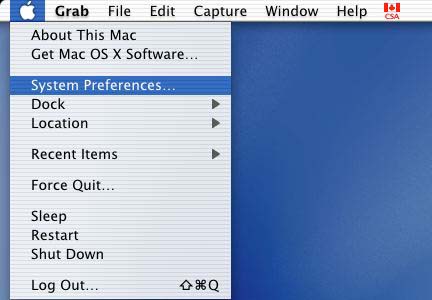
Step 1
- click on the apple
- click on system preferences
|
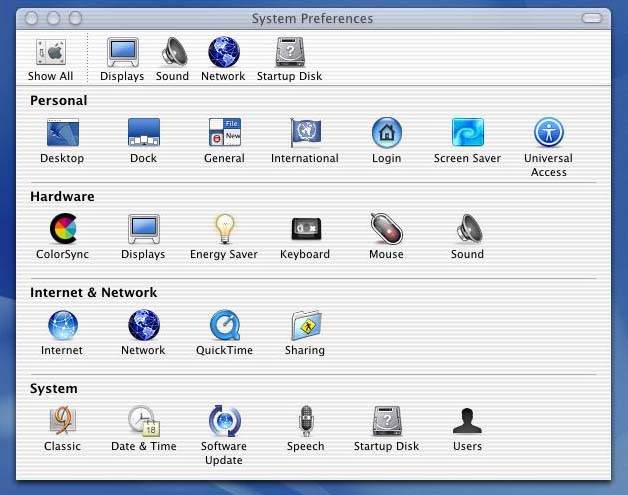 |
step 2
- Under Internet&Network
- Click on network
|
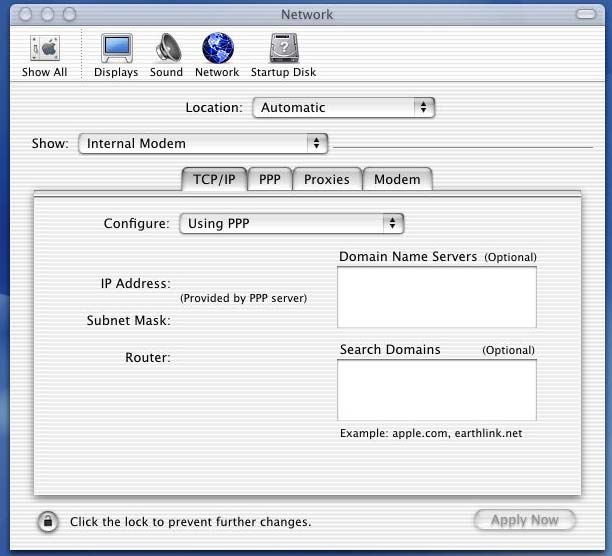 |
Step 3
- Select PPP
- Under Configure :Choose using PPP
- Under Domaine Name servers Enter the DNS provided by your ISP
111.111.111.111
111.111.111.111
|
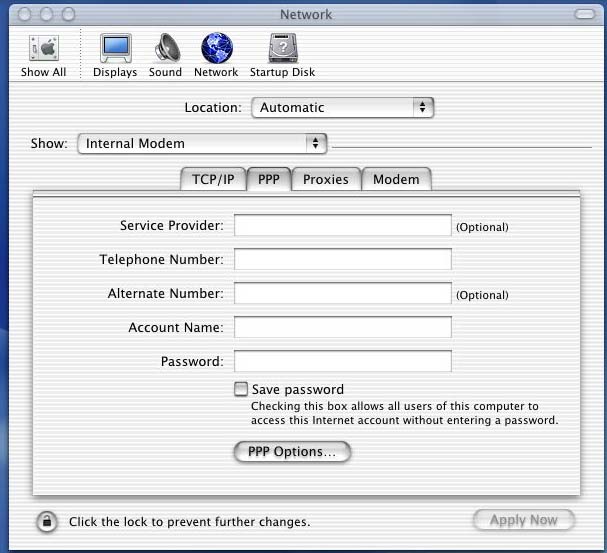 |
Step 4
- Click on PPP
- Enter the number to dial for your ISP:
111-111-1111
- Enter your account name/username:antar.sediri
- Enter you password********
- Check save password
|
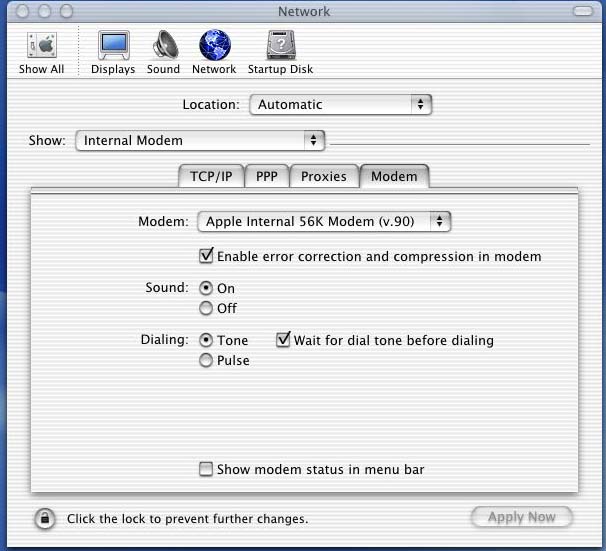 |
Step 5
- Click on modem
- Check enable error correction ...
- Check sound on
- Check dial tone
- Check wait for dial tone...
|
|
For MAil setting
- Under Internet&Network
- Click on Internet
|
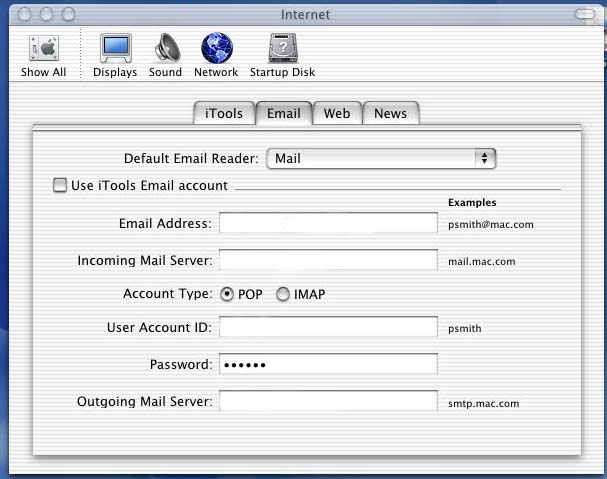 |
Step 6
- To configure mail in mac os 10
- Click on Email
- Enter your e-mail adress
- Enter your incoming mail server provided by your server
pop3.yourdomaine.com
- Check POP
- Enter your account name/username:antar.sediri
- Enter your password ********
- Enter your outgoing mail server provided by your ISP
smtp1.yourdomaine.com
|
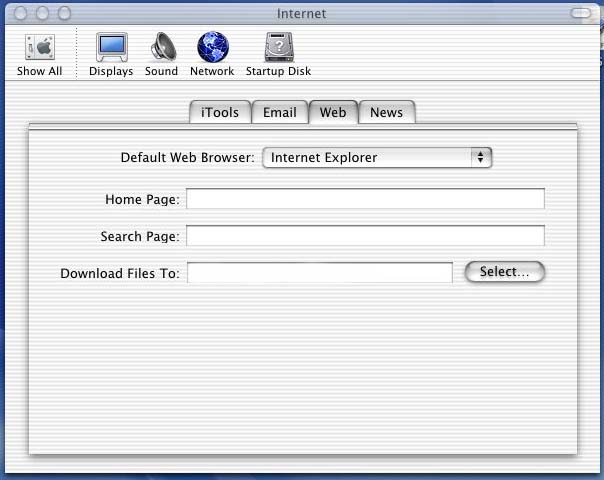 |
Step 7
- Click on WEB
- Select the default browser for exemple:Internet explorer
- Enter your default page http://www.geocities.com/sediria
|
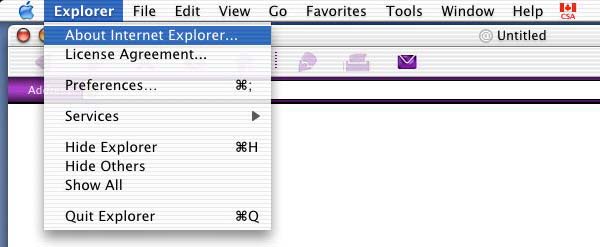 |
Step 8
- For verifying the version of Internet explorer
- Click on the apple
- Click on About internet explorer
|
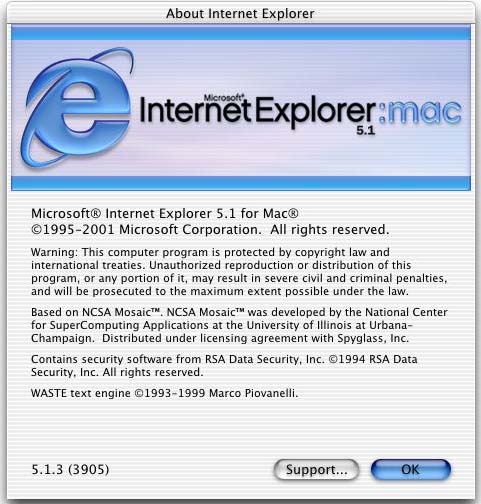 |
Step 9
- you have the version of Internet explorer
- Click on support button to verify the incryption
|
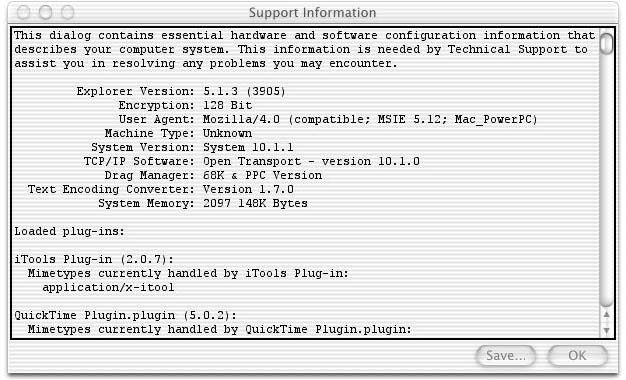 |
Step 10
- You have the incription
- Version and inforamtion about the browser
|
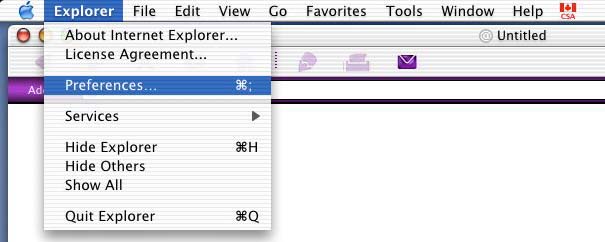 |
Step 11
- for Clear cache ,history,....
- Click on the apple
- Click on preferences
|
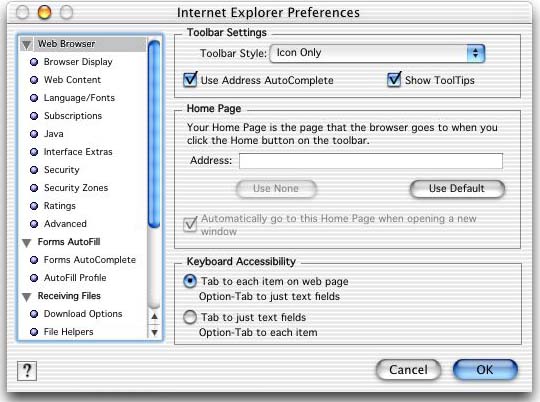 |
Step 12
- Click on security zones
- Click on advanced
- Click on Empty now to clear the cache
- Click on historyto clear the last visted web sites
- Click on Cookies
- Highlighted all the cookies
- Click on Delete
- Click on OK
- Close and reopen internet explorer
|