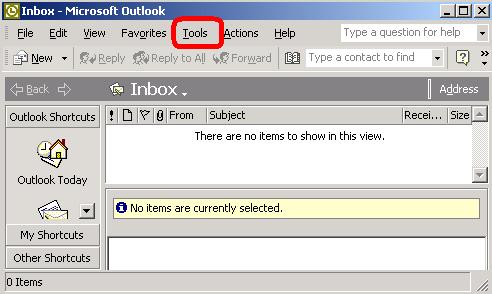
- Open your Outlook XP
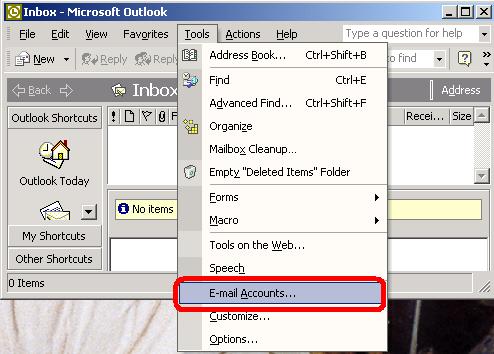
- Click on Tools
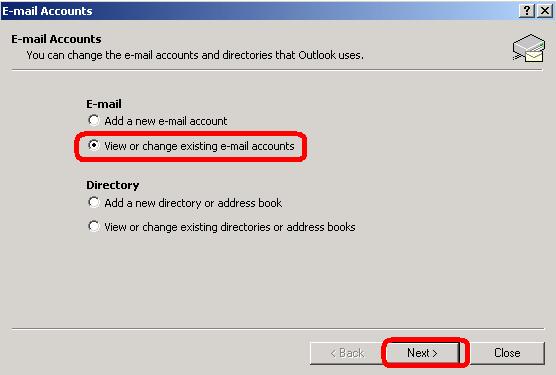
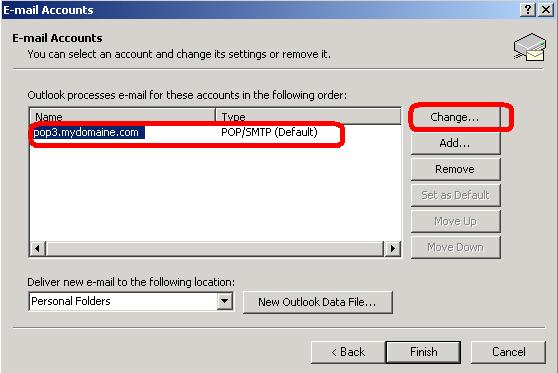
- Click on E-mail account...
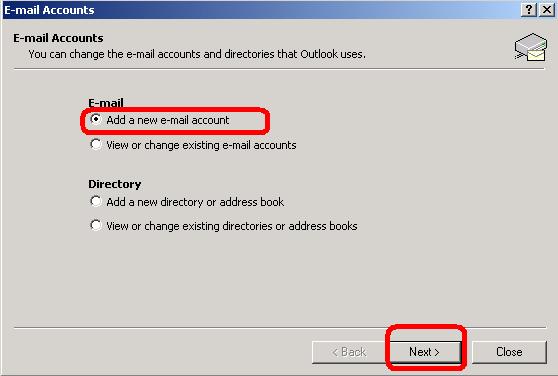
- Select Add a new e-mail account account
- Click Next
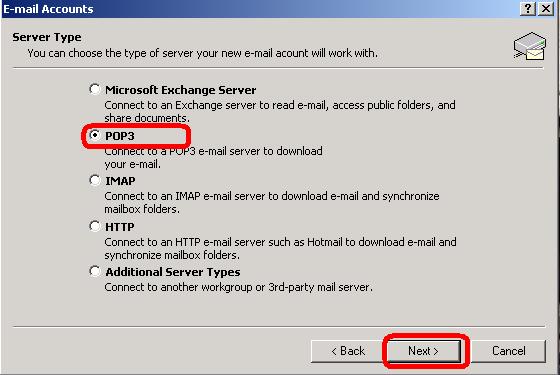
- Select the server type as POP3
- Click Next
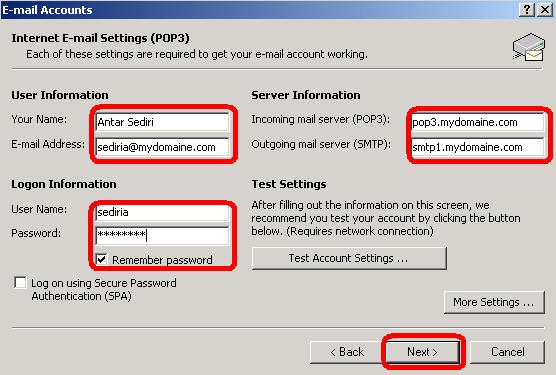
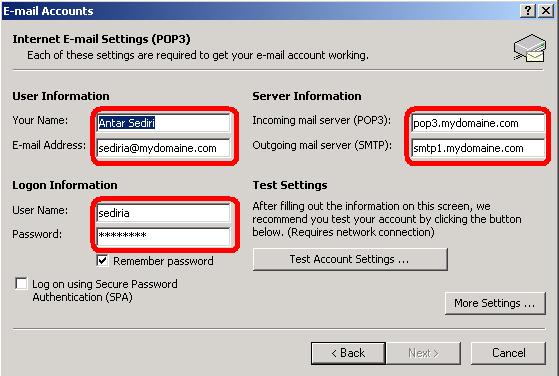
- Enter your full name
- Enter your e-mail adress
- Enter your incoming mail server provided by your ISP
- Enter your outgoing mail server provided by your ISP
- Enter your User Name
- Enter your Password
- Check the option Remember password
- Click Next
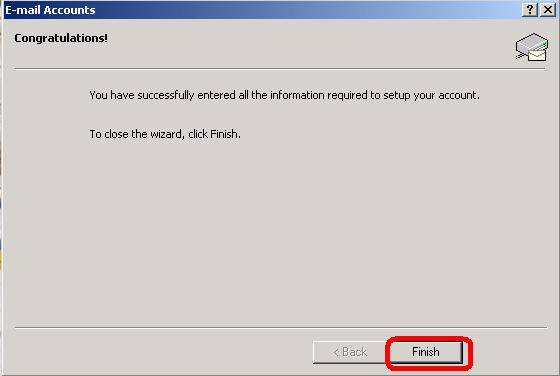
- Click Finish