| To download the Emulator files, you first need to create a GAMESPY account (ITS FREE!) |
| You can sign up for a free GAMESPY account by clicking here: |
| Now that you have a gamespy account, you can click here to download the emulator from Gamespy. |
 |
 |
| Once you have downloaded the file, you need to double click it to install on your computer. In the installation directory, you should have the MAME32 icon, which looks like a small yellow arcade machine. You should also have a ROMS folder and a SAMPLES folder, among others. |
| To ensure the emulator is working properly, double-click on the MAME32 icon. You should get the following screen: |
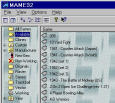 |
| Click "ALL GAMES" on the left hand side of the screen. You will see a list of all the games that mame supports. Now click "AVAILABLE". At the moment, you should see that no games are available. To be able to play games you need to have the "ROM" for that particular game. ROMS come as ZIP files, e.g. 1942.zip and should be placed in the ROMS folder, within the MAME32 folder. Note: You don't have to Un-zip the files. Click "ALL GAMES" once again. If you click on VIEW and DETAILS, the name of the ROM file for each particular game is given in the column with heading DIRECTORY. |
| For Example, you want to be able to play the game Robby Roto. Click on "ALL GAMES". Scroll down the list of games 'till you get to Robby Roto.. Now, by scrolling accross to the right, you can see that the ROM name for the game is robby.zip. Therefore, to play this game, you must own the file "bublbobl.zip", which must be placed in the ROMS folder within the MAME32 folder. |
| Note: This file is freely distributable. |
| Save the following rom file to the ROMS directory: |
| Next, go back to MAME32 and select AVAILABLE. If Robby Roto isn't listed, then press F5 to refresh the window. |
| Double click on Robby Roto to play the game. |
| If you would like to set up Joypad or Joystick, go to DEFAULT GAME OPTIONS on the OPTIONS MENU. |
| Otherwise the keys can be viewed/changed when the game is running by pressing the TAB key. |
| How To Play Arcade Games on your PC. |
| Follow these simple steps and you'll be playing your old favorites in no time!!!! |
| Step 1 : Download the Emulator. |
| Step 2 : Install the Emulator. |
| Step 3 : Installing ROM files (games). |
| Step 4 - Setting up Controllers. |
 |
 |
 |
|
|
|
|

|
|
 |