Showing Employee ID in GAL
and updating the info in Active Directory
This is a two step process, first we need to display Employee ID in the GAL, and we have to populate this field. The order is of no relevance here, you can first update the active directory and the modify GAL or vice-versa.
First we will update the display of GAL. To do this we open up our dear old Exchange System manager. Go to Recipients > Details Templates > English
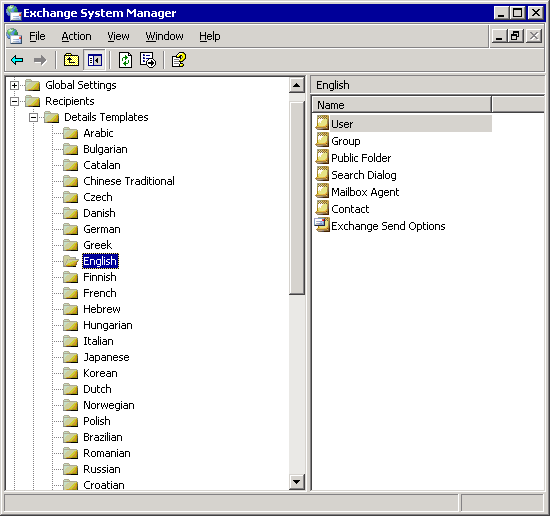
Here we can select which template to modify. These templates are used for views by GAL. What I am interested in is changing the User template. Double click on User template to edit its properties. Click on Templates tab. There are six values listed here ( X, Y, W, H, Control & Value).
X: The X co-ordinate relative to the form
Y: The Y co-ordinate relative to the form
W: The Width of the field
H: The height
Control: The type of control. There are eight of these
1. Label
2. Edit
3. Page Break
4. Group Box
5. Check Box
6. List Box
7. Multi-Valued List Box
8. Multi-Valued Drop Down
Value: The value of this box
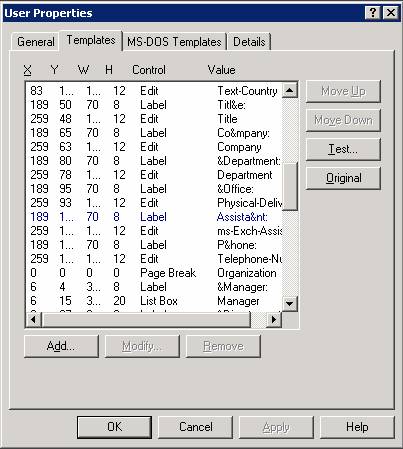
You can “Add”, “Modify” or “Remove” fields from the Global Address List (GAL). For the purpose of this exercise and to keep things simple we will rename the “Assistant” field on General tab to “Employee ID”. If you scroll down the list you’ll locate a Label named “Assista&nt”. We select this and hit modify, the new value will be “Employee-ID”. The & is for quick shortcuts (ALT + Underlined character).
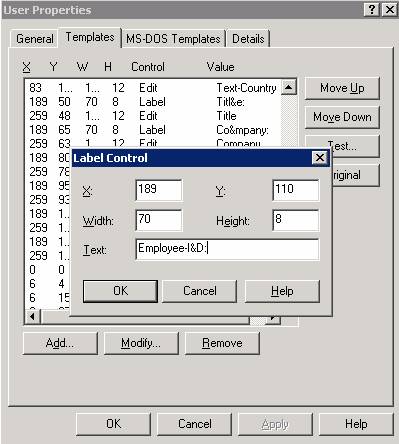
Next we edit the very next line which has a value of “ms-Exch-Assistant-Name” to “Employee-Number” from the drop down list. Once this is done, you can hit the test button to see the changes.
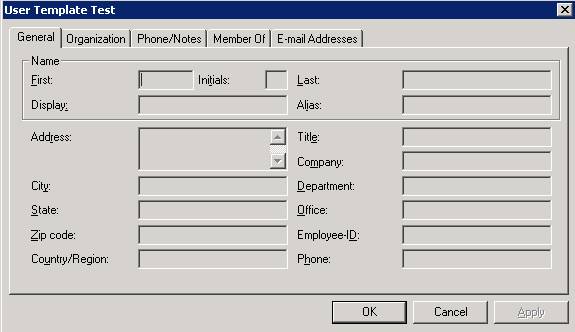
You can use the “Original” button any time to undo all the changes you have made. That’s it we are done here. Just click Apply and the GAL display is modified.
Now to see the changes on your client immediately, you have to refresh your address book contents. To do that just find and delete files with .oab extension (located at %systemroot%\Documents and Settings\%UserName%\Local Settings\Application Data\Microsoft\Outlook). You will have to close your outlook (if open) to do so. Once you have deleted the files you should be able to see the changes in Global Address List.
Updating Employee ID
Next we create an HTA to update the employee ID. We use a script, such as the one given below to update this information. Be cautious though, this script/HTA does not have any error handling capabilities. You might want to implement them before using it in production.
EmpID.hta
<HTML>
<HEAD>
<title>Employee ID</title>
<HTA:APPLICATION
ID="objTest"
APPLICATIONNAME="EmployeeID Finder/Updater"
SCROLL="yes"
SHOWINTASKBAR="no"
SINGLEINSTANCE="yes"
SYSMENU="yes"
MAXIMIZEBUTTON="no"
MINIMIZEBUTTON="no"
>
<SCRIPT LANGUAGE="VBScript">
Dim objUser
Sub Window_onLoad
End Sub
Sub SetUser
strLoginID = selUser.Value
const ADS_SCOPE_SUBTREE = 2
Set objConnection = CreateObject("ADODB.Connection")
Set objCommand = CreateObject("ADODB.Command")
objConnection.Provider = "ADsDSOObject"
objConnection.Open "Active Directory Provider"
Set objCommand.ActiveConnection = objConnection
objCommand.CommandText = "SELECT Name,distinguishedName FROM 'LDAP://ind02dc03/DC=adc,DC=com' WHERE objectClass='user' AND sAMAccountName='" &strLoginID & "'"
'WScript.Echo "Given Name :" &strCompname
objCommand.Properties("Page Size") = 1000
objCommand.Properties("Timeout") = 30
objCommand.Properties("Searchscope") = ADS_SCOPE_SUBTREE
objCommand.Properties("Cache Results") = False
Set objRecordSet = objCommand.Execute
var1=0
if (objRecordSet.EOF) then
'msgbox "An Error Occourred"
var1=1
end if
objRecordSet.MoveFirst
Do Until objRecordSet.EOF
strDN = objRecordSet.Fields("distinguishedName").Value
objRecordSet.MoveNext
If var1 <>1 Then
Set objUser=GetObject("LDAP://"&strDN)
TheReport.InnerHTML = "<B>User Name :</B> " & objUser.DisplayName & "<br>"
TheReport.InnerHTML = TheReport.InnerHTML + "<B>Login ID :</B>" & objUser.sAMAccountName & "<br>"
TheReport.InnerHTML = TheReport.InnerHTML + "<B>E-mail ID :</B>" & objUser.mail & "<br>"
TheReport.InnerHTML = TheReport.InnerHTML + "<B>Employee ID:</B> <input type=text width=12 name=txtEmpID value=" & objUser.employeeNumber & ">"
TheReport.InnerHTML = TheReport.InnerHTML + "<input type=BUTTON name=btnUser value=Update onclick=UpdateUser>"
Else
TheReport.InnerHTML = TheReport.InnerHTML & "ERROR" & "<br>"
End IF
End Sub
' Commit the info
Sub UpdateUser
strEmpID = txtEmpID.Value
TheReport.InnerHTML = TheReport.InnerHTML & "<br>" & strEmpID & "<br>" & objUser.DisplayName
objUser.put "employeeNumber", strEmpID
End Sub
</SCRIPT>
</HEAD>
<BODY BGCOLOR=#99CCFF>
<H1>Employee ID Updater</H1>
<SPAN id="TheReport">
<B>Login ID :</B>
<input type=text width=12 name="selUser" value=nigama>
<input type="BUTTON" name="btnUser" value="GetUser" onclick="SetUser">
</SPAN>
</BODY>
</HTML>
‘-------------------------------------END HTA------------------------------------------
That’s it for now, any comments/questions please send them over…………………