|
I recommend reading thought the tutorial at least once. And always read ahead
a line or two before tackling the next step. It may help some steps make more
sense. Unless the step calls for you to right-click, then you can assume you
need to left-click everytime.
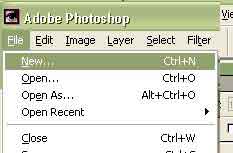
1. Click File>New (up in the dropdown menus click the File option and then
click the New option). In the setting have the image size be width 5 inches,
height 7 inches and the resolution 300 pixels/inch (ppi), and click OK
2. Click the foreground color box
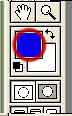
3. Select a nice blue color
4. Click Alt+Backspace (the alt & backspace key at the same time) to fill
the background with blue
5.
6. Name the project: Final-01
7. Click Save
8. Leave that file as is, for now.
9. Open one of the picture files that will be placed in this document.
10. Click Image > Image Size
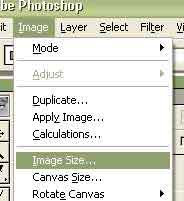
11. Make the image resolution 300 ppi, and click OK

12. Click Ctrl+A
13. Click Ctrl+C
14. Return to your original project, document Final-01
15. Click Ctrl+V to paste the copied image into this project.
Ø The image may need to be sized down if it is too large. To do this
click Ctrl+T to transform the image. To avoid distorting the image hold the
shift key down while resizing the image (do NOT enlarge the image! It will become
distorted!)
Ø Repeat steps 6 through 13 for all images that will be placed in your
project.
Ø It is also suggested that you go back and rename each layer with a
name that will help you identify them easier.
16. Once all images are placed, these other files can be closed.
17. Now, working in Final-01, decide on the rough lay out of where the images
will be and the shapes they will be in.
18. In this tutorial we are going to shape (or cut) them into circles
19. Click the first or top most layer
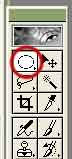
20. Use the circular marquee
. 
21. Hold shift as you Click & Drag to make a very symmetrical circle
22. Click inside of the selection and drag it until the selection is over the
approximate area of the picture that needs to show through (DO NOT worry about
exact fits at this time!).
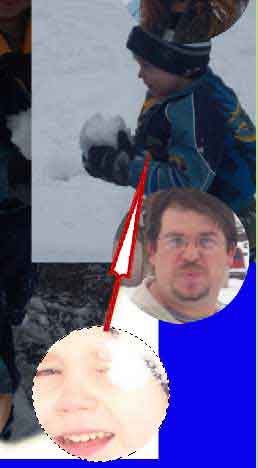
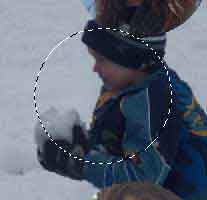
23. In the toolbox, be sure the foreground color is white and the background
color is black (an easy way to do this is just hit the D key on your keyboard).
(Image)
24. Now click the button 2nd from the left, on the bottom of the layers pallet.
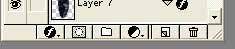
The will ad a layer mask to your layer.
Ø Every part of that layer, OUTSIDE of the selected area, should disappear.
If not review the steps and be sure you are on the correct layer.
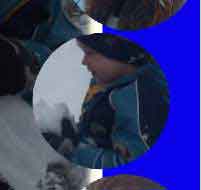
25. Now Control Click the Mask Window on the layer to recreate a circle selection.
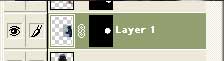 (right
window pictured here) (right
window pictured here)
26. Click on the next layer that you want to fix and follow steps 22 through
26. Do this for every layer that needs it. Once the layers are all masked move
on to step 27.
27. At this time you should adjust (move) these circle images, to assure a nice
layout.
28. Click View>Show and see if there is a check mark next to Grid. If there
is leave it alone. If not click Grid to turn it on.
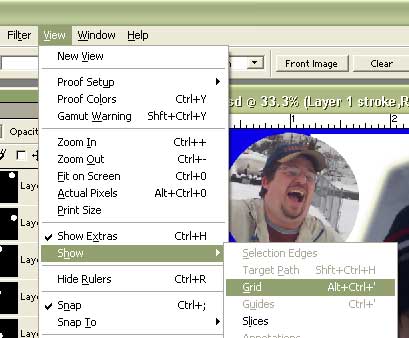
a. You should now see a grind over the image. If the grid is to small or large,
or just off set in some way, you can adjust it.
b. Go and click on Edit>Preferences>Guides&Grid…

For this size image I recommend these settings.
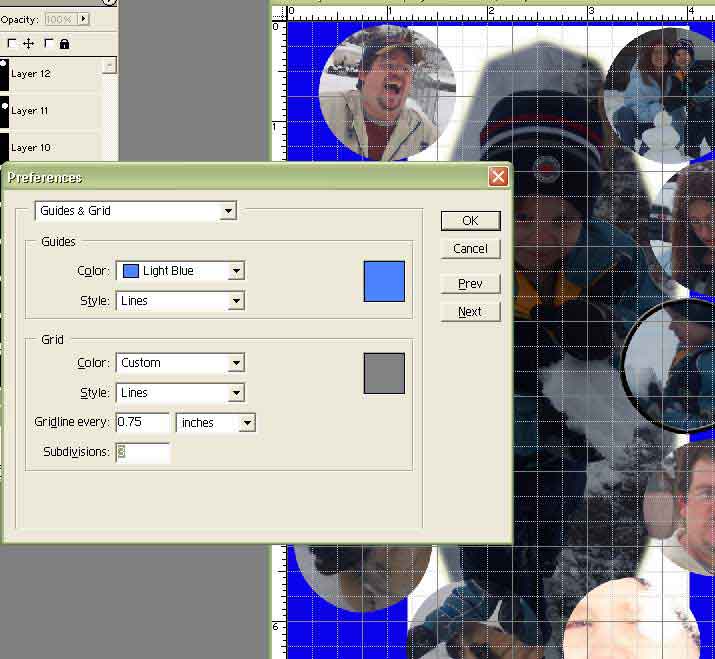
29. Now line up each layer exactly where you want them to end up. Take care
to make all the images line up or take on a definite shape.
**AT THIS PIONT THE NEXT STEPS
CAN BE ACCOMPLISHED IN SEVERSL WAYS.**
The method I choose to use here was based on accuracy, easy of use and organization.
Mostly this method will benefit you in that you will be able to edit as much
as you want, throughout the rest of this project.
30. Once again we will be working on one layer at a time. Starting with layer
number one (or the top most layer, which ever makes the most sense to you).
Select this layer if it is not already selected.
31. Control-click the mask part of this layer to get the circle selection again.
(right-hand
black window pictured here)
32. Click the new layer button. (Second from the right)
33. Name this layer the same as the layer you are stroking, but add "stoke"
to the name somewhere. (This will help if things get disorganized for some reason).
34. Hit D on the keyboard to assure you have your default colors (if you want
white stroke instead of black hit X on your keyboard to flop the foreground
and back ground colors!).
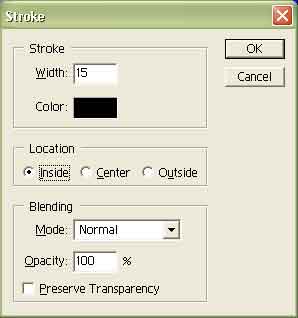
35. Click on Edit>Stroke
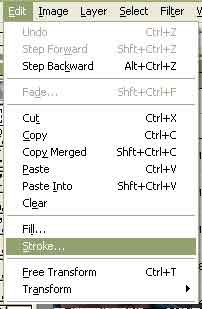
36. Choose a setting you like. In this case I used 15 as the stroke size.
37. Click OK
38. Click Select>Deselect
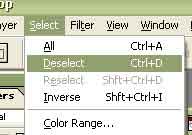
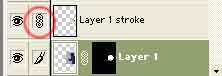
39. Now, link these two layers together so that they move together when needed
40. Lastly, special effects: make sure you are still on the stroke layer.
41. Click the effects button on the bottom of the layers pallet (looks like
f in a black circle)
42. Choose bevel & emboss and some setting that you like. (You may need
to drag this box to the side some so you can see the effects as you adjust them.
43. Click OK when you are satisfied.
44. Right click this stroke layer and left click the "copy layer style"
option. Then as you repeat these steps, for the other circles, you can just
right click each new layer you make (that has the stroke on it) and choose the
"paste layer style" option. This way all the circles will look the
same.
45. Click the next layer to be edited
46. You now need to repeat steps 31 through 43 for each of these image layers.
Each layer will soon have a stroked layer to go whit it.
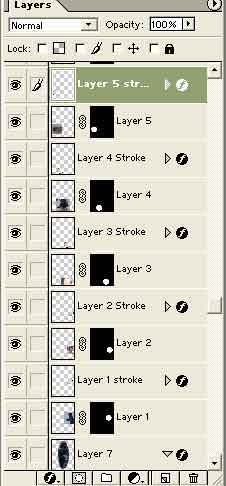
The center (square image) is just cropped to a shape you like.
47. Select the layer that is your "center image" and select the Square
Marquee tool.
48. Make a selection of this image that you like.
49. Click Select>Inverse
50. Now you can hit Delete on your keyboard to remove the unwanted edges of
this image. (If something here does not work, first, double check that you are
actually on the layer you are tying to edit.)
51. IF YOU WANT a stroke here too, follow steps 32 through 42. IF NOT then go
straight to this next step.
52. IF YOU DID NOT stoke the later you can apply effects this way: Click the
effects button on the bottom of the layers pallet.(f)
53. Pick the effects and settings that you like then click OK.
Now you can add text and other details as you see fit.
Questions?
| 