WoWAMP
Interactive Music for World of Warcraft
By Ryan Black, [email protected]
(Version 1.1 FINAL)
Brief Introduction
WoWAMP is a package that automatically plays interactive music in World of Warcraft. Inspired by the in-game interactive music, such as the swelling choir when one approaches Stormwind City, I set out to create a package that would allow players to customize their interactive music experience. WoWAMP allows players to:
- define situation-specific music: areas, zones, combat, and death
- control Winamp from within WoW (play, stop, next, pause, prev, volup, voldn)
- define playlists and change them from within WoW. The user can create 5 custom preset playlists that can be quickly selected using the Interface Panel for a change in music. Also, the user can define an unlimited number of playlists that can be selected from the command line.
- issue commands using a unique standalone interface or slash commands
- utilize any type of file that Winamp can handle: mp3, m3u, ogg, wma, mid, mod, etc.
WoWAMP comes with extensive documentation and is highly customizable. Want to have some pirate music for Booty Bay? Want to be able to listen to some Japanese Taiko drums when you enter combat? Want access to your playlists and MP3 files for a change of soundtrack in the middle of your WoW experience? WoWAMP provides all this and more.
TABLE OF CONTENTS
Note: About the Windows Script Host (VBScript Interpreter only) and CLAmp.exe
a. The Standalone .EXE Interpreter
d. A 30-step Walkthrough Example (don’t worry, I tried not to make it too dry)
6. MODIFYING YOUR CONFIGURATION FILE
e. DETAILED EXAMPLE OF INTERACTIVITY
ii. Examples of Interactivity:
7. SLASH COMMANDS FOR WORLD OF WARCRAFT
c. /wowamp addZone KEY>ENTRY (also addcomBat and addDeath)
e. /wowamp Control PLAY|STOP|PAUSE|PREV|NEXT|VOLDN|VOLUP
g. /wowamp SetPreset# Key>Entry
8. TROUBLESHOOTING QUESTIONS AND ANSWERS
1. INTRODUCTION
WoWAMP is a package that plays interactive music in World of Warcraft (WoW). The user can define music selections for minimap areas (i.e., sub-zones), zones (i.e., the name of the map) and situations (e.g. Combat, Death). The user can create custom playlists and change them interactively from within World of Warcraft, and can add new playlists for the current zone or area from within World of Warcraft.
WoW Scripts can only interact in a very rudimentary, limited fashion in real-time with the outside world while running, and WoWAMP therefore requires an “interpreter” to run properly. The interpreter is blind to what's going on in World of Warcraft other than what is reported to it by the WoWAMP Script, and the WoWAMP Script is blind to what the interpreter is doing. The interpreter continuously monitors for reports from the WoWAMP Script in order to take action.
The WoWAMP interpreter receives instructions and passes them along to Winamp, because I’m not nearly as good a programmer as the fine folks at Nullsoft. I have toyed with the idea of making WoWAMP handle its own playlist/MP3 playback, but I am pretty sure that most everyone will appreciate using Winamp instead of whatever silly MP3 player I could come up with.
WoWAMP comes in two parts: the WoWAMP script and the WoWAMP interpreter (there are two versions of the Interpreter included, but more on that later). The WoWAMP script is what runs in WoW, and it keeps track of where your character is and what he or she (or it, I suppose) is doing. The WoWAMP interpreter takes that information and makes decisions as to what commands to send to Winamp. (The VBScript Interpreter needs a few more steps). Basically, the communication flow looks like this:
|
Standalone .EXE Interpreter |
||||
|
WoWAMP Script (in WoW)
Collects Player Location/Status and User Input |
>>>>>>>>>> |
WoWAMP Interpreter
Decides what music to play |
>>>>>>>>>
<<<<<<<<<< Receives Information from Winamp |
Winamp
Plays Music |
For the VBScript Interpreter, there is an intermediary step between the WoWAMP Interpreter and Winamp:
|
VBScript Interpreter Extra Steps |
||||
|
WoWAMP Interpreter
Decides what music to play |
>>>>>>>>>>
<<<<<<<<<< Captures information from CLAmp.exe |
CLAmp.exe
Communicates with Winamp |
>>>>>>>>>
<<<<<<<<<< Receives Information from Winamp |
Winamp
Plays music |
2. LICENSE/DISCLAIMER
This is freeware, though it would be nice to hear from people who enjoy/hate/love/use/modify it. If you make modifications to the code, I reserve the right to look at what you did (should you make said modifications public) and incorporate it into future versions, though it would probably be better for the WoW community as a whole if such changes were streamlined in order to prevent multiple “editions” of the script floating around out there. If there is a lot of interest in continuing to develop this program, I may end up setting up an online community to do so, because quite frankly my time is very limited.
YOU ARE NOT ALLOWED TO SELL OR MAKE MONEY OFF OF THIS PROGRAM. If I made it with no remuneration expected, then I'll be darned if one of you is going to profit off of my hard work. If you really enjoy my work and would like to make a donation to me, well, that’s very kind but I’d prefer that you donate something to your favourite charity.
I make no warranties or guarantees about this program or its effectiveness, and by using this program you agree not to hold me responsible for any damage, loss, or injury that it causes. I am putting this in here fully knowing that those of you pissed off at me will ignore this and try to sue me or beat me up. Be warned: I am big, and I know the law.
All copyrights that are not mine still belong to their respective owners, and I am not an employee of Blizzard (unless it needs Canadian legal counsel and is willing to pay my exorbitant fees). I retain copyright to this manual, though. And I'd love to own this word: WoWAMPerrific, which suggests an extremely high level of WoWAMPery. Oh, I want to own WoWAMPery, too.
3. REQUIREMENTS
- World of Warcraft (not included)
- Windows XP, 2000, 2003, or NT (definitely not included).
- WinAMP (http://www.winamp.com)
- The following two WoW Addons: Chronos and Sea. Chronos and Sea are not developed by me, so find them!
- For the standalone .EXE interpreter:
- Microsoft .NET Framework Redistributable Package (available online at Microsoft’s website, but you’re free to try to run the EXE file without .NET and see if it works for you!)
- For the VBScript/CLAmp.exe interpreter:
- CLAmp.exe (included)
- Windows Script Host (search Microsoft’s Download Center for the version that’s right for you!)
- A text-editing program for editing configuration files
- Good spelling (The difference between Elwynn Forest and Elwyn Forrest will be huge!)
Note: About the Windows Script Host (VBScript Interpreter only) and CLAmp.exe
One of the included interpreters uses VBScript, which utilizes the Windows Script Host. I do not proclaim to be an expert on how to install the Windows Script Host on your computer, nor do I make any warranties for the security risks that may be present by installing the Windows Script Host. It came pre-installed on my computer. I have cleverly renamed it from .VBS to .SCRIPT in order to prevent people from running it accidentally---it really does need to be run from the command line and not from Windows natively! If you have security concerns about running or installing the Windows Script Host on your machine, you may use the standalone EXE version. I didn't write CLAMP.EXE, but a big shout out to the person who did. Without it, the VBScript version of have been virtually unworkable. It's a command-line “remote control” for Nullsoft’s WINAmp. It works great, and it's programmed smartly. Huge, huge props. You can find out more about CLAMP.EXE from http://membres.lycos.fr/clamp/.
4. INSTALLATION
a. Step-by-step installation
Step 1: Extract the addon to your World of Warcraft directory, make sure that directory structures are enabled: it will install the correct files to the Wow\Interface\Addons\WoWAMP directory.
Step 2: If you do not have the Chronos (required by WoWAMP) or Sea (required by Chronos) addons installed, you are going to need to find them and install them. Search whatever repository you found this program at and download the plugins.
Step 3: If you’re going to use the VBScript/CLAmp.exe interpreter, modify your configuration file (wowamp.cfg). I'll explain that below.
IMPORTANT NOTE: The file [MODIFY]wowamp.cfg that is included in your WoWAMP package is not a valid wowamp.cfg file! To use the VBScript/CLAmp.exe interpreter, you must rename [MODIFY]wowamp.cfg to wowamp.cfg after editing the settings inside of it using your trusty text-editing program.
5. USAGE
After you have installed WoWAMP (and set up the configuration file if you’re going to be using the VBScript Interpreter), you are ready to use WoWAMP! How, you might ask? Well, it’s very simple:
- If you are going to be using the Standalone .EXE Interpreter, run WoWAMP.EXE.
- If you are going to be using the VBScript Interpreter, It’s the batch file, WOWAMPVB.BAT. So, you could double-click WOWAMPVB.BAT, which looks like a window with a yellow cogwheel inside of it. Or, you could go to the command-line and type “WOWAMPVB.BAT”. Alternatively, from the command line, you can type: “CSCRIPT //NOLOGO /E:VBSCRIPT WOWAMP.SCRIPT”, but that seems like a really extraneous thing, now doesn’t it? Double-clicking WOWAMP.BAT sure seems easier to me.
Feel free to minimize the window that either Interpreter will run in: they should work just fine even if they’re out of the way. Or, you can choose to watch it work, if you run WoW in windowed mode or have a dual-monitor setup (this is the best way to learn how WoWAMP behaves, I have very verbose interpreters).
Ideally, for both interpreters, you should run Winamp before starting either. Both have functionality to launch Winamp if it isn’t already loaded, but it’s safer and easier for you to do it yourself.
a. The Standalone .EXE Interpreter
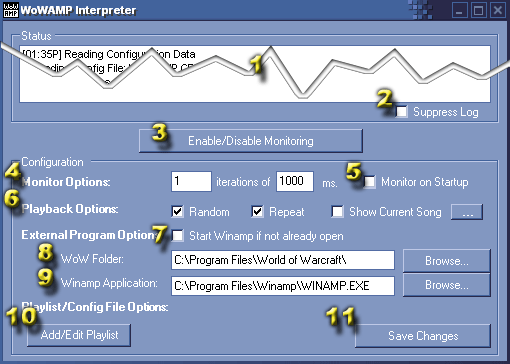
When you’ve run the standalone .EXE interpreter, a window similar to this will start. Unlike the VBScript Interpreter found in previous versions, this one does not default to monitoring user events in WoW from the moment it is run (though there is an option to do so). The window is divided into three parts: the status log (1), the monitoring button (3), and everything below the monitoring button (4-11). I will describe each of these elements now:
1. The Status Log—When WoWAMP does something, it logs it into this window. New log entries are added from the bottom, and the log will automatically follow new entries unless you have scrolled up and away to review old log elements. If “Suppress Log” is enabled, then WoWAMP will not log entries. This is to conserve memory (each log item takes a little bit more!)
2. The Suppress Log Button—Check this to prevent WoWAMP from adding anything to the log. Unchecked, the log operates as normal.
3. The Enable/Disable Monitoring Button—This interpreter does not monitor for user events in WoW unless it is told to do so. If you click this button, the “Configuration” options will disappear and be replaced by a “Monitoring” Box. Configuration changes from that point out can only be made in the WoWAMP script itself (see /slash commands below). To disable monitoring again, press this button.
4. Monitor Options—Here is where you select your delay and iterations. Delay (in milliseconds, or 1/1000th of a second) is how often WoWAMP checks to see if the user has done something that requires a change in the music or a command being sent to Winamp. Iterations define how many “delays” WoWAMP will wait before issuing a new interactive command. Interactive commands are changes in the player’s zone, minimap area, or status (combat or death). Here are some examples of how it would work:
a. 5 iterations of 100 ms delay: Every 100ms, WoWAMP checks to see if the user’s status, zone, or minimap area has changed as well as whether the user has requested an operation of Winamp. If it detects a direct Winamp command (such as PLAY, PAUSE) or that the user is overriding a playlist (see /slash commands and “Presets” below), it will issue the command right away. If it detects an interactive command (such as entering a new zone, new minimap area, combat, or death), it will wait 5 “delays” before issuing that command. This means that if you’re on the border of a zone and you briefly cross into a new zone and back again, WoWAMP will only change the music on each change if the change lasted for longer than 500ms.
b. 0 iterations of 1000ms delay: Every second, WoWAMP checks for a new command. If there is one to perform, it will change it.
c. 20 iterations of 50ms delay: Every 50 seconds, WoWAMP checks for a new command. If there is a direct command, it will do it right away. If there is an interactive command, it will only issue the command after 1 full second (20 x 50ms = 1000ms).
5. Monitor on Startup—Checking this box means that when WoWAMP starts up, it will immediately enter monitoring mode. WoWAMP will also minimize after all configuration data is loaded.
6.
Playback Options—You can select random playback of songs in a
playlist as well as whether the playlist will repeat when it has finished
playing all the songs
ONLY AVAILABLE IN WoW 1.5.0 “MAXIMIZED WINDOWED” MODE.
“Show Song Title”, a function which is only available in the
“maximized windowed” mode introduced with WoW 1.5.0.
a. Check Show Song Title if you would like WoWAMP to display an on-screen display telling you of any changes to Winamp’s song title.
b. Press the “…” button if you would like to edit options for this on-screen display. It will ask you for the following questions:
i. The horizontal percentage of the on-screen display. Don’t type the %: 100 is right-aligned, 0 is left-aligned, and 50 is in the middle.
ii. The vertical percentage of the on-screen display. Don’t type the %: 100 is bottom-aligned, 0 is top-aligned, and 50 is in the middle.
iii. The “entry transition.” This will define how WoWAMP will introduce the display item. There are many values you can choose at this time:
1. APPEAR – The display will simply appear.
2. FADEIN – The display will fade in.
3. SLIDELEFT – Starting off the screen, the display will travel leftwards until it arrives at the correct location.
4. FADELEFT – like SLIDELEFT, but it will also fade in.
5. SLIDERIGHT – Starting off the screen, the display will travel rightwards the right until it arrives at the correct location.
6. FADERIGHT – like SLIDERIGHT, but it will also fade in.
7. SLIDEDOWN– Starting off the screen, the display will travel downwards until it arrives at the correct location.
8. FADEDOWN – like SLIDEDOWN, but it will also fade in.
9. SLIDEUP – Starting off the screen, the display will upwards until it arrives at the correct location.
10. FADEUP – like SLIDEUP, but it will also fade in.
iv. The “exit transition.” This will define how WoWAMP will cause the display item to disappear. There are many values you can choose at this time:
1. DISAPPEAR – The display will simply disappear.
2. FADEOUT – The display will fade out.
3. SLIDELEFT – The display will travel leftwards until it disappears.
4. FADELEFT – like SLIDELEFT, but it will also fade out.
5. SLIDERIGHT – The display will travel rightwards until it disappears.
6. FADERIGHT – like SLIDERIGHT, but it will also fade out.
7. SLIDEDOWN– The display will travel downwards until it disappears.
8. FADEDOWN – like SLIDEDOWN, but it will also fade out.
9. SLIDEUP – The display will travel upwards until it disappears.
10. FADEUP – like SLIDEUP, but it will also fade out.
v. The “opacity.” This defines how opaque the display will be. 10 is the lowest, and is almost transparent. 50 would be half-transparent, and 100 is fully opaque.
c. The display should appear using your settings. You can press the “…” button at any time to re-configure the on-screen display!
d. NOTE:
Some video cards are better suited to opacity/transparency (and fading in/out)
than others. For example, until my brother enabled some of the options in the
Catalyst drivers to his ATI 9800Pro using the Rage3D Tweak program (Accelerate
Alpha-blending being one of the options he turned on), fading in or out or
using a less-than-opaque display caused his WoW framerate to crawl to a halt.
I do not have the time to be a technical troubleshooter so please get Winamp
help elsewhere
7. Start Winamp if not already open—This interpreter issues commands directly to Winamp. If it cannot find the Winamp window for some reason, it will fail. Checking this option means that if the Winamp window cannot be found, WoWAMP will try to launch Winamp based on your Winamp Application.
8. WoW Folder—This points to the location of WoW.EXE in your World of Warcraft folder. You may browse for the location by pressing the “Browse…” button.
9. Winamp Application—This points to the location of WINAMP.EXE in your Winamp folder. You may browse for the location by pressing the “Browse…” button.
10. Playlist Edit options—These automate some of the changes you can make to your WoWAMP.CFG file. See more about playlist entries under “Modifying your Configuration File” below.
11. Save Changes—If changes have been made to your WoWAMP Configuration since the last time the Configuration File was loaded, pressing this button will save them. It will give you the option of reloading your old configuration, accepting the new changes, or cancelling the procedure. Note that changes must be saved (or erased by re-loading the previous configuration) before WoWAMP will begin monitoring, though this prompt will occur automatically if you press the “Enable/Disable Monitoring” button.
b. The VBScript Interpreter
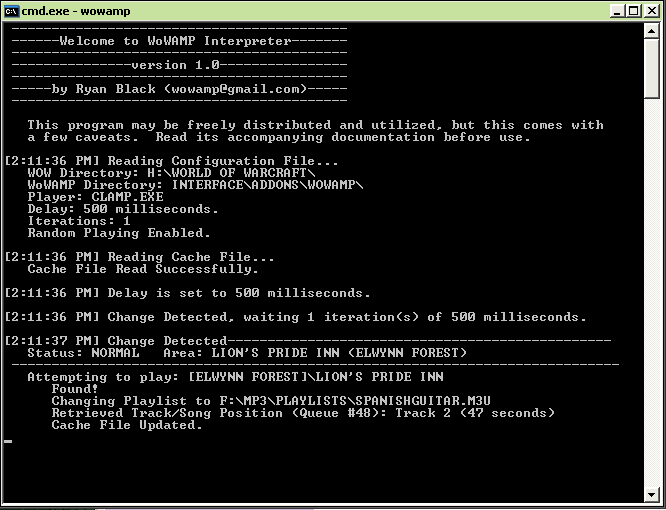
Command-line VBScript is not exactly the best language for user interaction, so once you launch the interpreter, there isn’t really much to do. However, the substance of the VBScript Interpreter’s interactive experience is found in
After running the WoWAMP Interpreter, you can then launch WoW and, with the script running, your interactive music experience will begin. Remember, WoWAMP is only as useful as the configuration file. It won’t do much until it’s told to!
c. Once you’ve launched WoW
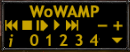
DO NOT FORGET TO ENABLE THE WoWAMP SCRIPT IN WoW, AS THE PROGRAM WILL SIMPLY NOT WORK WITHOUT THIS! After uncompressing this package to your WoW directory, you should see a little button at the Character Select screen called “Addons.” Click on that button and be sure to enable WoWAMP (and Chronos and Sea, of course… WoW will warn you if you don’t have the correct addons as dependencies).
As you can see, there is a minimal interface available in-game for WoWAMP. The playback controls are obvious, + and – are for volume control, i allows you to enable “Interactive Mode”, presets 0–4 allow you to override interactive mode by playing [PLAYLIST]\SETPRESET# where # is the preset selected, and the down arrow allows you to hide the WoWAMP interface. To show or hide the WoWAMP interface, simply type the slash command /wowamp panel (or /wa p for short). Use /slash commands to make WoWAMP even more interactive: from overriding the interactive music with your own custom playlist to telling the Winamp to skip the current track you’re playing to adding new zone, area, combat and death interactive entries based on existing playlists, /slash commands can generally get the job done. They're described in a section below.
d. A 30-step Walkthrough Example (don’t worry, I tried not to make it too dry)
Because configuring WoWAMP isn’t easy, I’ve decided to include a walkthrough example of a person’s first use of WoWAMP. Don’t worry if you don’t understand much, it will all be explained below! We will use our friend Joe, a simpleton who has a character named Vulgarboy (he is clearly not a roleplayer). Here’s what Joe does to enjoy his interactive music:
1. Joe uncompresses the WoWAMP package into his World of Warcraft folder, which is D:\Games\World of Warcraft.
2. Joe makes sure he has the proper dependencies: Chronos and Sea, and obtains and installs them as well.
3. Joe makes a decision to launch either the VBScript Interpreter or the Standalone .EXE Interpreter. If he decides to launch the VBScript Interpreter, he needs to make the following changes to his WoWAMP.CFG file before launching the interpreter. For new users, the Standalone .EXE Interpreter is probably much easier!
4. Joe sets his iterations to 10. He wants the WoWAMP Interpreter to issue direct commands (like Volume Up, Next Track, or playlist override) faster than interactive commands (like entering a new zone or beginning combat music). He realizes that interactive commands will only be issued if they are in place for (iterations) x (delay) milliseconds.
5. Joe sets his delay to 100 milliseconds. He wants the WoWAMP Interpreter to check for commands every 100 milliseconds, and issue direct commands immediately. For interactive commands, he has now set them to respond every 1000 milliseconds.
6. Joe wants his playlists to be played sequentially, so he makes sure the Random Playback option is unchecked.
7. Joe doesn’t want his playlists to stop when they’ve finished, so he makes sure the Repeat Playback option is checked.
8. Joe is going to launch Winamp himself before beginning monitoring, so he leaves the “Start Winamp if not already open” option unchecked.
9. Joe sets his World of Warcraft directory to d:\Games\World of Warcraft\ by browsing to his WoW.exe file
10. (Joe doesn’t need to do this as he is not having WoWAMP launch Winamp, but just in case) Joe sets his Winamp directory to C:\Program Files\Winamp\WINAMP.EXE by browsing to his WINAMP.EXE file.
11. Joe wants to add a playlist: e:\mp3 music\playlists\dramaticmusic.m3u He wants this to be the default music that plays when no other music is found. He adds it to the key [PLAYLIST] under the entry DEFAULTMUSIC:
a. In the Standalone .EXE Interpreter, he clicks on Add/Edit Playlist, browses to his M3U file, selects it, and then types the key PLAYLIST. It prompts him for the entry, and he types DEFAULTMUSIC. WoWAMP asks him to confirm his choice, and he accepts it.
b. For
the VBScript Interpreter, he edits WoWAMP.CFG and looks for the key (or
adds it) [PLAYLIST]. He then adds the playlist by adding an entry:
DEFAULTMUSIC
> E:\MP3 MUSIC\PLAYLISTS\DRAMATICMUSIC.M3U
c. (For all future references, I will refer to keys/entries/values in the following format: [KEY]\Entry > Value)
12.
Joe has playlists for combat as well as death, so he adds the following
playlists:
[PLAYLIST]\DEFAULTCOMBAT
> E:\MP3 MUSIC\PLAYLISTS\TAIKODRUMS.M3U
[PLAYLIST]\DEFAULTDEATH
> E:\MP3 MUSIC\PLAYLISTS\TRANCEMUSIC.M3U
13.
Joe has a few extra playlists, and he doesn’t know what he’s going to
use them for yet. So he adds them to his general PLAYLIST key:
[PLAYLIST]\Rock
Guitar > E:\MP3 MUSIC\PLAYLISTS\GUITARRIFFS.M3U
[PLAYLIST]\Braveheart
Soundtrack > E:\MP3 MUSIC\PLAYLISTS\BRAVEHEART.M3U
14.
Joe has a playlist in mind for the Elwynn Forest. He really wants the
Lord of the Rings soundtrack to play there… but not inside the Lion’s Pride
Inn! So he adds the following entries:
[ELWYNN FOREST]\DEFAULTMUSIC > E:\MP3 MUSIC\PLAYLISTS\LOTR.M3U
[ELWYNN FOREST]\LION’S PRIDE INN > E:\MP3 MUSIC\MUSICALATINA\SPANISHGUITAR.MP3
15. Joe decides that he wants to try out WoWAMP now: he’ll add more playlists later!
16. Joe launches Winamp, and then presses “Enable/Disable Monitoring”. The Status Log tells him that it has begun monitoring CONFIG.WTF.
17. Joe launches World of Warcraft and logs in. He sees his character, Vulgarboy, but he doesn’t select it yet. Instead, he looks down in the corner of the screen and sees the “Add Ons” button. He clicks it and makes sure that WoWAMP, Chronos, and Sea are all enabled.
18. Joe signs onto his character Vulgarboy, and WoW loads.
19. When Joe enters the world, he sees a WoWAMP panel in the middle of his screen: he doesn’t panic that it will block his vision forever, instead he right-clicks on the titlebar and drags it out of the way. (He could disable it, too, by clicking the minimize button).
20. Vulgarboy is in Stormwind. Joe hears Winamp play DRAMATICMUSIC.M3U within 1 second.
21.
Joe decides that Stormwind (though I recommend Ironforge, personally)
would be the perfect place to listen to the Braveheart Soundtrack. He types
the following slash command:
/wowamp
addzone playlist > braveheart soundtrack
Alternatively, Joe could have typed:
/wa z
braveheart soundtrack (/wa is short for /wowamp, z is short for
addZone, and the key [PLAYLIST] is always assumed if none is given)
22. Vulgarboy runs to the Elwynn Forest for half a second, back inside the Inn for half a second, and back outside to the Elwynn Forest finally. SPANISHGUITAR.MP3 continues playing until Vulgarboy finally rests in the Elwynn Forest, and Joe hears LOTR.M3U about 1 second later.
23. Joe doesn’t like the track he’s listening to, so he skips forward to track #2. This takes about 1/10th of a second.
24. Vulgarboy runs into the Lion’s Pride Inn. Joe hears SPANISHGUITAR.MP3 about 1 second later, playing where it left off.
25. Vulgarboy does some dancing and grooves to the music, but then he needs some fresh air. He steps back into Elwynn Forest, and Joe hears LOTR.M3U again, still at track #2 and exactly where he left off (or within 5 seconds if he used the VBScript Interpreter).
26.
Joe decides that every once in a while, he wants to listen to his guitar
riffs instead of having WoWAMP decide what he listens to. So, he defines
Preset 0. He types:
/wowamp
setpreset0 playlist > rock guitar
Alternatively, Joe could have typed:
/wa sp0 rock
guitar (sp0 is short for SetPreset0)
27. Joe tests it out by pressing the 0 button on the WoWAMP panel. His guitar riffs play, and Vulgarboy and Joe dance in harmony.
28. Vulgarboy runs back into the Inn, and Joe still hears the guitar riffs. He decides that he wants to listen to the interactive music again, so he presses the i button. Joe hears SPANISHGUITAR.MP3 again, about 1 second later, and it resumes from where it left off. The song soon ends and repeats.
29. Vulgarboy gets into a fight with another character while inside the Inn (tsk tsk, such bad manners!) Vulgarboy duels the character and Joe hears TAIKODRUMS.M3U approximately 1 second later. He dies shortly thereafter and hears TRANCEMUSIC.M3U a second later.
30.
Joe decides that in the Elwynn Forest, he wants the Spanish Guitar music
to play as the combat music as an inspiration to more success. So, he types:
/wowamp
addcombat elwynn forest > lion’s pride inn
Alternatively, Joe could have typed:
/wa b elwynn
forest > rock guitar (b is short for addcomBat; note that Joe
needed to type the proper key because it isn’t PLAYLIST)
I hope that this detailed walkthrough helps demonstrate how WoWAMP works. I should note that as a result of the commands that Joe issued during the course of the tutorial, his WoWAMP.CFG file would look like this (there might be additional entries, but this is what’s relevant):
[DEFAULT]
DELAY > 100
ITERATIONS > 10
WOWDIR > D:\GAMES\WORLD OF WARCRAFT\
WINAMPAPP > C:\PROGRAM FILES\WINAMP\WINAMP.EXE
REPEAT > YES
RANDOM > NO
PRESET0 > E:\MP3 MUSIC\PLAYLISTS\GUITARRIFFS.M3U
[PLAYLIST]
ROCK GUITAR > E:\MP3 MUSIC\PLAYLISTS\GUITARRIFFS.M3U
BRAVEHEART SOUNDTRACK > E:\MP3 MUSIC\PLAYLISTS\BRAVEHEART.M3U
DEFAULTMUSIC > E:\MP3 MUSIC\PLAYLISTS\DRAMATICMUSIC.M3U
DEFAULTCOMBAT > E:\MP3 MUSIC\PLAYLISTS\TAIKODRUMS.M3U
DEFAULTDEATH > E:\MP3 MUSIC\PLAYLISTS\TRANCEMUSIC.M3U
[ELWYNN FOREST]
DEFAULTMUSIC > E:\MP3 MUSIC\PLAYLISTS\LOTR.M3U
LION’S PRIDE INN > E:\MP3 MUSIC\MUSICALATINA\SPANISHGUITAR.MP3
DEFAULTCOMBAT > E:\MP3 MUSIC\MUSICALATINA\SPANISHGUITAR.MP3
[STORMWIND CITY]
DEFAULTMUSIC > E:\MP3 MUSIC\PLAYLISTS\BRAVEHEART.M3U
6. MODIFYING YOUR CONFIGURATION FILE
a. General Comments
If you are using the standalone .EXE interpreter, you will not likely need to edit your configuration file much. However, there is no functionality (yet) in the interpreter to do mass-edits of playlists or to add resume information (see f. below) for playlists, so you still may find yourself entering into this configuration file from time to time. Also, it will not hurt to understand the configuration file. Reading is good for you. So, read on, brave soul!
WoWAMP.CFG contains your configuration data. It is located inside of your WoWAMP installation directory. Nothing in it is case-sensitive, so go nUtS oN tHe CaPiTaLiZaTiOn if that's what gets you going. Don't put any fancy “quotes” around strings or anything like that, they're not required and they'll break it. Unless they're part of the string. The only character you really can't use is “>” in any context other than as a divider.
The configuration file is laid out like this:
[KEY]
ENTRY > VALUE
[KEY2]
ENTRY2 > VALUE
ENTRY3 > VALUE
...
i. [KEY]
Think of [KEY] as a section header. You use it to define sections and zones. Every key must be unique, because subsequent keys of the same name will be ignored. Valid examples include:
[DEFAULTS]
[ELWYNN FOREST]
[Playlist]
Invalid examples of a key include:
|
[DEFAULTS |
Whoops! Forgot to close that [] set!
|
|
a[ELWYNN FOREST] |
Must begin and end with a [ and ].
|
|
[ELWYNN FOREST] |
Must be left aligned.
|
|
[Music that I can Really Groove To] |
Not recommended, it's too long. Keep keys and entries as small as possible, because I don't know the limitations of WoW's passing variables through to its configuration files. |
ii. ENTRY > VALUE
Think of ENTRY as the “lookup value” of a list. You use it to search for VALUEs, which are explained below. Every ENTRY should be unique, as subsequent ones will be ignored.
VALUE is like the result of the lookup in a table. You look up an ENTRY and, lo and behold, there is a VALUE for it! The > separates the ENTRY from the VALUE. Valid examples include:
DefaultMusic>DefaultPlaylist.m3u
DefaultMusic > DefaultPlaylist.m3u
NewMP3 > c:\totally legitimate and legal mp3.mp3
WoWDir > c:\program files\world of warcraft\
Invalid examples include:
|
<NewSong> > c:\newsong.mp3 |
“>” may only be used as a separator.
|
|
DefaultMusic, DefaultPlayList.m3u |
a “>” must separate ENTRY from VALUE |
b. Default Elements
The Configuration File must have a [DEFAULT] key in order to work properly (though the standalone .EXE file will assume defaults if it can’t find the data it needs). The key [DEFAULT] is used to store all of the WoWAMP settings. Under [DEFAULT], there are some important elements that are required as well:
|
[DEFAULT] |
|
|
WoWDIR > C:\Program Files\World of Warcraft\ |
(REQUIRED) The directory of World of Warcraft. NOTE THE TRAILING BACKSLASH, WHICH IS DEFINITELY REQUIRED!
|
|
WoWAMPDir > Interface\Addons\WoWAMP\ |
(REQUIRED FOR VBSCRIPT INTERPRETER) The directory of WoWAMP, relative to WoWDIR. NOTE THE TRAILING BACKSLASH!
|
|
Player > “clamp.exe” |
(REQUIRED FOR VBSCRIPT INTERPRETER) A pointer to clamp.exe, relative to WoWAMPDir.
|
|
Delay > 1000 |
(REQUIRED) The number of milliseconds between each time WoWAMP will check CONFIG.WTF. The longer your delay, the less responsive WoWAMP will be, but the less system resources it will take as well. The minimum is 50, the maximum is 4500. If your computer can support it, the lower the Delay the better.
|
|
Iterations > 1 |
(REQUIRED) The number of Delays that WoWAMP will use before acting on a change in zone or status. Used in combination with a reasonable delay, this can reduce the tendency for WoWAMP to change music for very quick zone changes or brief battles (like killing that poor bunny.)
Combine a low delay with high iterations and you have quick responsiveness to direct commands (like pressing the PLAY button) and delayed responsiveness to interactive commands (like playing the combat music when entering combat). |
|
Random > YES |
(OPTIONAL) Whether playlists should be played in random order or sequentially. YES for Random, NO for Sequential.
|
|
Repeat > YES |
(OPTIONAL) Whether playlists should repeat. YES for Repeat, NO to stop when the playlist has finished.
|
|
StartWinamp > YES |
(STANDALONE .EXE INTERPRETER ONLY) This tells WoWAMP to start Winamp if the Winamp process is not detected.
|
|
Startup > NO |
(STANDALONE .EXE INTERPRETER) This tells the standalone .EXE interpreter to start monitoring CONFIG.WTF as soon as it loads.
|
|
SuppressLog > NO |
(STANDALONE .EXE INTERPRETER) This tells the standalone .EXE interpreter not to show log messages.
|
|
ShowSongH > 50 |
(STANDALONE .EXE INTERPRETER) The horizontal positioning of the Song Title OSD.
|
|
ShowSongV > 50 |
(STANDALONE .EXE INTERPRETER) The vertical positioning of the Song Title OSD.
|
|
ShowSongIn > APPEAR |
(STANDALONE .EXE INTERPRETER) The method that should be used for the Song Title OSD to appear.
|
|
ShowSongOut > DISAPPEAR |
(STANDALONE .EXE INTERPRETER) The method that should be used for the Song Title OSD to disappear.
|
|
ShowSongAlpha > 100 |
(STANDALONE .EXE INTERPRETER) The opacity of the Song Title OSD.
|
|
PRESET# > FILE.EXT |
(OPTIONAL) 5 presets, 0 through 4, are available for quick-changes from WoW. Define them by simply entering a key under defaults: PRESET0 > c:\mp3s\playlists\boo.m3u PRESET1 > c:\mp3s\playlists\gryphon.m3u Etc. |
c. Interactive Elements
In your configuration file, you can set up keys for each zone. You can have one for Stormwind City, one for Elwynn Forest, and so on. To do this, simply name a key as a zone. The following is a key for Elwynn Forest:
[ELWYNN FOREST]
That’s pretty simple. Under each of these keys, you can have Default Music, Default Combat Music, and Default Death Music. Simply make entries for each, like so:
[ELWYNN FOREST]
DefaultMusic > c:\playlists\music.m3u
DefaultCombat > c:\playlists\combat.m3u
DefaultDeath > c:\playlists\death.m3u
Elwynn Forest's default music is music.m3u, default combat music is combat.m3u, and default death music is death.m3u. If you don't have a default entry for the key you're in, WoWAMP will attempt to play the default entry under the key [PLAYLIST]. (Read more about that below).
To make WoWAMP even more interactive, you can create an entry for “minimap” areas, or sub-zones. These are the subdivided areas of zones that appear in the text below your minimap, or when you hover your mouse over a particular section of the main map. So, if you're under a particular key, you can create a key for whatever small area you'd like:
[ELWYNN FOREST]
DefaultMusic > c:\playlists\music.m3u
Goldshire > c:\playlists\serfmusic.m3u
[WESTFALL]
Moonbrook > c:\playlists\dangerousmusic.mp3
As a default, the Elwynn Forest plays music.m3u, but Goldshire specifically plays serfmusic.m3u. In Westfall, there is no default music (so if there is a setting under [PLAYLIST] for default music, that will be played), but if the player enters Moonbrook, dangerousmusic.m3u will play.
d. Playlists
You can set up your own playlists that you will be able to call forth from WoW. Just create a key called [PLAYLIST] and then start adding your names and values! [PLAYLIST] is also the default key used for all /slash commands, as described in the section for /slash commands below; also [PLAYLIST] stores the defaults that should be used in the event that music isn't defined for a particular situation..
[PLAYLIST]
DefaultMusic > c:\mp3s\playlists\defaultmusic.m3u
Fun Music > c:\mp3s\playlists\funstuff.m3u
VentingTunes > c:\mp3s\playlists\ihatemyex.m3u
Two playlists are defined in the example above: one for “Fun Music” and one for “Venting Tunes.” Also, the default music file “DefaultMusic” defines what music will be played if no zone-specific or context-specific music can be found. Note that you don't have to call the key PLAYLIST, though it is convenient because it is the default header for many slash commands. You could create multiple keys for different playlists, though I do not know why one would do that.
The DefaultMusic, DefaultCombat, and DefaultDeath entries are described below:
|
[PLAYLIST]
DefaultMusic > FILE.EXT |
(OPTIONAL) The default “regular” music to be played.
|
|
DefaultCombat > FILE.EXT
|
(OPTIONAL) The default combat music to be played.
|
|
DefaultDeath > FILE.EXT
|
(OPTIONAL) The default death music to be played.
|
|
NOTE: If you want WoWAMP to simply be a “in-game” driver for Winamp, that is, to not have any interactive music), you can simply leave the above three items out and not add any playlists or zone entries. WoWAMP will still accept commands such as NEXT, PREV, etc.
|
|
e. DETAILED EXAMPLE OF INTERACTIVITY
i. Sample Configuration File:
[Defaults]
... I've snipped out the config data like WoWDIR, etc. ...
[Playlist]
DefaultMusic > defaultplaylist.m3u
Defaultcombat > combat.m3u
DefaultDeath > death.m3u
GladiatorOST > c:\playlists\gladiator soundtrack.m3u
Forest > c:\mp3s\naturesounds.mp3
[Elwynn Forest]
DefaultMusic > c:\playlists\elwynn forest.m3u
DefaultCombat > c:\playlists\jungle beats for forests.m3u
DefaultDeath > c:\playlists\trancy death music for forests.m3u
Lion's Pride inn > c:\mp3s\star wars cantina music.mp3
[Stranglethorn Vale]
Booty Bay > c:\playlists\pirates of the Caribbean OST.m3u
ii. Examples of Interactivity:
The above configuration file would lead to the following interactive music:
[Note: if a full path is not provided, the file will attempt to play from the WoWAMP directory.]
- When travelling around generally, defaultplaylist.m3u would be played
- If combat is entered generally, combat.m3u will be played
- If the player dies generally, death.m3u will be played
- The player is able to manually select two playlists:
- GladiatorOST, which points to c:\playlists\gladiator soundtrack.m3u
- Forest, which points to c:\mp3\naturesounds.mp3
IN ELWYNN FOREST
- If the player enters Elwynn Forest, c:\playlists\elwynn forest.m3u will be played.
- If the player enters the Lion's Pride Inn, Star Wars Cantina Music will be played.
- If the player enters combat in Elwynn Forest, c:\playlists\jungle... will be played.
- If the player dies in Elwynn Forest, c:\playlists\trancy death... will be played.
- For other locations in Elwynn Forest, c:\playlists\elwynn forest.m3u will be played.
IN STRANGLETHORN VALE
- If the player enters Stranglethorn Vale, the default defaultplaylist.m3u will play.
- If the player enters combat in Stranglethorn, the default combat.m3u will play.
- If the player dies in Stranglethorn Vale, the default music death.m3u will play.
- If the player enters Booty Bay, the “Pirates of the Caribbean” S oundtrack will play.
This interactivity can be overridden. See more info below about slash commands.
f. Resume Feature
If a playlist is changed, WoWAMP remembers where you were in the playlist and will return there if that playlist comes up again later. The time location within the particular song is accurate to within 5 seconds. The track information is fully accurate.
If the playlist has changed since the last time the playlist was loaded, WoWAMP will not attempt to resume your playback location. These time/track locations are maintained between sessions of WoWAMP, though they are only updated when a change occurs.
Time/track locations are maintained for 50 changes. After the 50th change, the oldest playlist is removed from memory and the interpreter will no longer remember time/track locations for it.
Example:
If a player is listening to Song 5 of the defaultplaylist.m3u at position 3:32, and enters the Elwynn Forest, WoWAMP will switch to c:\playlists\elwynn forest.m3u. If the player then leaves Elwynn Forest to an area with no specific playlist, the WoWAMP will switch back to defaultplaylist.m3u. WoWAMP will automatically track forward to Song 5 and begin playback at position 3:30 (because it is only accurate to 5 seconds).
Later, if the player re-enters Elwynn Forest, WoWAMP will resume playback in the c:\playlists\elwynn forest.m3u file, at the place where it was when the player last left the Elwynn Forest.
If the user shuts down WoWAMP, the next time that the player resumes WoWAMP, the Elwynn Forest music will resume playing where it left off.
Disabling Resume Feature
If you do not wish a particular playlist to resume, simply add an entry for it under the key [RESUME] with the playlist file as the entry followed by the value “NORESUME”. For example, if several of a user’s entries access the playlist c:\playlists\myplaylist.m3u or c:\playlists\alwaysfrombeginning.m3u, and the user does not wish the resume feature to be used for these files, the user could simply add the following keys:
[RESUME]
c:\playlists\myplaylist.m3u > NORESUME
c:\playlists\alwaysfrombeginning.m3u > NORESUME
Note that currently, this can only be done by manual entry into the WoWAMP.CFG file. When a fully-functional playlist editor is implemented in an upcoming version, I will add this feature to the Standalone Interpreter.
7. SLASH COMMANDS FOR WORLD OF WARCRAFT
WoWAMP gains a little bit more interactivity through the use of slash commands. All slash commands are called as such:
/wowamp
/wamp
or /wa
a. /wowamp Override KEY>ENTRY
This command will override the interactive playlist with the entry ENTRY in KEY. No changes will be made unless it re-enters interactive mode. If a playlist cannot be found, nothing will happen. But if you've used this command (even if the playlist can't be found), all interactivity will be lost until you resume interactivity again.
This command is useful if you're travelling a lot and you don't want the music changing all the time. Or, you're sick of listening to your pre-set playlists and you want to listen to something else you've got defined in the file. Note, of course, that you must have a playlist defined in the configuration file in order to play it.
You can have spaces before and after the separating > if you like, the WoWAMP interpreter trims all strings that are passed along (or at least, tries to).
Examples using above sample configuration file:
|
/wowamp override playlist>gladiatorost |
plays “gladiatorost” under [playlist] |
|
/wowamp override playlist>forest |
plays “forest” under [playlist] |
|
/wowamp override elwynn forest>defaultmusic |
plays “defaultmusic” under [elwynn forest] |
|
/wowamp override elwynn forest>lion's pride inn |
plays “lion's pride inn” under [elwynn forest] |
|
/wowamp override playlist>randommusic |
nothing happens, there is no entry for this. |
The override command can be shortened as “o”. Also, note that if you don't specify a KEY, the [PLAYLIST] key is assumed. Hence, the first example above could also be expressed as:
/wa o playlist>gladiatorost
/wa o gladiatorost
b. /wowamp Interactive
WoWAMP resumes the interactive playlist. For example, the following resumes playing the interactive music:
/wowamp interactive
If you've stopped playback or have overridden the interactivity, this command will resume interactive playback. It can also be shortened “i”. Therefore, you could express the above example as:
/wa i
c. /wowamp addZone KEY>ENTRY (also addcomBat and addDeath)
WoWAMP adds an interactive entry for the current zone, making it the same as the value found for ENTRY in [KEY]. If an entry for this zone already exists, the value is overwritten. If it cannot find the value for the ENTRY in [KEY], this is ignored.
So, if you're in a new zone that you do not have defined in a list, you can simply copy a playlist from another entry to the current zone. Alternatively, if you've already got a list for your current zone but you would like to change it to a copy of one that already exists in your configuration file, you could do that as well.
Scenario 1:
Suppose a player enters Stranglethorn Vale for the first time. The player wishes to add a playlist to the current area (though whatever is set up as “DefaultMusic” under [PLAYLIST] would be playing. The player does not have a key for [STRANGLETHORN VALE]
Scenario 2:
A player is in Stranglethorn Vale listening to whatever playlist is set up for that area or zone. The player wishes to change Stranglethorn Vale's playlist to something else. The player has a [STRANGLETHRON VALE] key and may or may not have a DefaultMusic entry.
Under both scenarios, the player would type:
/wowamp addzone Playlist>JungleMusic
This would find the entry JungleMusic under the key [PLAYLIST] and copy the playlist from that entry to a new entry for Stranglethorn Vale's default music. After, the user's configuration file would look like this:
[PLAYLIST]
JungleMusic > c:\playlists\junglemusic.m3u
[STRANGLETHORN VALE]
DEFAULTMUSIC > C:\PLAYLISTS\JUNGLEMUSIC.M3U
This command can be shortened to “z” and “Playlist” is assumed as a key. Therefore, the above command could also be typed as:
/wa z playlist > junglemusic
/wa z junglemusic
Similar to “addzone” is “addcombat” and “adddeath”, which add combat music and death music for the current zone, respectively. They can also be shortened:
/wa addcombat playlist > junglemusic
/wa b playlist > junglemusic
/wa adddeath playlist > junglemusic
/wa d playlist > junglemusic
d. /wowamp addArea Key>Entry
WoWAMP adds an interactive entry for the current minimap area, making it the same as the entry [ENTRY] in [KEY]. If an entry for this minimap area already exists, the value is overwritten. If it cannot find the entry [ENTRY] in [PLAYLISTS], this is ignored. Example:
/wowamp addarea Playlist>JungleMusic
The same explanation for the “addzone” slash command applies here, but this one is specific to an area. In the scenarios above, if the player were in “Booty Bay” in “Stranglethorn Vale”, the player's configuration file would look like this:
[PLAYLIST]
JungleMusic > c:\playlists\junglemusic.m3u
[STRANGLETHORN VALE]
BOOTY BAY > C:\PLAYLISTS\JUNGLEMUSIC.M3U
This command can be shortened to “a” and “Playlist” is assumed as a key. Therefore, the above command could also be typed as:
/wa z playlist > junglemusic
/wa z junglemusic
e. /wowamp Control PLAY|STOP|PAUSE|PREV|NEXT|VOLDN|VOLUP
This tells WoWAMP to send a command to Winamp. The commands are fairly obvious, though “STOP” bears mentioning. If play is STOPped, WoWAMP exits interactive mode and will not respond again until interactivity is resumed. It is highly recommended that, before performing any other commands after issuing a “STOP” control, you resume interactivity by typing /wowamp interactive or /wa i. The control command can be shortened to “c”. Therefore, the following are valid commands:
/wowamp control stop /wa c play
/wowamp c PAUSE /wamp control next
f. /wowamp Status
This displays the status of WoWAMP. It can be shortened to “s”.
g. /wowamp SetPreset# Key>Entry
Like addarea, addzone, addcombat, and adddeath, this command adds an entry to your table under they key [DEFAULT] called “Preset#”, where “#” corresponds with the number of the preset you are trying to set. Currently, the WoWAMP frontend supports 5 presets, presets 0–4. Examples:
/wowamp setpreset0 5thelement
/wa sp3 elwynn forest > lion’s pride inn
h. /wowamp Panel
Hides or displays the WoWAMP frontend panel. WoWAMP can be completely controlled from the command line, but the new frontend allows for easy access to the most common functions.
/wowamp panel
/wa p
8. TROUBLESHOOTING QUESTIONS AND ANSWERS
Q. How can I tell if I have the Windows Script Host installed?
A. Go to your command prompt. (Go to “Run” and then type “cmd” in NT/XP/2000/2003). At the command prompt, type:
cscript
If you see something about the Windows Script Host, it's installed. If not, you're out of luck. Try finding a way to install it. Maybe Bill can help you? Search Microsoft.com download centre for “Windows Script Host” and you’ll probably find what you’re looking for.
Q. Why does it crash, saying “input past end of file” when it's reading the cache?
A. Your cache has become corrupt. Erase WoWCACHE.cfg. One day I'll add error checking for this exact sort of thing.
Q. Why is this section so small?
A. I don’t have time to make this documentation, let alone troubleshoot other people's problems. I spend at least 45 hours a week working, lots of time talking to my wife, quite a few hours playing World Of Warcraft, a good deal of time watching television, not to mention the other odds and ends that manage to fill my week.
Plus, this is the first release and I’m essentially asking myself these questions. It’s weird.
Q. I can still hear World of Warcraft's music overtop of the interactive music.
A. That's not a question.
Q. Why is it not working?
A. I don't know how to get it working on your machine. Try finding a way to install the Windows Scripting Host, make sure you have all the right permissions, and make sure stuff is in the right directory. If you're running a Mac, this probably won't work. Make sure you set up the configuration files correctly. Check spelling.
9. CHANGELOG
(6/10/05) 1.2 Release
- Added extra playlist configuration options in the Standalone .EXE Interpreter: Edit defaults, edit presets, delete presets, and delete entries.
- Improved ease-of-use through tooltips in Standalone .EXE Interpreter
- Moved the location for default music (i.e., music that plays if zone-specific music cannot be found). Both interpreters now look in [PLAYLIST] for DefaultMusic, DefaultCombat, and DefaultDeath. Backwards compatibility is maintained by checking [DEFAULT] afterwards, but using the Standalone .EXE Interpreter to edit defaults will move them to Playlists.
(6/9/05) 1.1 FINAL Release
- Finalized Show Song Title function. New added: transitions, alpha blending, and better positioning. This function *only* works in WoW’s 1.5.0 “Maximized Windowed” mode. You have to go to video options, select windowed mode, and then select maximized. This runs WoW in a window, but a window that has no borders and is full screen. This allowed me to have WoWAMP tell you the song title and put it on a funky OSD above your WoW window. Please read the manual for more information on this feature (section 5.a.6)
- Updated manual.
- Removed warning messages for Winamp auto-activation – now WoWAMP will only try once to launch Winamp. If it fails, commands to Winamp will simply fail.
- Couple of bug fixes.
(6/8/05) 1.1 BETA Release
- **Experimental Feature**
Show your Song Title in WoW! This will only work in the new 1.5.0 'Windowed Maximized' mode. (I'm not passing any data into WoWAMP, just showing a transparent window above it!) The transparency won't work if you don't run 2000+. Just select 'Show Song Title' in WoWAMP, press the '...' if you want to change the location (Expressed as a percentage of your screen) and then you're good to go!
(6/5/05) 1.0 FINAL Release
- Completely VBScript- and CLAmp.EXE-free version of the WoWAMP Interpreter developed. Highly recommended! This allows the direct manipulation of WinAMP, a lot more user interaction (and helpful assistance for editing your configuration files), and a much happier WoWAMP experience. I have not included the code for this massive VB.NET project in this package, as I am still working on cleaning it up as well as establishing a new creative commons license for this software.
- Major additions to the manual.
- Some additional error-handling in the VB Script. Well, more like more accurate error messaging.
(5/31/05) 1.0 BETA Release
- Re-write of interpreter engine
- Frontend (thanks to Barogio, coder of the WoWPlayer addon, for the inspiration. It's a circular thing, this inspiration!)
- Support for 5 quick playlists
- Added support for Volume Up, Volume Down
- Improved error handling
- Quicker response with direct WinAMP commands
(5/24/05) 0.99b
- Minor Changes, Bugfixes, added Noresume options
(5/21/05) 0.99 beta
- Initial Release
10. Thanks
My most heartfelt thanks:
- First and foremost, to my wife for understanding while I code late-night on this project.
- To my brother, who bravely ventured into testing land by running my code on his machine. Don’t worry, he’s a doctor and can afford to replace it ;)
- To Rumor, for helping proofread and draft the initial version of this helpfile (but he’s not responsible for the errors I’ve added to it since then).
- To Barogio, who helped take the WoWAMP project in a whole new direction by creating a front-end interface and standalone .EXE interpreter for his iTunes and WinAMP WoW frontend, WoWPlayer. Without the inspiration (and the ability to inspect his XML, which was invaluable to me) his program inspired, I would not have developed the in-game interface for my project.
- To nullsoft, the developers of Winamp, who released a fairly useful SDK for Winamp and who set up forums where idiots like me could ask great questions about it.
- To the developer of CLAmp.EXE (whoever you may be!), whose program enabled me to release pre-FINAL versions of WoWAMP
- To the fine folks at Blizzard for making such a wonderful and interactive world as WoW, and who allow those willing venture into the world of LUA an opportunity to enhance the playing experience even further.
- To everyone who makes comments and suggestions to me at the various places where WoWAMP can be found.