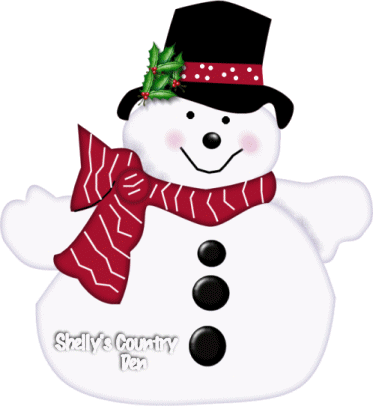
Jolly Snowman
June 2002
For this tutorial all you need is PSP 7 and my selections which you can get here, unzip these and put them into your selections folder.
We will start off by opening a new canvas 900 x 900, I like to work big and resize when finished ~s~
1. Create a new raster layer named left arm, selections load from disk, leftarm.sel, flood fill with FDF5FC, selections invert , Effects 3D drop shadow with these settings, Vertical and Horizontal 0, Opacity 90, blur 19.5, using 9D95BE as your shadow color. Select none, Effects noise ~ add 5% uniform.
2. New raster layer named right arm, selections load from disk, rightarm.sel. Repeat above steps for this arm as you did in step 1.
3. New raster layer named body, selections load from disk body.sel.
Repeat the same steps as step 1. Now we can go ahead and load the buttons on his belly, selections load from disk, button1.sel, flood fill with black, effects 3D inner bevel, use the round preset, follow the same steps for buttons 2 and 3 all on the same layer.
4. New raster layer named head, selections load from disk, head.sel, and again repeat the steps from # 1 ~s~.. New raster layer named face, selections load from disk eyes.sel, flood fill with black, selections select none, selections load from disk, nose.sel, flood fill with black, Effects 3D Inner bevel, use the same setting as before in 3 but change your angle to 24. New raster layer named mouth, selections load from disk mouth.sel, flood fill with black. New raster layer named cheeks, grab your air brush tool and I am using color EAC9DD, settings as follows, size 42, hardness 7, opacity 24, step 25, density 75, give a few sprays, then go to effects blur Gaussian blur and use 1.50.
5. New layer named scarf, selections load from disk scarf.sel, flood fill this with a pretty red or your choice of color ( I used A6102D)! Selections invert and apply the same drop shadow, but change your shadow color to black, #OOOOOO.
6. Now were going to draw some lines on his scarf, so grab your line tool and set it to point-to-point width 3 and make white your stroke color, background off. Start at one of the ends of the scarf and make little clicks and kind of stager them, when you get to your last click, do a right click with your mouse and choose quit node editing, you should have a little white line ~s~ if your not happy with it, just use your undo and keep trying! Do this for all the scarf, then when you have it looking the way you want it, add a new raster layer name it scarf center, selections load from disk, scarfmiddle.sel, flood fill with your scarf color then selection invert, effects 3D drop shadow, with these setting, vertical and horizontal 0 , opacity 69 and blur 12.3, then invert your selection again and apply the same drop shadow.
7. OK, now let's do a new raster layer named Hat, selections load from disk, hat.sel, flood fill with black, selections select none, selections load from disk hatband.sel, flood fill with your scarf color, then grab your paint brush tool set to round, size 8, Hardness 100, Opacity 100, Step 25, Density 100, then give some little white dots on his band.
Now to finish him up, grab your tube tool and give him some holly on his hat !!
Layers merge visible!!
That's it your Jolly Snowman is now finished and ready to resize, if you don't know how it's easy, just go to image, resize and do it at about 50 %...
Now you can tube him !!
Any questions please feel free to e-mail me ~s~