May 2003
Volume 21, Issue 5
Kokomo PC
Users Group
Presidents Message:
The dandelions are growing and the grass needs mowing, not much time left over for PC computing. We are entering the slow season for serious computing. Although we may surf on over to the weather channel site to see if we will have sun for the picnic or send an email to our kids at camp, for the most part we will just have to put up with all that sun and fun and let our keyboards collect dust.
The 20th anniversary celebration was well attended and very enjoyable. We talked about the history of computing and what it was like to be involved with computers in the early eighties. Rodney Malkoff did a nice job with refreshments and even got us a cake with our triangular logo reproduced on the frosting. Later in the evening we listened to our founding father, Greg Ogle, talk about the founding of the Group and his first IBM computers.
If you have any tips or tricks for improving our enjoyment of our PCs, please write them up in a sort article for the newsletter. We would love to hear how clever you are and would like to learn your secrets. This is a great way to provide a service to the club. You can also earn User Bux for each full page of original text.
If you have a computer passion you would like to share with the Group, we would love to have you present it at one of our regular meetings. Some of our best presentations come from our own Group members talking about the programs and hardware they love. Just let one of the officers know that you would like to present and what topic you will be presenting. This is a great way to provide a service to the club. You can also earn User Bux for providing this service to the Group..
If you feel that you would like to become involved in the leadership of the group, please volunteer to be an officer. We are looking for warm bodies … I mean visionary leaders to participate in the leadership of the Group. Just contact one of the current officers and we will put you to work changing the destiny of the Group.
Mark Pendergast
Da Prez
Excel Tricks
We have had several good presentations about Excel in the past year. No mater how many times we go back to this subject we find new things to talk about. We also cover old ground in more depth or just to refresh our memories.
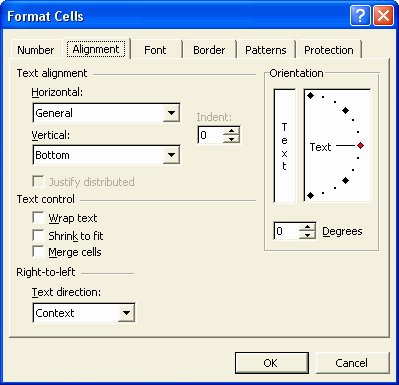
One of the most interesting features of Excel is the ability to format the layout of the cells to make forms or other interesting layouts of cells. One of the key tools for doing this is the Format Cells - Alignment tab.
The first section - text alignment allows us to move the text around in a cell that is bigger than the actual text. The options for horizontal alignment are General, Left, Center, Right, Fill, Justify, Center across selection and Distribute. The options for vertical alignments are top, center, bottom, justify and distributed.
For Horizontal: General uses left for strings and right for numbers. Left, right and center work like you would expect. Fill adds spaces to make the text fit evenly across the cell. Justify works like fill, but works with multiple lines that are wrapped in the cell. I have no idea what distributed does - it looks just like justify to me. Center across selection allows you to select several cells and have the text center across those cells (like for a title line) without merging the cells. (Cool - I knew you could do this in Works, but I didn’t know you could do it in Excel!)
Many times I will use the right-justify option to make text entries like "N/A" align with a column of numbers.
For Vertical: Top, center and bottom do what you would expect. Justify works like justify above - the lines of text in a multi-line entry are spaced out vertically to fill the cell. I do not know what distributed does - it looks just like justify.
Excel defaults to bottom, but when I use it with text wrapping to show whole paragraphs I want the single entries to be at the top of the cell so I set the sheet to top instead of bottom.
The Text Control section allows additional control over cell behavior. Wrap text allows multiple lines of text to wrap around to many lines in the cell. One cell will hold up to 256 characters of text. Shrink to fit allows an entry that is just a little too large to automatically change its font size to fit in the cell. Merge cells allows us to take two or more cells and make them act like one big cell.
The right to left section is not used for English, but can be used for other language setups.
The orientation section allows text to be rotated plus and minus 90 degrees.
Many times I will use text rotation if I have column headers that are very long. I can turn them 90 degrees and fit a lot of them on the top line of a single page. This is especially good when the cells contain very small entries like Y or N or a small number.
The alignment options in Excel are very powerful and allow you to get just the look you want. Any time you want to present tabular data Excel is a good place to put it for formatting.
Mark Pendergast
- - - - - - - - - - - - - - - - - - - - -
Visual Basic Programming
At the last meeting one of our members asked me about the possibility of creating a program in Visual Basic to display a phone directory as an application with cascading menu choices for selecting the numbers by category.
This seemed like a simple thing to do so I took it on as a challenge.
The basic construction of the form was pretty simple. It was a small form with a label and a menu bar. The label would hold the resulting number after it was selected. The menu bar would control the action.
The menu bar contains a File menu with the option of Exit. There is a Phone menu where the numbers and categories will be added at runtime and a help menu that mainly tells how to format the input file.
The code seemed simple until it actually had to be written. In Visual Basic 3 (the version that I used when I learned Visual basic) the program would have been fairly simple. In Visual Basic.Net the code was more complicated because many of the old Visual Basic features had been changed.
The logic of the program is simple. Read a file with the list of phone numbers and their categories. Create cascading menu choices for each entry and then react to the user selecting a menu entry.
The major problem I had was creating the menu items on the fly. In VB3 the program would have used a control array to hold all the menu items and have one subroutine to display the number based on the menu item selected. This feature is no longer available in VB.net.
The new VB.net is much more object-oriented. This is good in that there is much more power available to the VB programmer. But, on the other hand, it is worse because you now have to deal with more of the complexity of the Microsoft object model that was hidden from you in VB3.
The equivalent of the control array in VB3 is to use the "New" object constructor and the "add.handler" method to make the menu items play correctly. I found the answer in the book Visual Basic.Net Unleashed. (I love the unleashed series of books. They are not beginner books, but if you need to know how to do things that are complicated they are a great reference.)
My next challenge is to figure out how to distribute the program. It is no longer just as simple as sending out an EXE file. You need to send DLLs and other supporting files. Visual Basic.net requires that you have the whole .net environment loaded on the target PC. (Yikes!) I am reading another book called Learn Visual Basic.net in 21 days. It has a full chapter on how to distribute your applications. Visual Basic.net has utility programs that help you distribute your software with an installer just like the pros.
My next challenge after that will be to see if I can target environments other than Windows XP. I suspect that there is some configuration setting to make the program run on Win95, 98, ME or Win2000. The program is so simple it may just run on all platforms anyway, but with my luck it will only run on XP. Between my two books I suspect that I will find the answer.
Mark Pendergast
- - - - - - - - - - - - - - - - - - - - - -
Computer Languages
At the last meeting we discussed the evolution of computer languages and how they are classified. I thought I would describe some of that discussion here.
The zero-th generation of languages is called micro-code. This is the hardware switches that make the individual transistor gates turn on and off. The original computers had patch boards for rewiring the micro-code. (There was an early microcomputer that had software controlled micro-code—I believe it may have been a DEC PDP 11-23.)
The first generation of languages is Binary. Most computers code a combination of microcode steps—gate positions—as a binary digit. This digit, when read from memory, causes certain gates to open or close in the computer.
The second generation of computer languages use mnemonic names for these binary numbers to make it easier for programmers to remember them. For example 234 might be called LDA because the code 234 Loads Data into the A register in the hardware. A computer program called an assembler is used to translate the mnemonics back into binary.
The third generation of computer languages are called hardware independent languages. (All the previous levels were specific to one type of CPU hardware.) These are languages like Fortran, Cobol, C, Basic and Java. The last two are different than the others because they are interpreted. (This means that at runtime they are interpreted by a program called an interpreter.) The other languages at this level are turned into machine specific binary - first generation—language instructions by a program called a compiler.
Fourth generation computer languages like Focus are simplified to work in one problem area. They have very abstract statements that make lots of assumptions about what you intend to do.
Mark Pendergast
Return to the Archive