July 2003
Volume 21, Issue 7
Kokomo PC
Users Group
Presidents Message:
Well, summer is finally here. The weeds are growing, the birds are singing and my computer is lonely again. I have had to stay up late just to pound out another issue of our highly acclaimed newsletter for your reading enjoyment. I’ll just have to think up some way to mow the grass using my computer ….
I will not be seeing you at the July meeting. I will be off at Boy Scout Camp with my son. I have placed the meeting in the capable hands of my fellow officers and expect they will have no problem keeping you entertained.
Our membership had a boost last month as we welcomed two new members. This reverses our recent trend of decline. We continue to offer warm hospitality and engaging meetings. Please take a moment to invite a friend (or enemy for that matter) to one of our regular meetings. We offer first class presentations, good fellowship and an informative question and answer period. If they join our group they will also receive our wonderful newsletter, mailed directly to their home or office. A good Users Group is the most important accessory you can buy for your computer.
If you have any tips or tricks for improving our enjoyment of our PCs, please write them up in a sort article for the newsletter. We would love to hear how clever you are and would like to learn your secrets. This is a great way to provide a service to the club. You can also earn User Bux for each full page of original text.
If you have a computer passion you would like to share with the Group, we would love to have you present it at one of our regular meetings. Some of our best presentations come from our own Group members talking about the programs and hardware they love. Just let one of the officers know that you would like to present and what topic you will be presenting. This is a great way to provide a service to the club. You can also earn User Bux for providing this service to the Group.
If you feel that you would like to become involved in the leadership of the group, please volunteer to be an officer. We are looking for warm bodies … I mean visionary leaders to participate in the leadership of the Group. Just contact one of the current officers and we will put you to work changing the destiny of the Group.
Mark Pendergast
Da Prez
- - - - - - - - - - - - - - - - - - - -
Kokomo Computer Show
A ‘big’ computer show is coming to Kokomo this month. I saw in the Kokomo Tribune that on July 20th there will be a show at the Johanning Civic Center from 10:30am to 3:30 pm. I have never been to one of these shows myself, but I plan to attend this one.
If you are aware of any computer related events in our area, please write an article for the newsletter. We all want to know about them and if we show support for this type of event they are sure to have more and better ones in the future.
Mark Pendergast
- - - - - - - - - - - - -
MS Word tips and tricks
Trick 1: What word do I want?
This is a trick that I have used at work on several occasions. When you need a word for a special situation and don’t a have thesaurus handy, just type the word into MS Word and select Tools > Language > Thesaurus … from the main menu. MS Word will give you all the meanings of the word and also synonyms for the particular meaning that you want. This is a quick way to appear literate without hauling around a thesaurus everywhere you go.
Tip 1: Add to your personal dictionary.
This is so simple it really isn’t really a trick. When you run across the same word in your spell checker over and over, it is time to add it. There are works like Pendergast, Bux and Prez that I routinely use in the newsletter, which are rejected by the spell checker as errors. I just use the ‘add to custom dictionary ‘ option of the spell checker to make this problem go away.
If you want to see what words have been added to your dictionary, select Tools > Options… from the main menu. Then in the Options dialog box click on the Spelling & Grammar tab. On the Spelling & Grammar dialog window press the custom dictionaries button. On the custom dictionaries dialog box select modify. This should display the list of words in your custom dictionary. You can also create special dictionaries for special tasks. For example one for work and one for home.
Tip 2: Use your tool bars
This is another simple one. I see people at work that use the pull down menus for everything. While this is perfectly legitimate way of working with MS Word, there is sometimes a better way. The MS Word menu bar has many of your favorite commands displayed as icons. Just use them for single click access to the command. Some of my favorites are center text, bold text, make bullet list, change font size, print and save.
Trick 2: Move frequently used commands to the toolbar.
Now that you are following tip 2 and using icons, you would like to have all your favorite commands as icons. There are two ways of accomplishing this.
First, from the main menu you can use the View > Toolbars command to pull up a list of pre-made toolbars that you can use. Several like the drawing and mail merge toolbars are very handy when you need them. You can also hide them again when you no longer need them by removing the checkmark.
Second, from the main menu you can use the Tools > Customize… command to bring up the customize dialog box. The toolbars tab allows you another way to make toolbars visible. The commands tab allows you to add buttons to existing tool bars. Just grab the icon off the dialog box and drag it to a position on an existing tool bar. The options tab allows several toolbar related settings to be changed.
Trick 3: Dragging tool bars
This is sort of an anti-trick. Every now and again, especially when my computer is running slow because I have too many things going on at once, I get my menu bars screwed up (i.e. not where they are supposed to be.) This can be very annoying.
The trick is that you can drag them where you want them. There is a little ‘handle’ on the far left side of each menu. Just place mouse pointer over this handle and the mouse pointer turns into a four-way arrow. Just drag and drop the menu where you want it.
Trick 4: Triple click to select a whole paragraph
When you double click on a word the whole word is selected. But here’s the rest of the story. If you triple click on the word, it selects the whole paragraph. This is handy when rearranging whole chunks of text.
Trick 5: Click in the margin to select bigger chunks of text.
When you move the mouse pointer into the left margin of the page, it reverses direction and points to the top right of the page. If you click in the margin, the corresponding line of text will be selected. If you double click in the margin, the corresponding paragraph will be selected. If you triple click in the margin, it will select the whole document.
Trick 6: Insert special symbols
From the main menu select Insert > Symbol… to add special characters like: ©, ½, or ?. These can be very handy for inserting foreign language characters or special symbols.
I hope you liked this discussion of MS Word tips and tricks. If you would like more tips, be sure to drop by one of our regular meetings where we are covering the MS Office tools. We do this about every other month and would love to have you be there. (We also take requests.)
Mark Pendergast
Screen Cuts and you
It amazes me how few people know this trick. It has been around since the first days of Windows, but few people know of it.
When you hit the print screen button on your keyboard in DOS, the screen display was printed directly on the printer (hence the name - screen print.)
When Windows came along you could hit the print screen button and for all appearances nothing happened. This of course was just an illusion. The screen was actually printed, but not to the printer. Windows prints the screen to the clipboard. This is a handy feature.
You can see the screen print by opening WordPad, paint or any other Windows application that will accept pictures. Then use paste to transfer the image to the document.
In a little twist, you can print just the active window by holding down the alt key and pressing print screen. This is also very handy.
We use the alt print screen method at work to develop training guides to show people how to use new software packages.
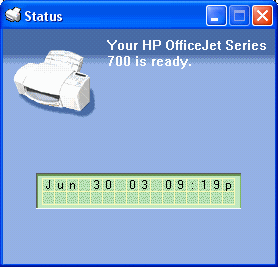
I have inserted a copy of a screen print of my HP printer status window. (Notice that the full window including the Minimize, Maximize and close buttons are included. Also notice that the full desktop is not included.)
You can place the image in MS Paint and cut out just the part you want to see. Sometimes this is better than a whole screen shot. For example, the printer cut out of the previous screen print.

I have found it is also useful for capturing error messages to email to people. It is much simpler than writing them down. It also leaves no room for doubt about what actually happened..
I hope you liked my tour of screen printing.
Mark Pendergast
- - - - - - - - - - - - - - - - - - - - - -
Dungeon Siege Game
I have become addicted to an adventure game by Microsoft called Dungeon Siege. My son got a demo for the game and liked it. He got me to start playing it and then regretted it because I was spending all my free time hogging the computer to play it. He solved the problem by buying me my own copy for Father’s Day.
Dungeon Siege begins when someone runs up to your character and asks them to relay a message to the fort that the area is being over run by monsters. As you progress to the fort you collect weapons, gold and experience.
On the way you meet other adventurers and they may join you for free or for hire. The object is to build a balanced party and progress smoothly through the adventure.
After you deliver the warning you progress to the end of the adventure eventually saving the entire kingdom from the bad guys.
I like the balance of play and the great graphics. It is very easy on the ‘easy ‘ level and enjoyable to just wander around and see the sights.
Mark Pendergast
Return to the Archive