December 2003
Volume 21, Issue 12
Kokomo PC
Users Group
President’s Message
It is the Holiday Season and time to think of Good Will toward All and Peace on Earth. Who am I kidding … it’s time for presents, presents and more presents! I hope you get that new Pentium 5 tablet computer or the MS Bloat-ware Office Suite or whatever your technological heart desires. You have all been good little members this year, and I plan to put in a good word for each of you with Santa when I see him. Yes, being President does give me some connections in high latitude places.
We continue to offer warm hospitality and engaging meetings. Please take a moment to invite a friend (or enemy for that matter) to one of our regular meetings. We offer first class presentations, good fellowship and an informative question and answer period. If they join our group they will also receive our wonderful newsletter, mailed directly to their home or office. A good users Group is the most important accessory you can buy for your computer.
If you have any tips or tricks for improving our enjoyment of our PCs, please write them up in a short article for the newsletter. We would love to hear how clever you are and would like to learn your secrets. This is a great way to provide a service to the club. You can also earn User Bux for each full page of original text.
If you have a computer passion you would like to share with the Group, we would love to have you present it at one of our regular meetings. Some of our best presentations come from our own Group members talking about the programs and hardware they love. Just let one of the officers know that you would like to present and what topic you will be presenting. This is a great way to provide a service to the club. You can also earn User Bux for providing this service to the Group.
If you feel that you would like to become involved in the leadership of the group, please volunteer to be an officer. We are looking for warm bodies … I mean visionary leaders to participate in the leadership of the Group. Just contact one of the current officers and we will put you to work changing the destiny of the Group.
Mark Pendergast
Da Prez
- - - - - - - - - - - - - - - -
Where the URL did I get this printout?
In the past I always had a hard time remembering where I found a web page that I had printed out. Or worse yet it would fall out of my desk and all the pages would get mixed up - or two pages would get mixed together.
That all changed when I learned to add the correct header and footer to my web pages when I print them. It is simple to do and the meta-characters that are available allow you to include the page number and URL right in the header and footer.
To set the header and footer from the main menu select:
File > Page Setup …
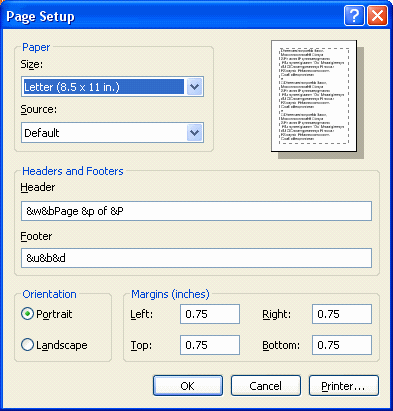
The Page Setup dialog will appear and you can set the page format the way you want to see it. Just add the text or meta-characters that you want into the Header and Footer frame on the dialog box.
In the Header and Footer boxes, specify the information to be printed by using the following variables. Variables can be combined with text (for example, Page &p of &P).
The example dialog box specifies a header of "&w&bPage &p of &P". If we decode this string of characters we get :
&w - Print the Window Name.
&b - Right align the next text.
Page - The plain text word "Page".
&p - The number of the current page of - The plain text word "of"
&P - The total number of pages.
The example dialog box specifies a footer of "&u&b&d". If we decode this string of characters we get :
&u - The URL of the web page
&b - Right align the next text.
&d - The current date in long format.
Mark Pendergast
- - - - - - - - - - - - - - - - - - - - - - - - -
Where the heck is it?
Did you ever search for a web page on Google or Yahoo and then couldn’t find the word you were searching for on the page. You can find that word using the find command of your web browser. To use the find command from the main menu select: Edit > Find (on this page)
Just enter the text you want to find in the "Find What" text box and press the Find Next button. The browser will highlight the next occurrence of your text in the window.
You can specify that the "Find What" text must match a whole word. This allows you to find "to", while ignoring "today", "Otto", "transitory" and "toto too".
You can also specify that the "Find What" text must match the case of the text to be found. This allows you to find "To" but not "to".
The direction buttons allow you to search up or down the document.
The Find Next - as it implies - will keep on searching through he document if you keep pressing the button. It always searches from the current cursor position.
I hope this makes your web searches faster and gives you more joy of discovery.
Mark Pendergast
Return to the Archive